Configuring button input
Buttons are typically mapped to simulator variables that expect either 0 (for off) or 1 (for on). The following steps demonstrate how to configure a button to toggle the parking brake in a Cessna 172 in Microsoft Flight Simulator 2020 and Microsoft Flight Simulator 2024.
Tip
The steps for using a button in an X-Plane project are similar. Use the X-Plane (all versions) type when configuring the Action type.
Add a new input config
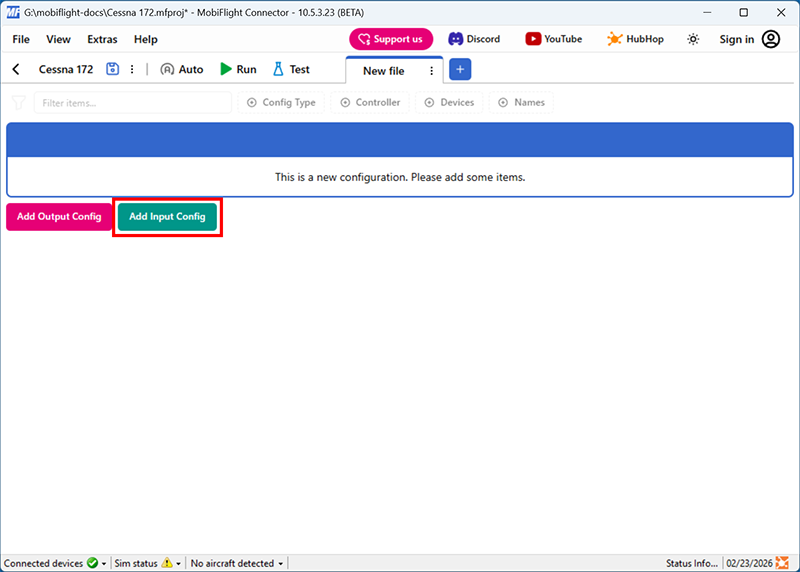
Click the Add Input Config button in the main MobiFlight window to open the input configuration dialog.
Name the config
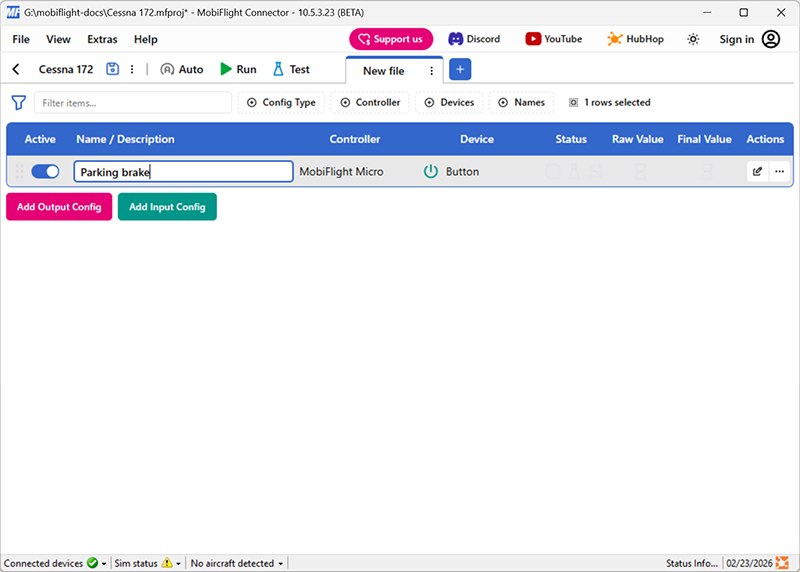
Type in a meaningful name for the new config in the header of the dialog, for example Parking brake, and press enter to apply the change.
Select the board and device for the input
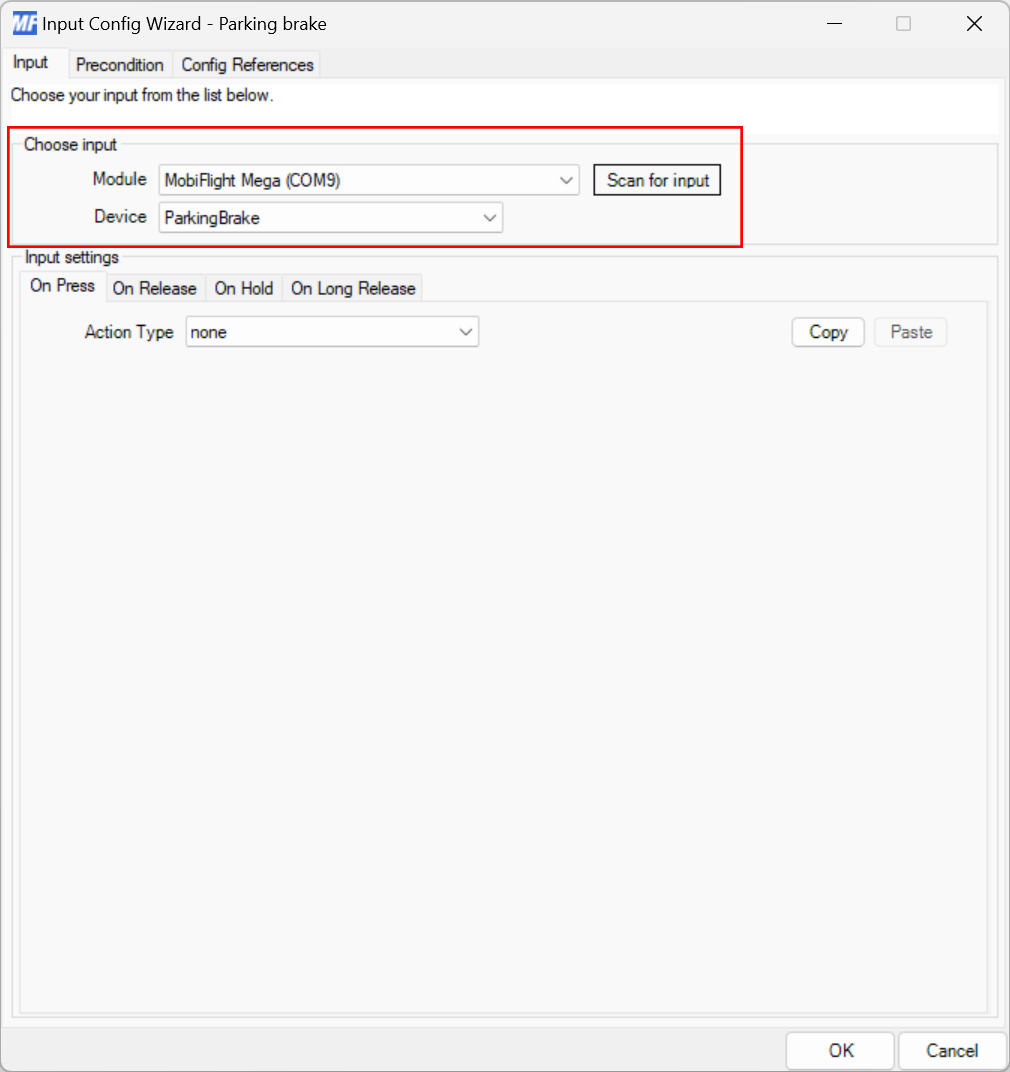
In the Trigger section, use the Select controller… and Select device… dropdowns to select your connected board and button.
Alternatively, press the Scan for input button and press the button to automatically detect and select the correct button.
Set the On Press action type
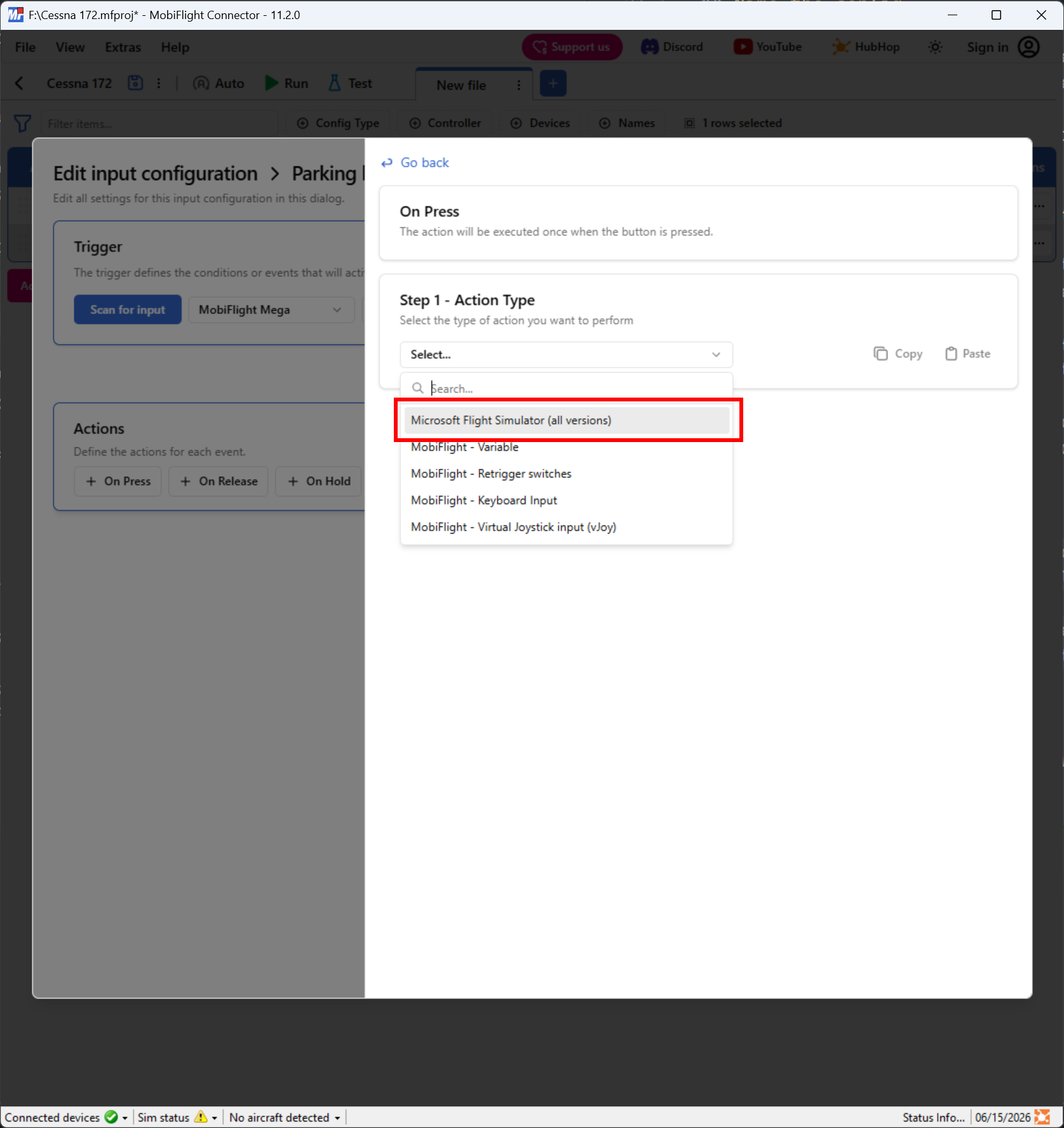
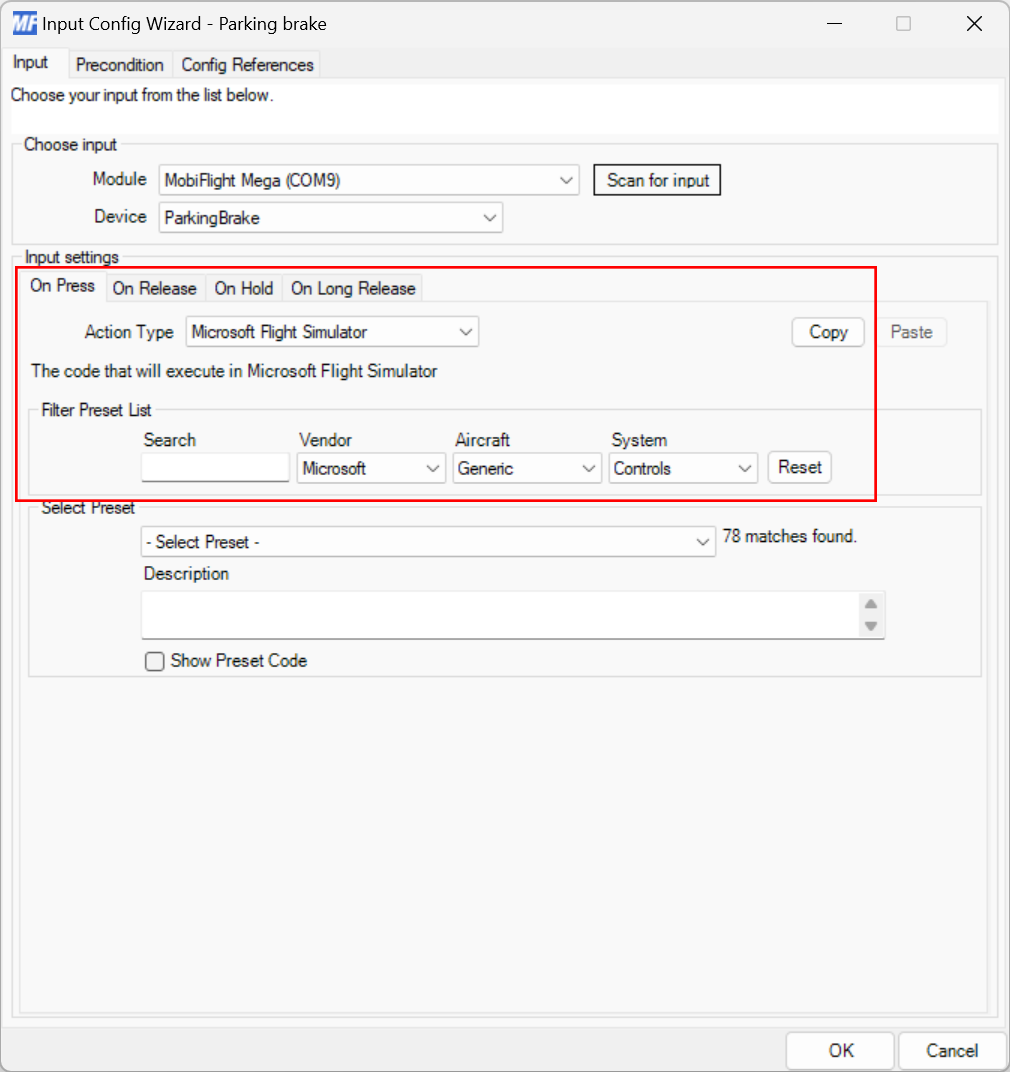
In the Actions section, select the On Press button. Use the Action Type dropdown to select Microsoft Flight Simulator (all versions).
Filter the presets list
Use the Select preset dropdowns to filter by Microsoft, Generic, and Controls.
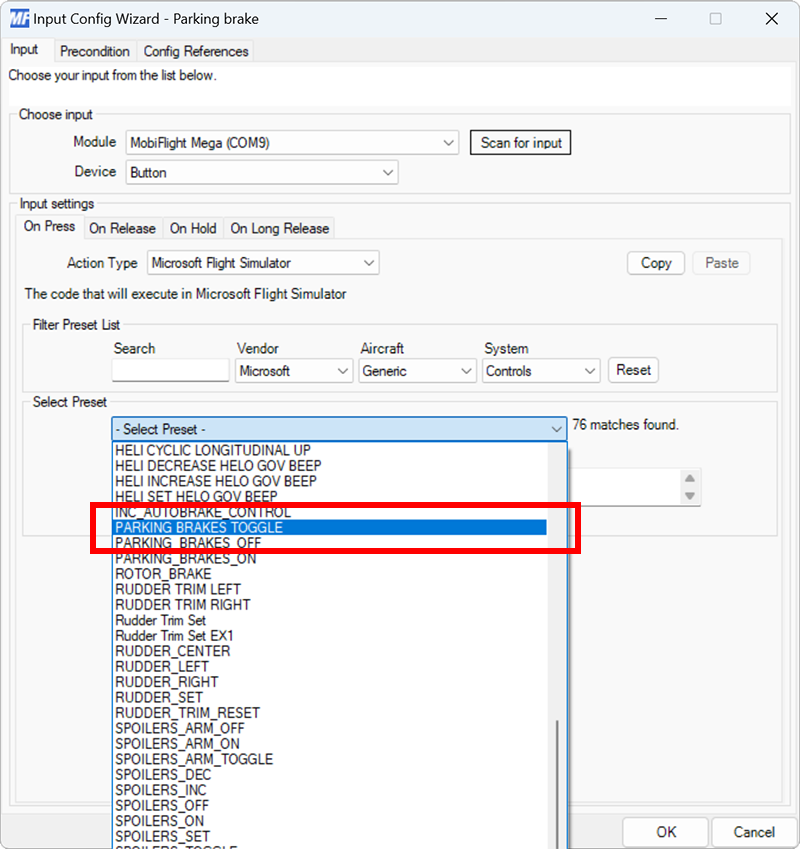
Select the PARKING BRAKES TOGGLE preset
Use the preset list to select the PARKING BRAKES TOGGLE preset, then click Go back.
Close the dialog and try out the event
Click the Apply changes button to close the dialog.
Launch Microsoft Flight Simulator. Make sure the MobiFlight Run button is clicked in the toolbar, then try toggling the parking brake with the button. The parking brake in the simulator should toggle.
Tip
Even though these steps are for a Cessna 172, the same parking brake input event should work for most planes in Microsoft Flight Simulator.