Configuring the input
Encoders are typically mapped to simulator variables that increase and decrease in value. The following steps demonstrate how to configure a single encoder to adjust the Cessna 172 autopilot heading value in Microsoft Flight Simulator 2020 and Microsoft Flight Simulator 2024.
Tip
The steps for using an encoder in an X-Plane project are similar. Use the X-Plane (all versions) type when configuring the Action type.
Add a new input config
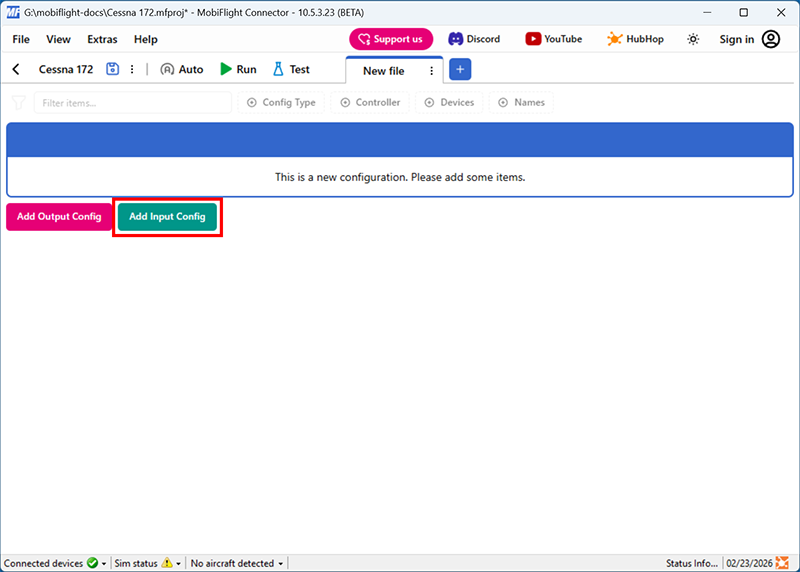
Click the Add Input Config button in the main MobiFlight window to open the input configuration dialog.
Name the config
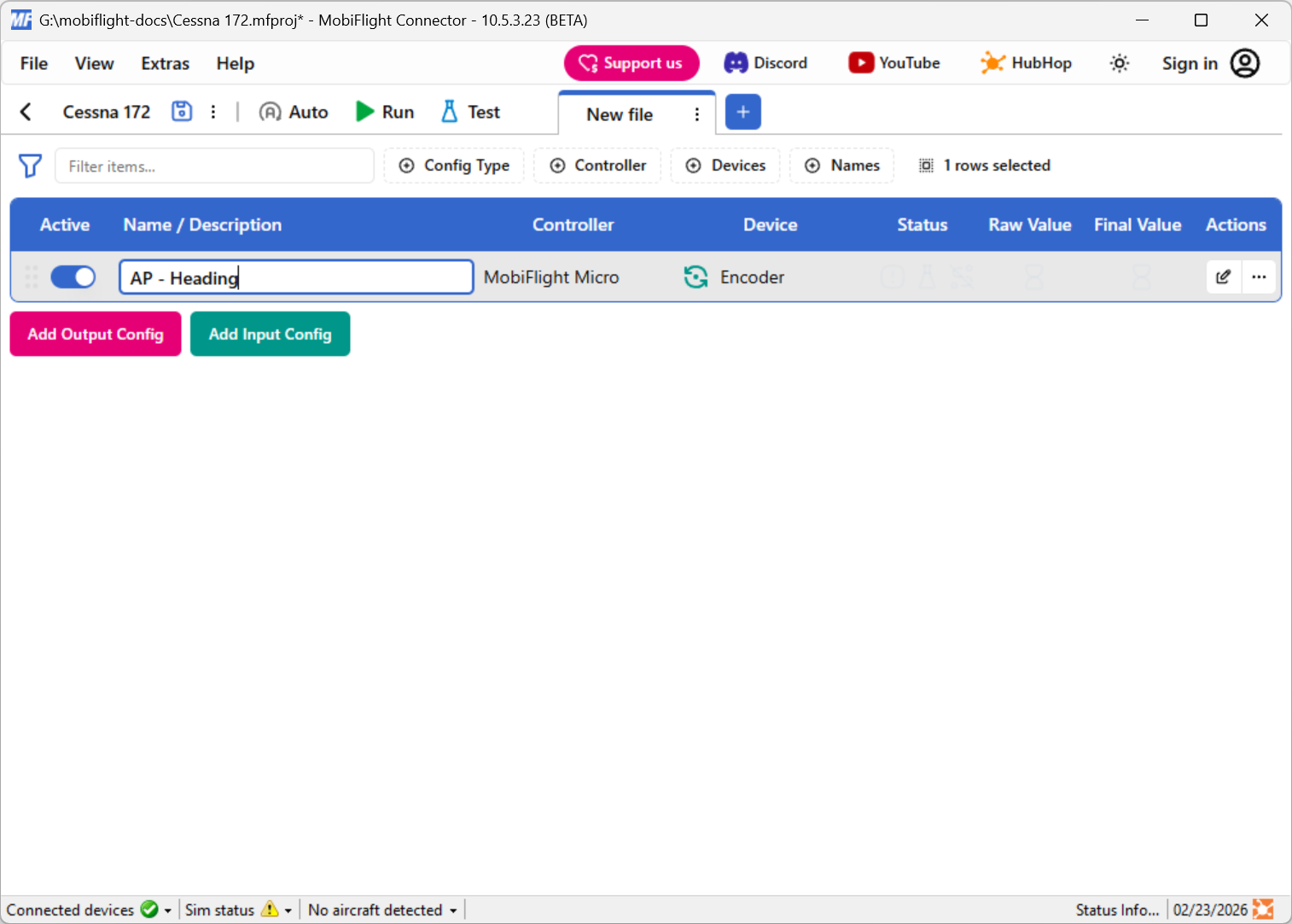
Type in a meaningful name for the new config in the header of the dialog, for example AP - Heading, and press enter to apply the change.
Select the board and device for the input
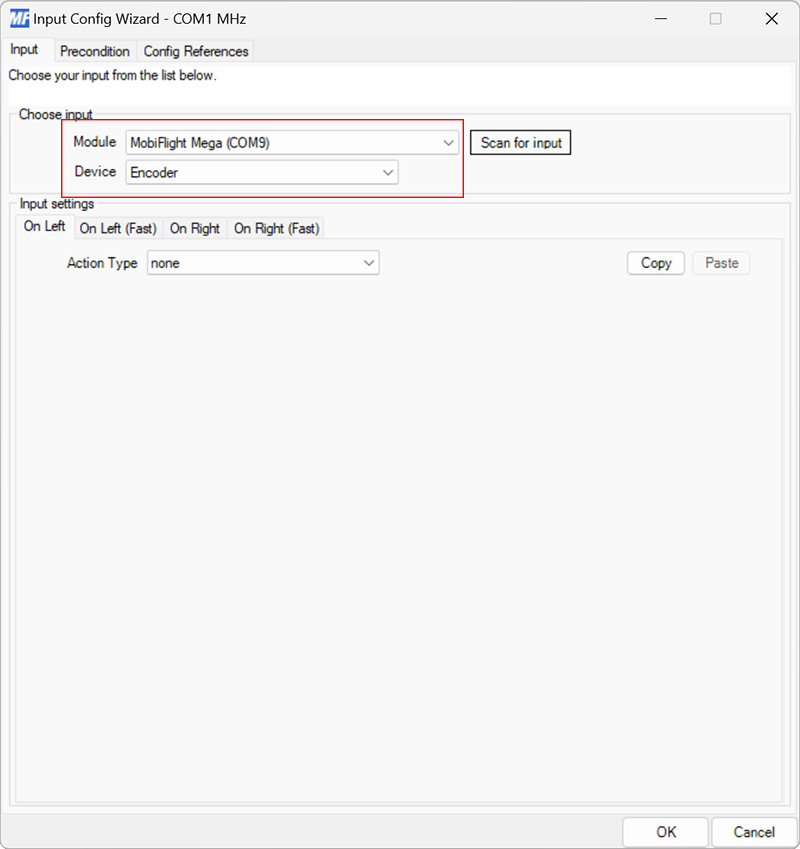
In the Trigger section, use the Select controller… and Select device… dropdowns to select your connected board and encoder.
Alternatively, press the Scan for input button and rotate the encoder to automatically detect and select the correct encoder.
Set the On Left action type
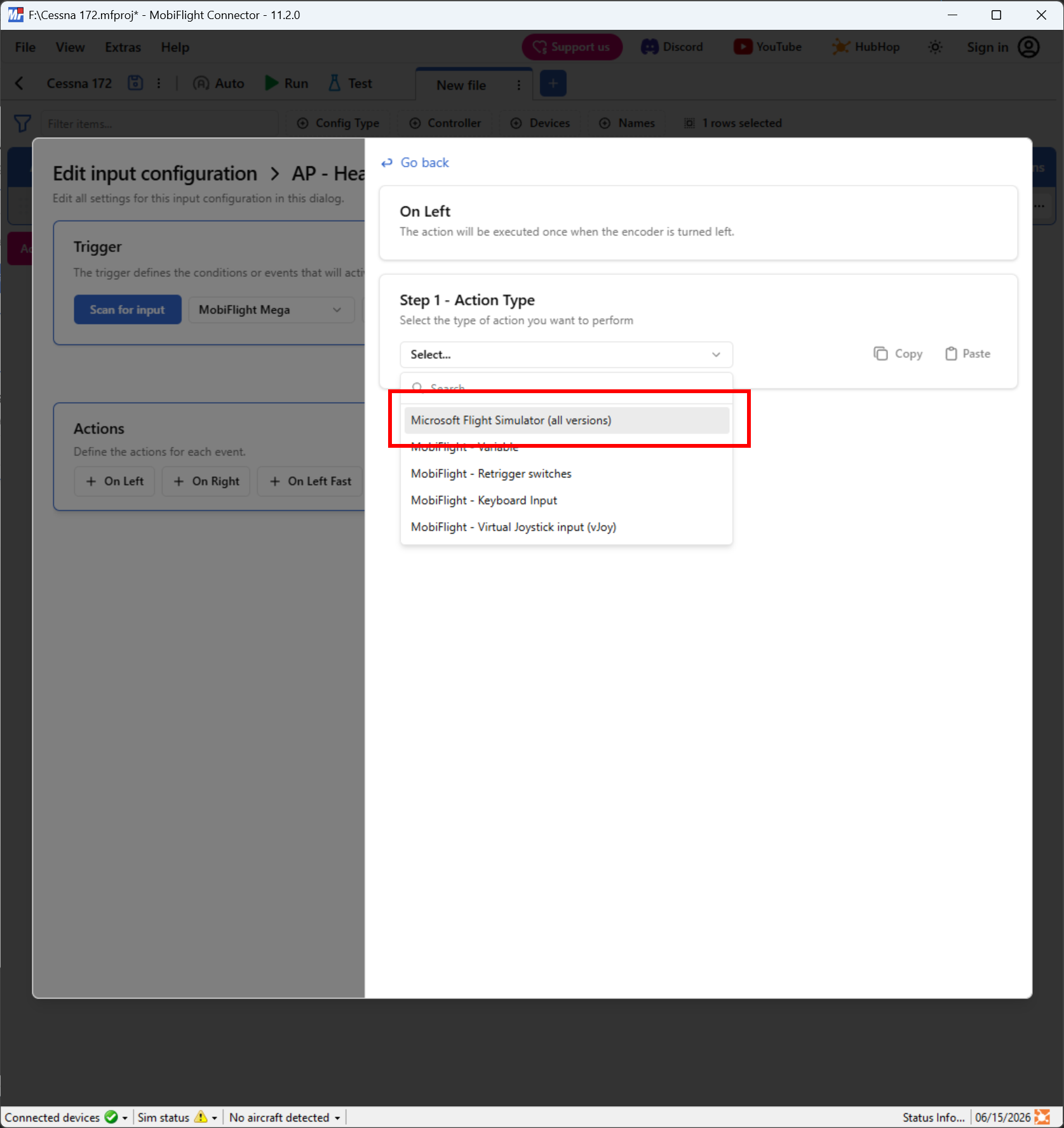
In the Actions section, select the On Left button. Use the Action Type dropdown to select Microsoft Flight Simulator (all versions).
Filter the presets list
Use the Select preset dropdowns to filter by Microsoft, Generic, and Autopilot.
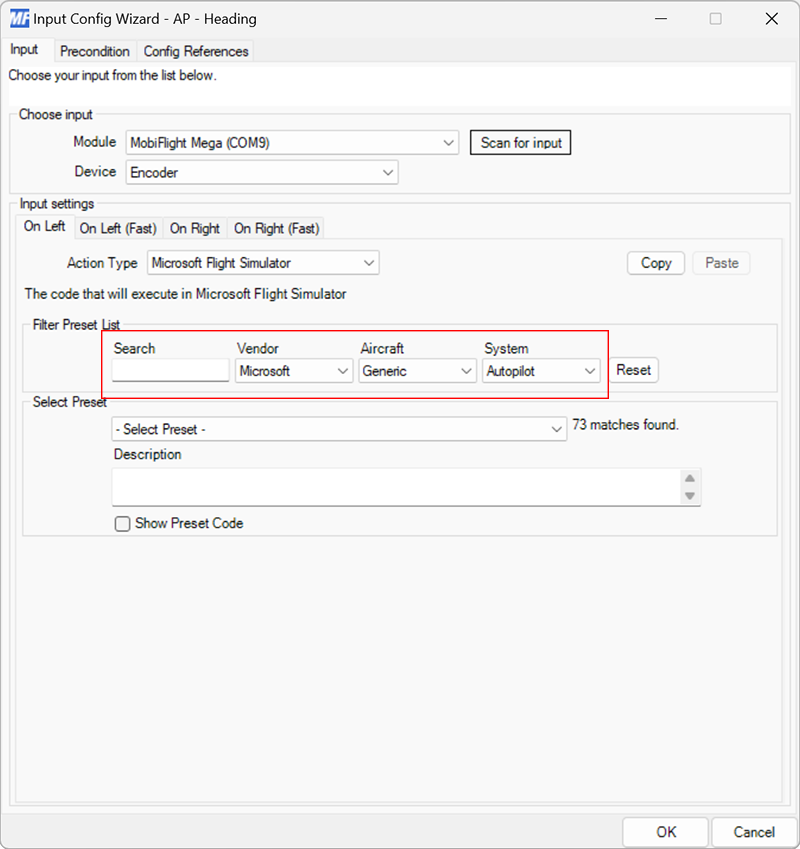
Select the heading decrement preset
Use the preset list to select the AP_HDG_VAR_DEC preset, then click Go back.
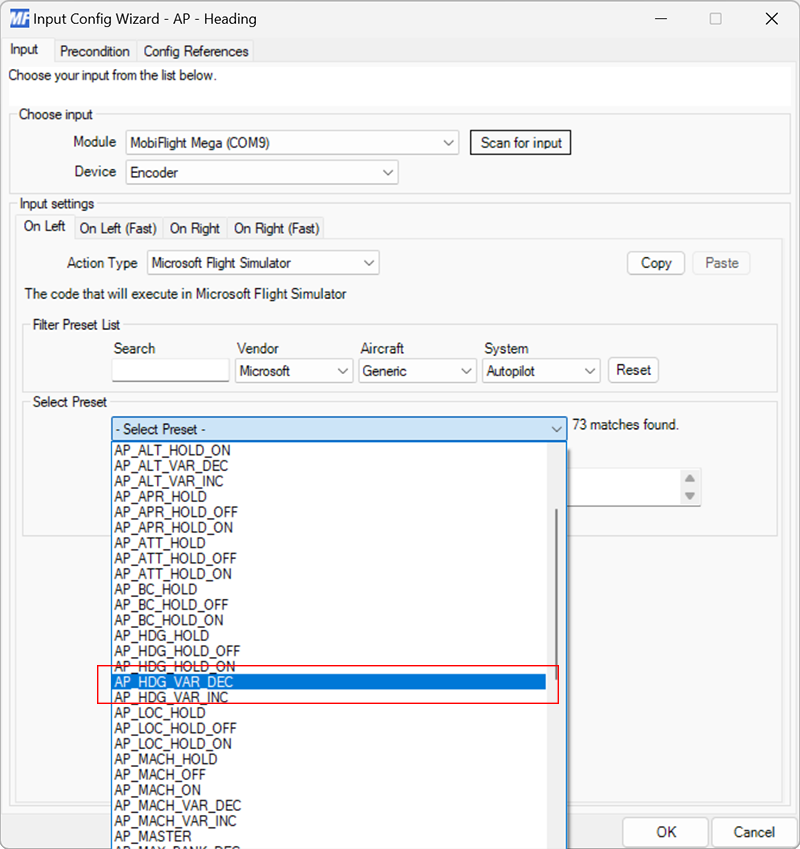
Configure the On Right action
Repeat steps 4 through 6 for the On Right action, selecting AP_HDG_VAR_INC for the preset.
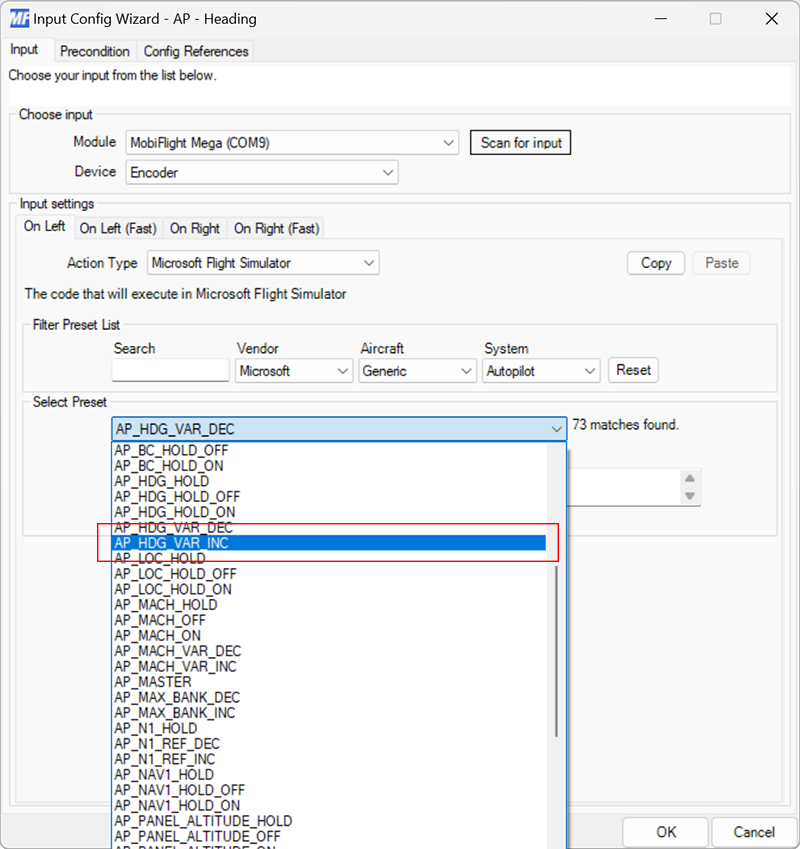
Close the dialog and try out the event
Click the Apply changes button to close the dialog.
Launch Microsoft Flight Simulator. Make sure the MobiFlight Run button is clicked in the toolbar, then try adjusting the autopilot heading with the encoder. The heading value in the simulator should increment and decrement.
Tip
Even though these steps are for a Cessna 172, the same heading input events should work for most planes in Microsoft Flight Simulator.
Tip
If the encoder triggers the opposite event, where rotating clockwise activates the On Left event, it means the pins were configured backwards in the MobiFlight Modules dialog. To fix this, edit the device in the MobiFlight Modules dialog and press the Swap button to swap the pin assignments for the left and right pin.