Controller bindings
MobiFlight projects contain input and output configurations that are bound to physical boards, game controllers, and MIDI devices.
If a connected device is removed, replaced, or has its serial number updated, the project file will no longer be bound to the device. If a device is missing, MobiFlight will attempt to bind to another connected device of the same type.
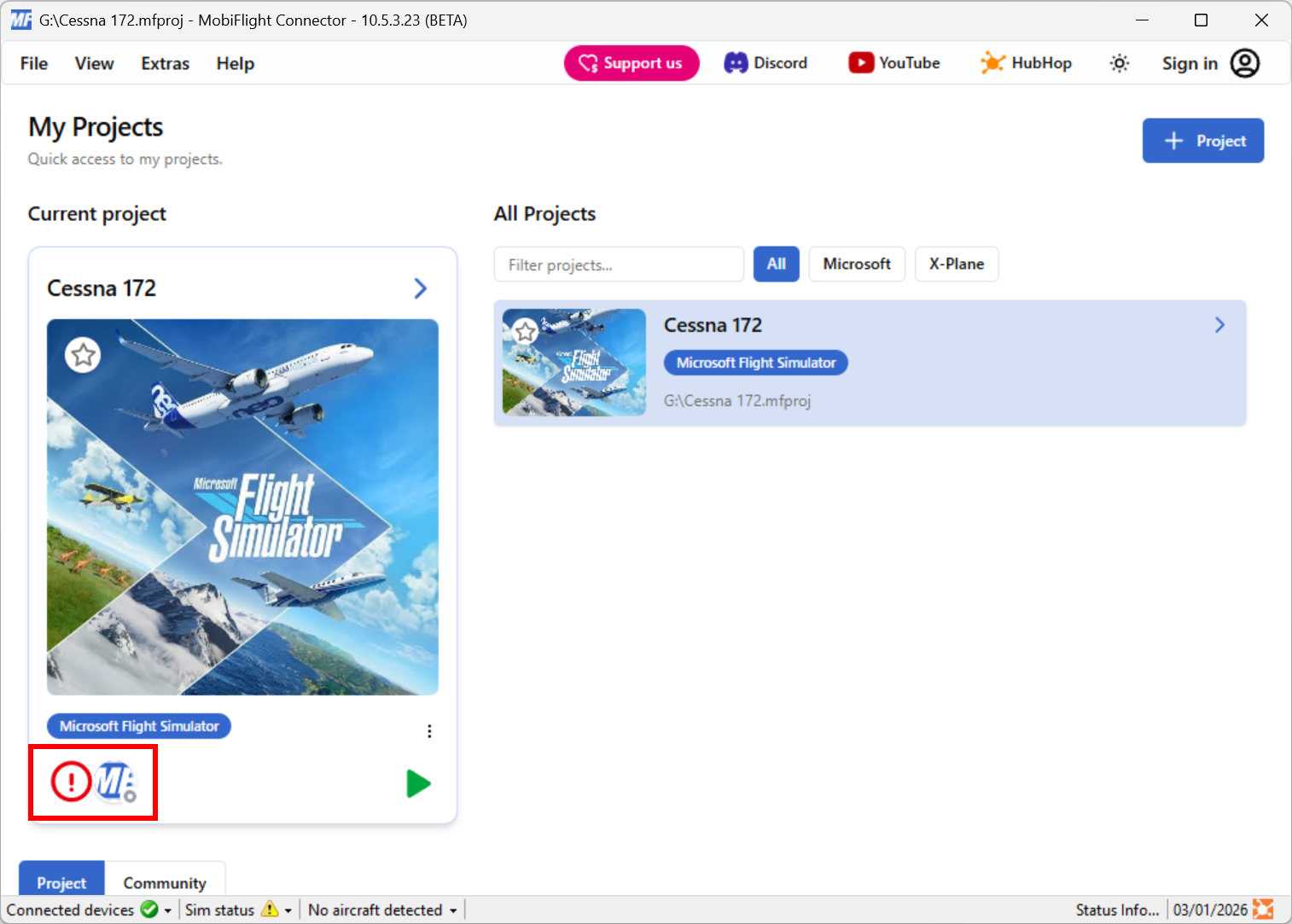
In situations where MobiFlight fails to automatically re-bind, the profile will show with a warning icon in the main app screen:
Use the Controller Bindings dialog to manually update the device bindings.
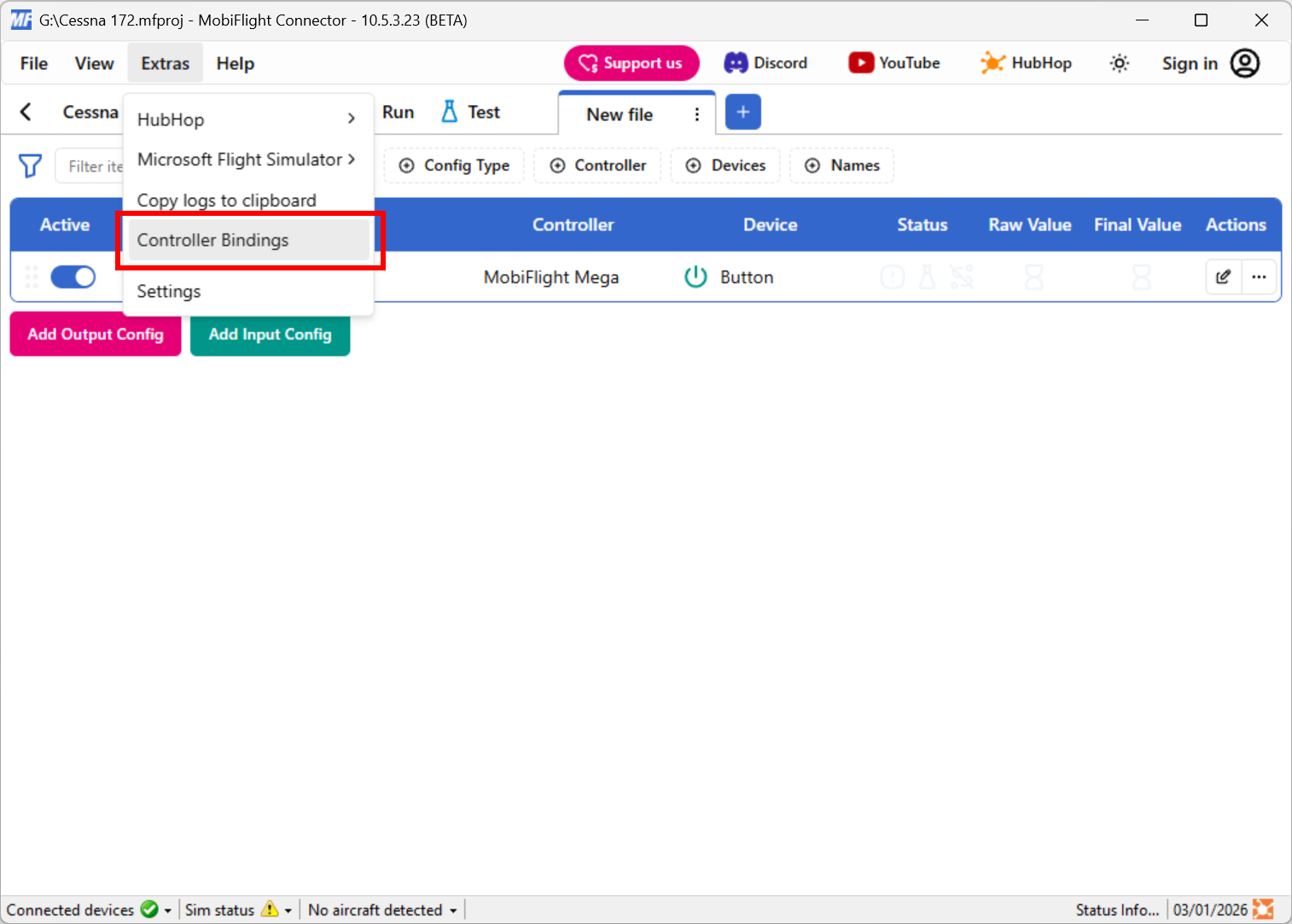
Open the Controller Bindings dialog
From the Extras menu select Controller Bindings.
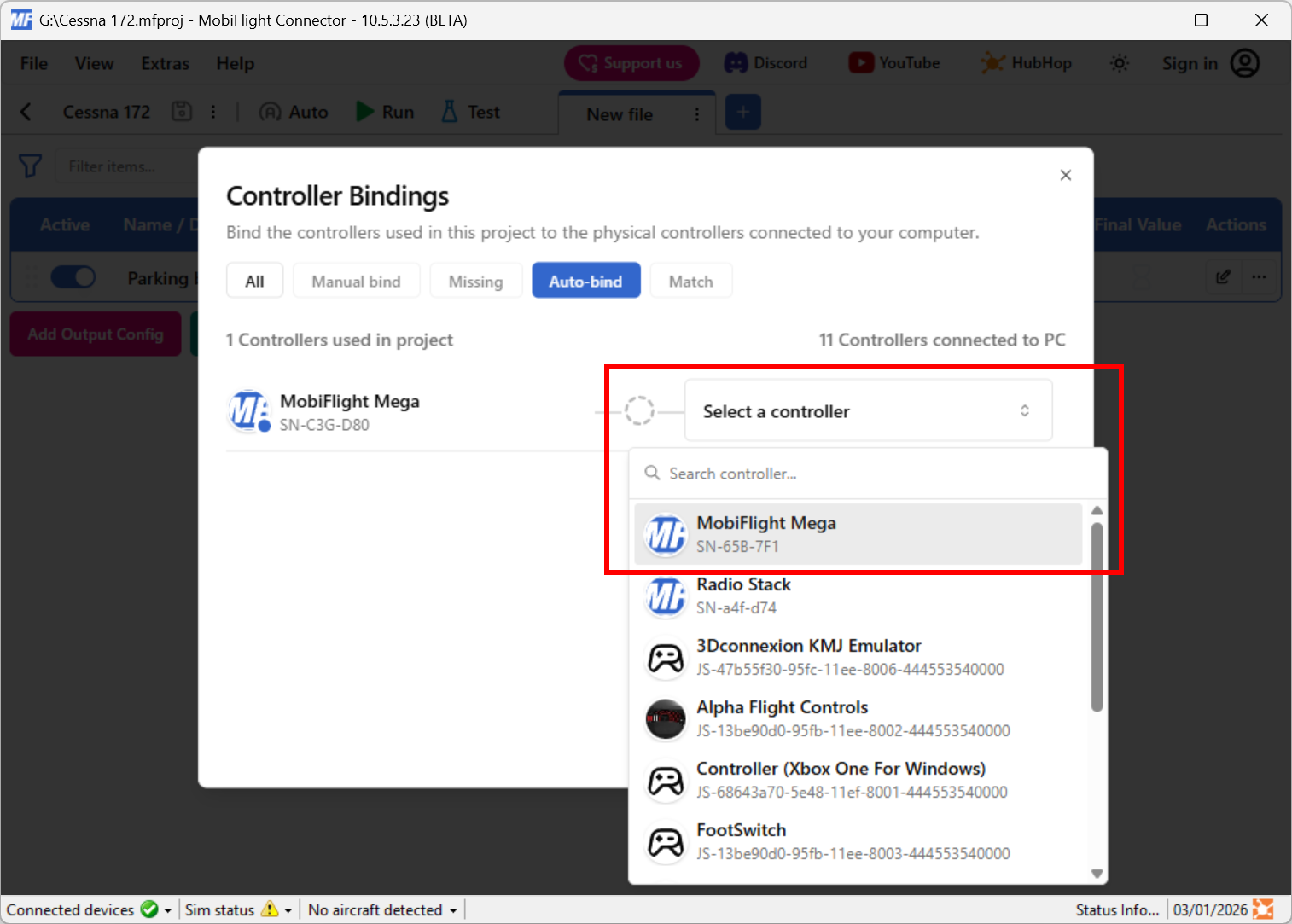
Map the missing device
Each missing device is listed under the Missing filter. For each device, use the Select a controller dropdown to select a replacement connected device.
Apply the changes
Click the Apply changes button to apply the new device binding to the open profile.

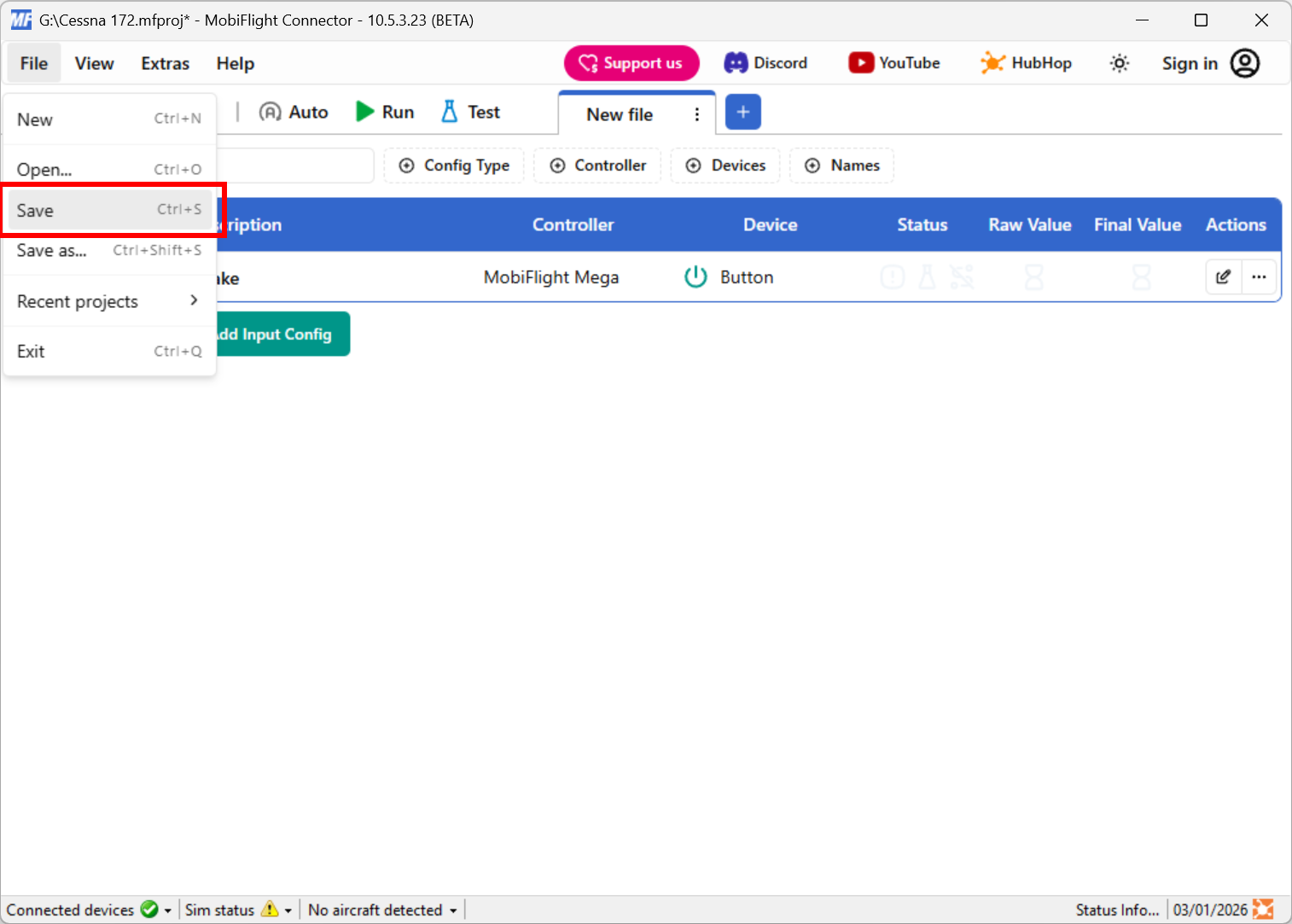
Save the profile
Once the new device binding is applied, save the profile to update the project file so it maintains the new bindings when opening it in the future.