Profiles
Profiles provide a way to group related input and output configurations together inside a project. They are typically used to group configurations for a controller, or specific panel on an airplane.
Profile view
The profile view lists the configurations contained in a profile.
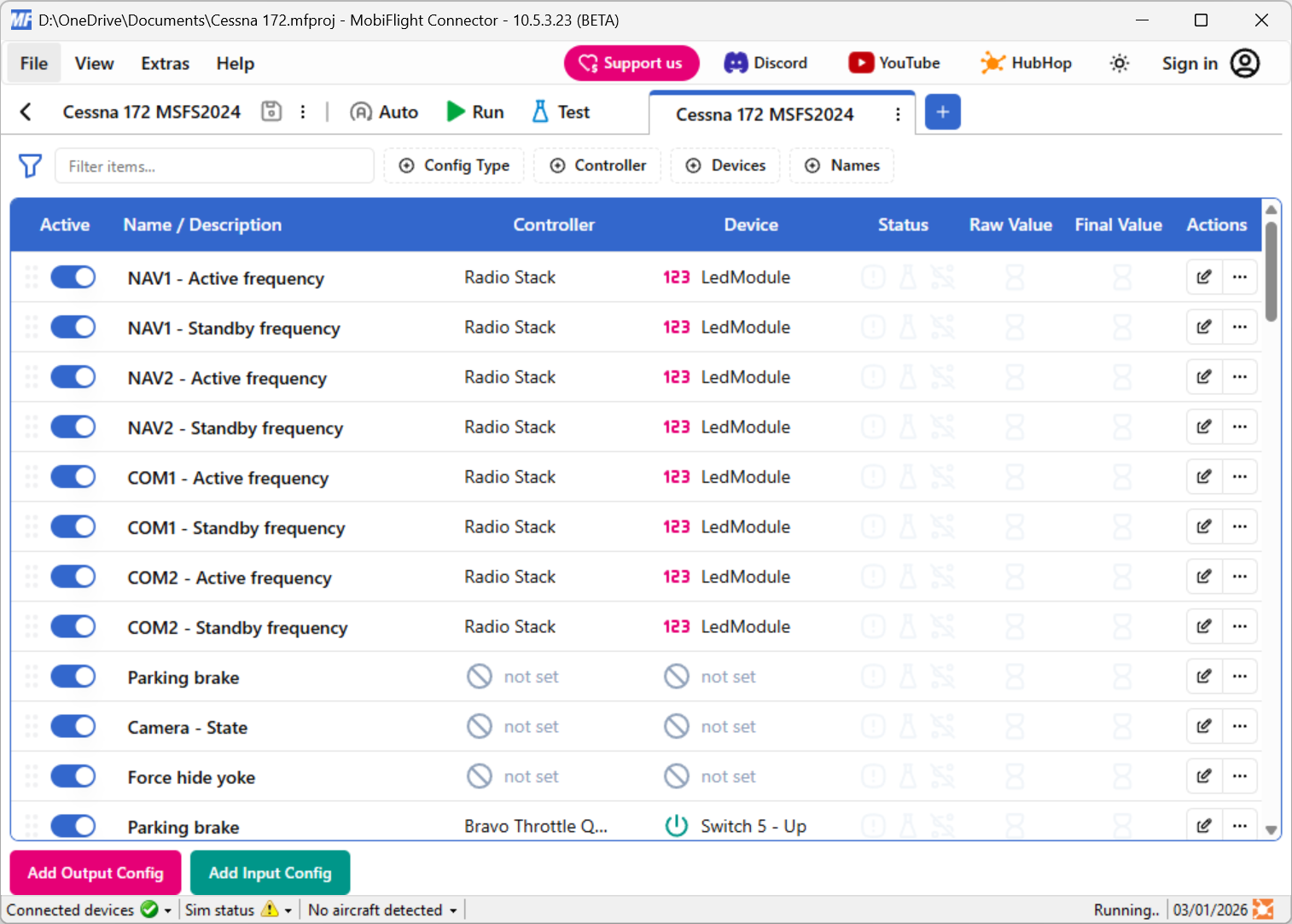
The columns display the following information:
| Name | Description |
|---|---|
| Active | A toggle switch that controls whether the configuration is active. To disable a row, turn off the toggle switch. |
| Name / Description | The name and description for the configuration. |
| Controller | The device, game controller component, or MIDI device input assigned to the configuration. |
| Device | The specific component on the controller assigned to the input or output. |
| Status | Icons indicating the status for the configuration. The exclamation point icon lights up when the configuration is disabled due to a precondition. The bottle icon lights up when the configuration has test mode enabled. The referenced configs icon lights up when referenced configurations are not available. |
| Raw Value | Displays the raw input or output value. For output configurations, this is the value received from the simulator before applying any assigned modifiers. |
| Final Value | Displays the final input or output value. For output configurations, this is the value for display after applying any assigned modifiers. |
| Edit | The edit button opens the configuration for editing. |
| Actions | The actions menu includes items to Edit, Rename, Delete, Duplicate, and Test the configuration |
Adding configurations
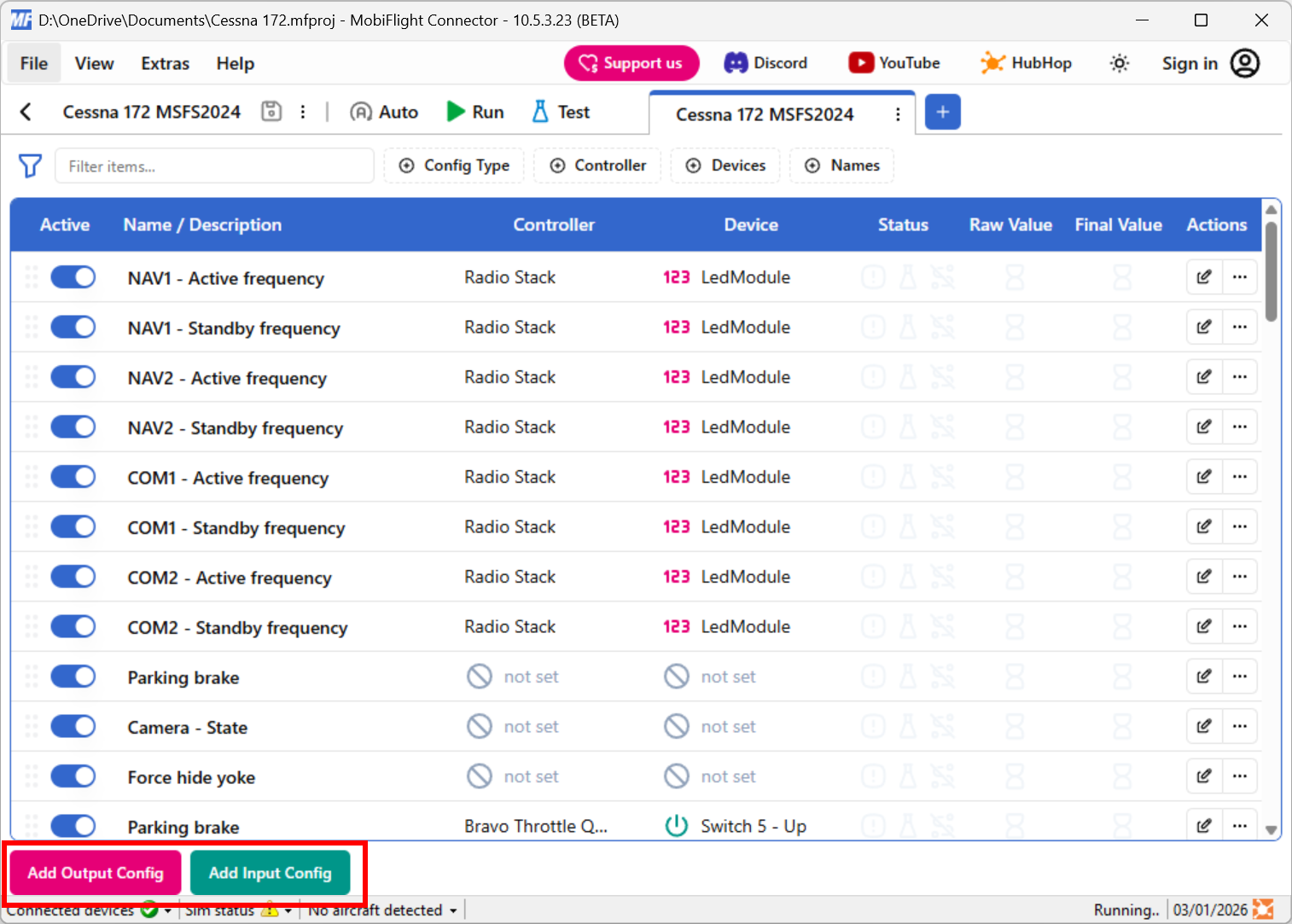
To create a new input or output configuration, click the Add Output Config or Add Input Config button at the bottom of the main window.
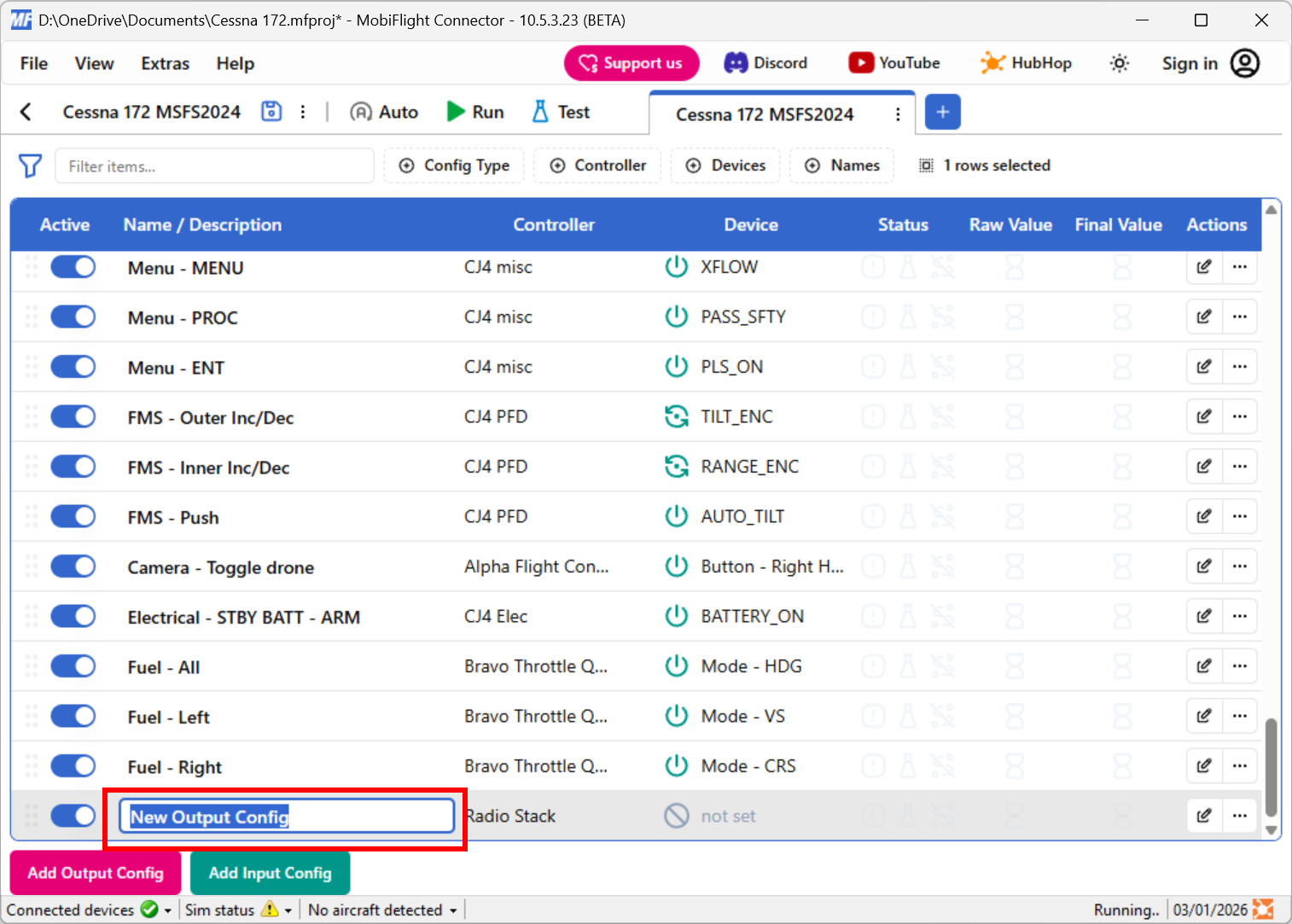
The new configurations will be added at the end of the list and the configuration edit dialog will open automatically.
The default name for new configurations is either New Output Config or New Input Config, depending on the type. To rename the configuration, double-click the existing name, type the new name, then press the enter key to apply the change.
Editing configurations
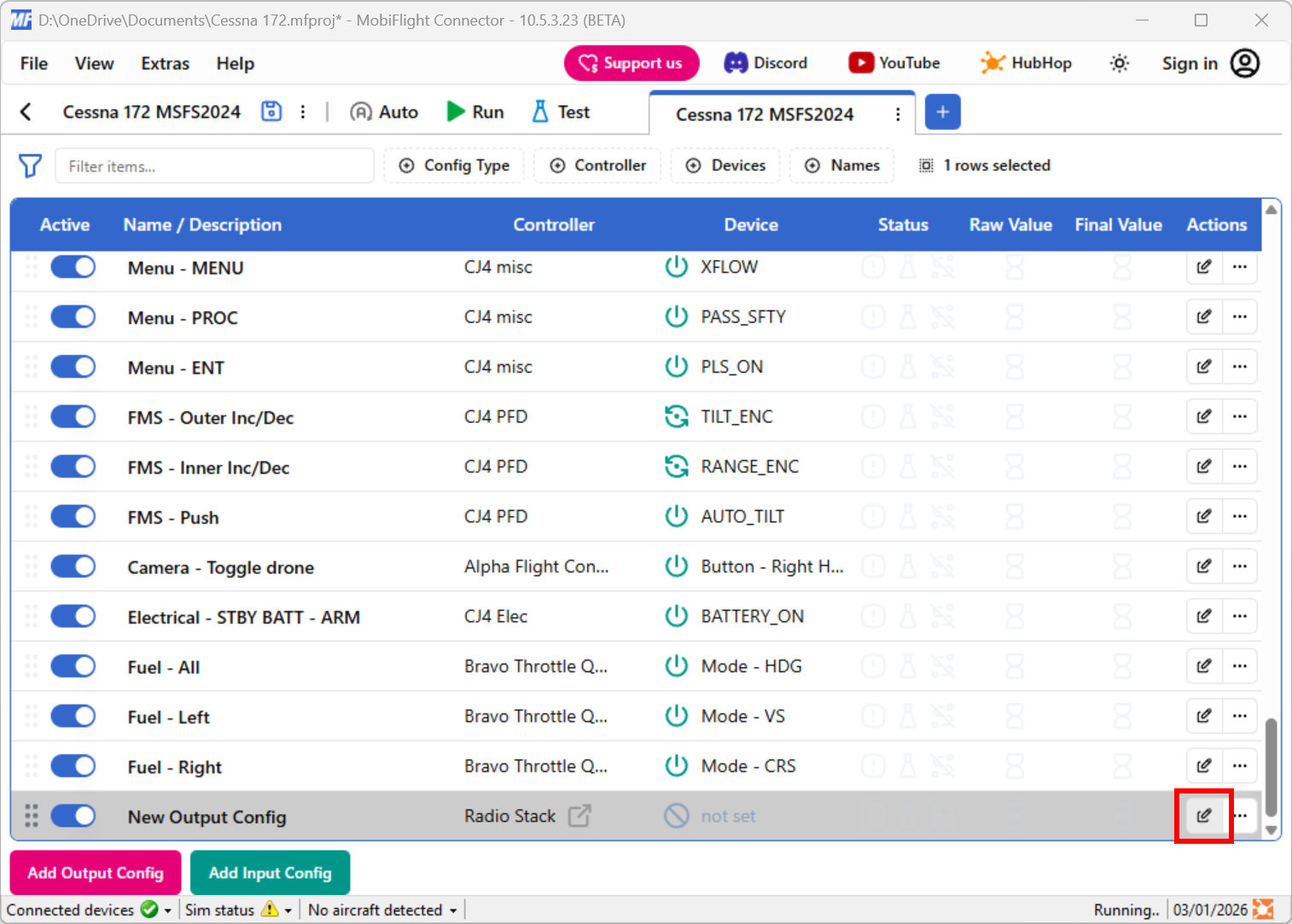
To edit a configuration, click the button at the far right of the row.
Re-ordering configurations
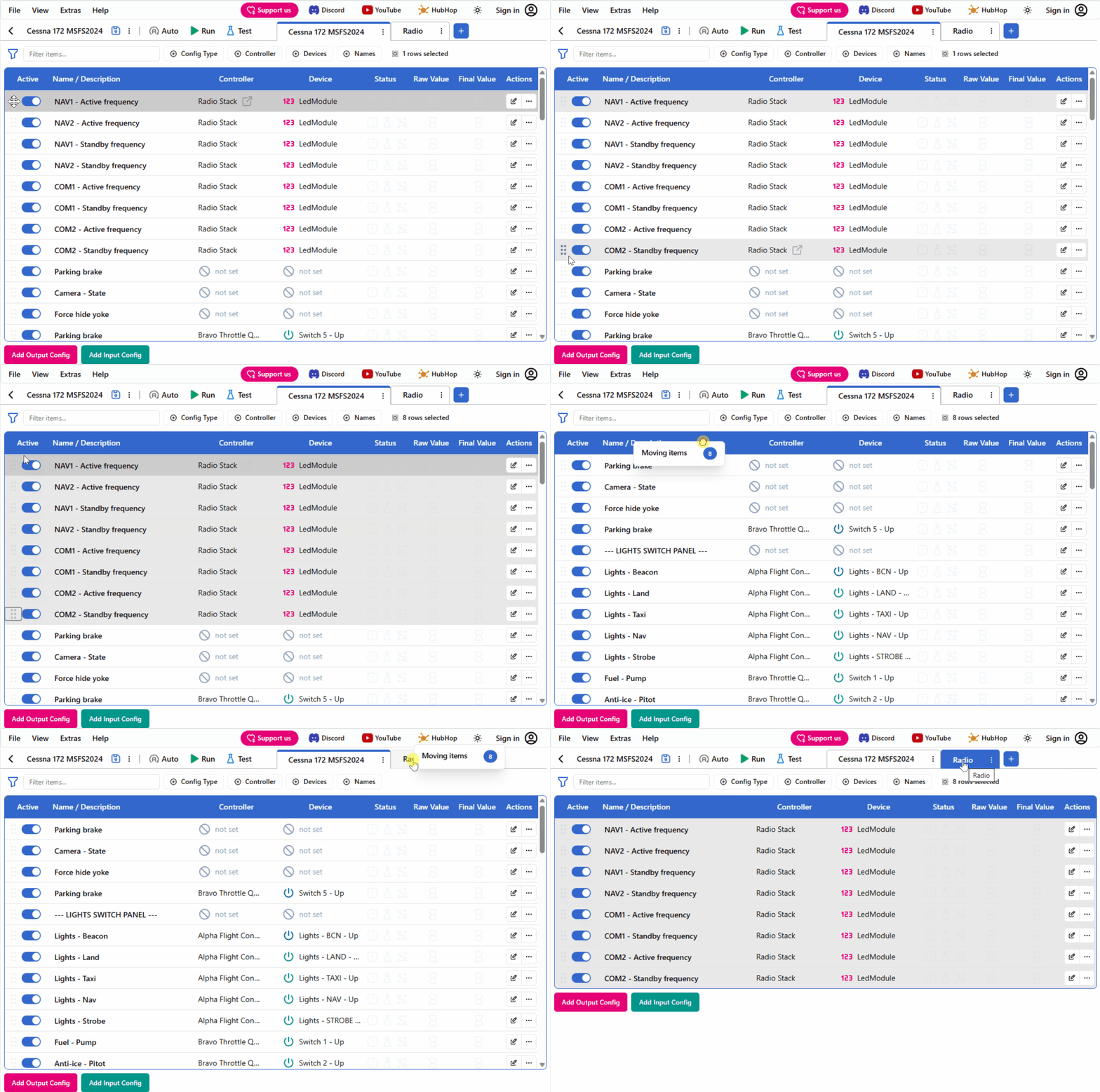
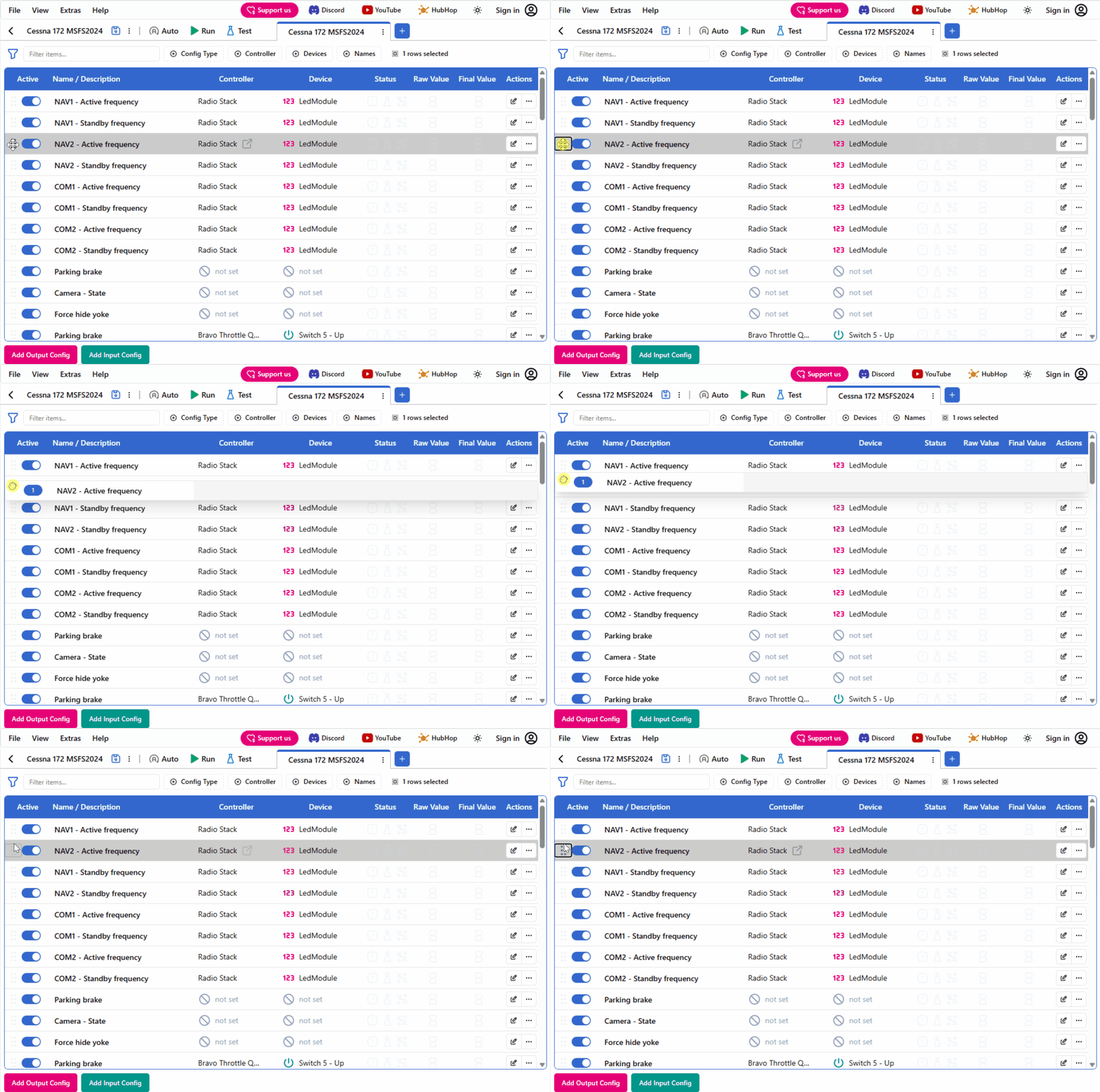
Rows can be re-ordered by dragging the row using the handle on the left edge of the row.
Selecting multiple configurations
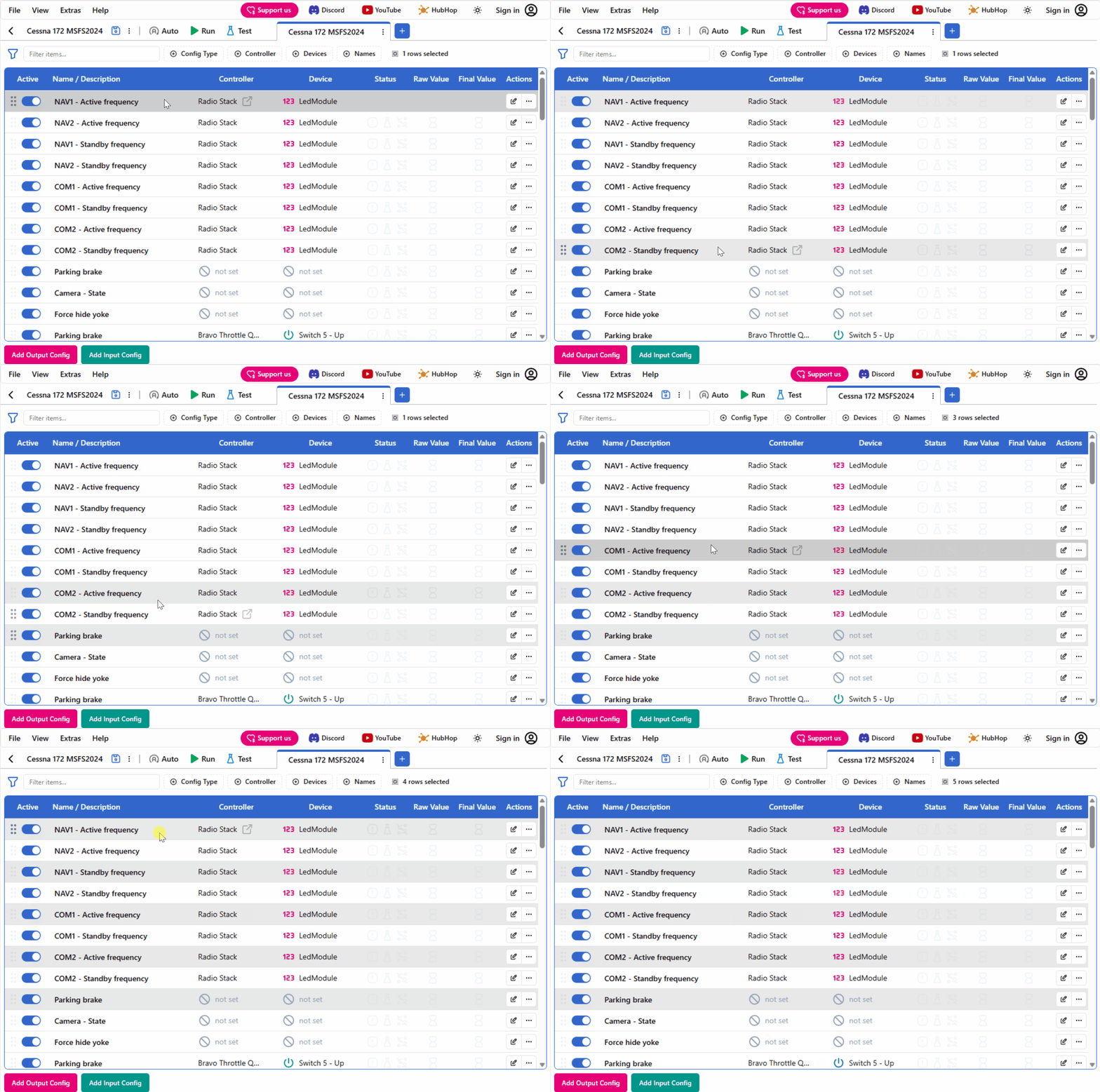
Multiple configurations can be selected at once by holding down the SHIFT key (to select a range) or the CTRL key (to select non-adjacent rows).
Adding an additional profile
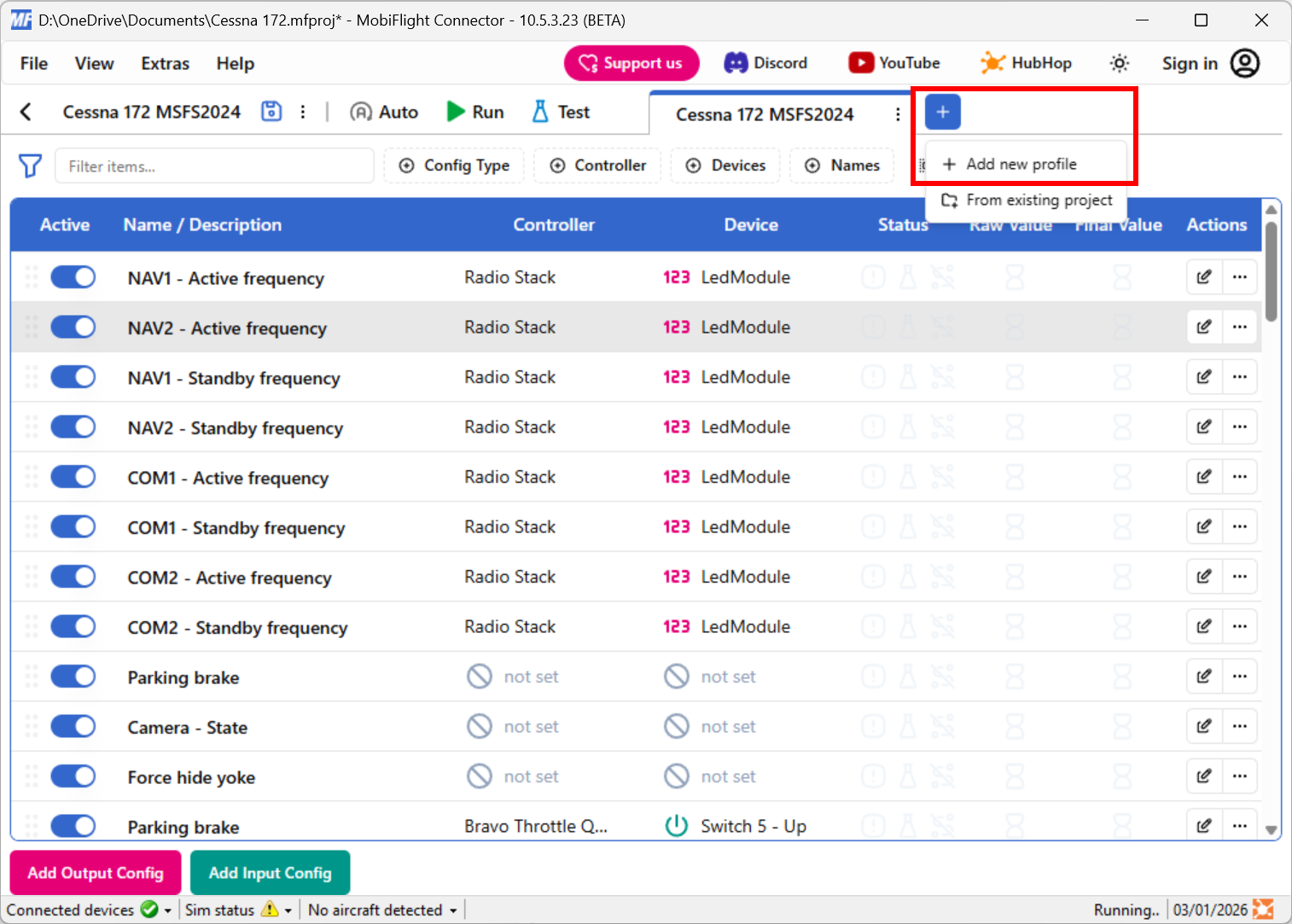
To add an additional, empty, profile to the current project use the + button in the tabs list and select the Add new profile item.
Renaming a profile
To rename a profile, double-click the profile tab, type a new name, then press enter to apply the change.

Moving configurations between profiles
To move configurations between profiles, select the configurations then drag them onto the profile tab.