Projects
MobiFlight projects (.mfproj) are the core files that define the input and output configurations for your MobiFlight setup, and connect those configurations to physical hardware. Each project contains one or more profiles that map the physical hardware to simulator events.
Creating projects
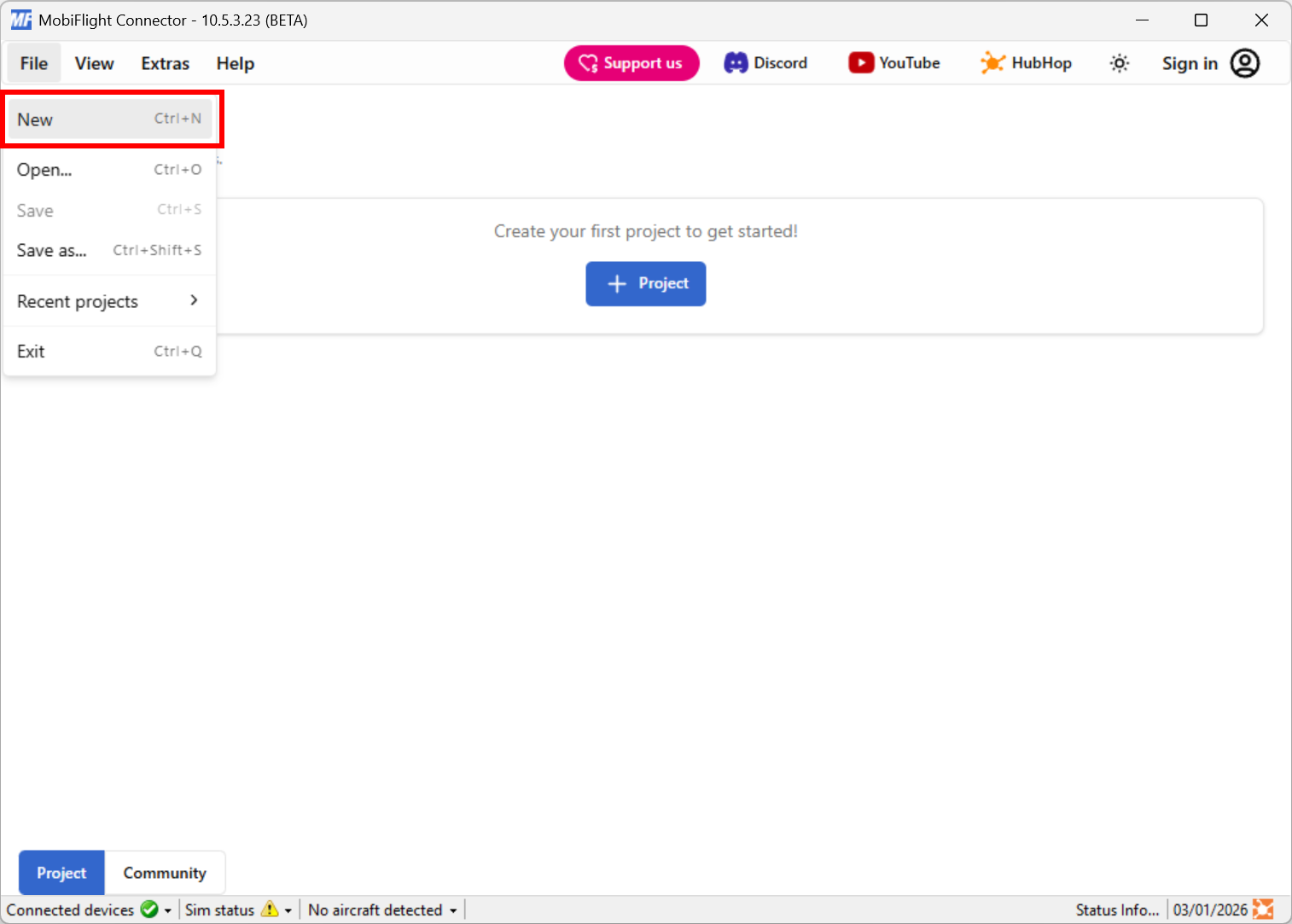
Start a new project
Select New from the File menu.
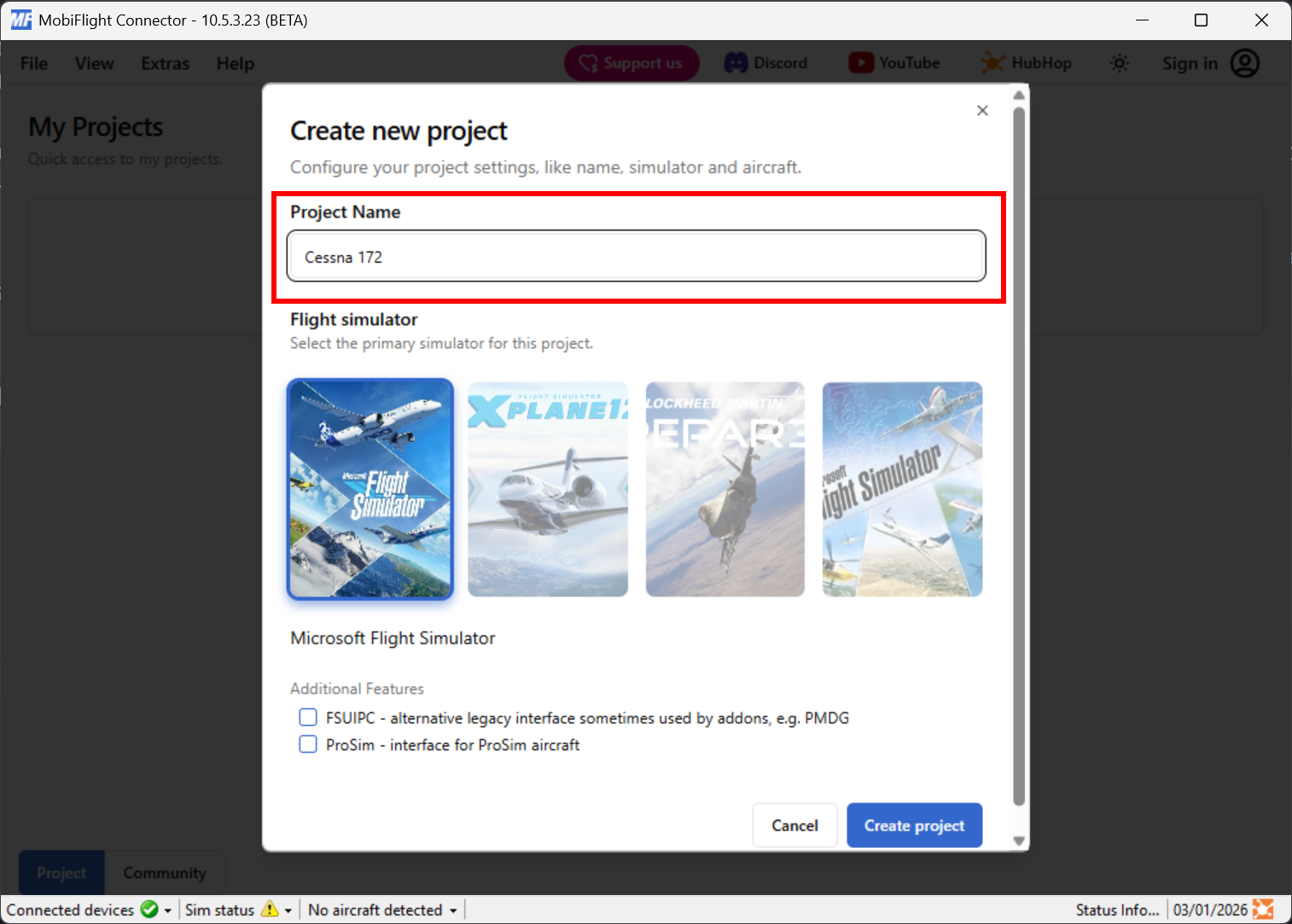
Provide the project settings
In the Project Name field specify a name for the project. This is typically the name of the aircraft the project will be used with, for example Cessna 172.
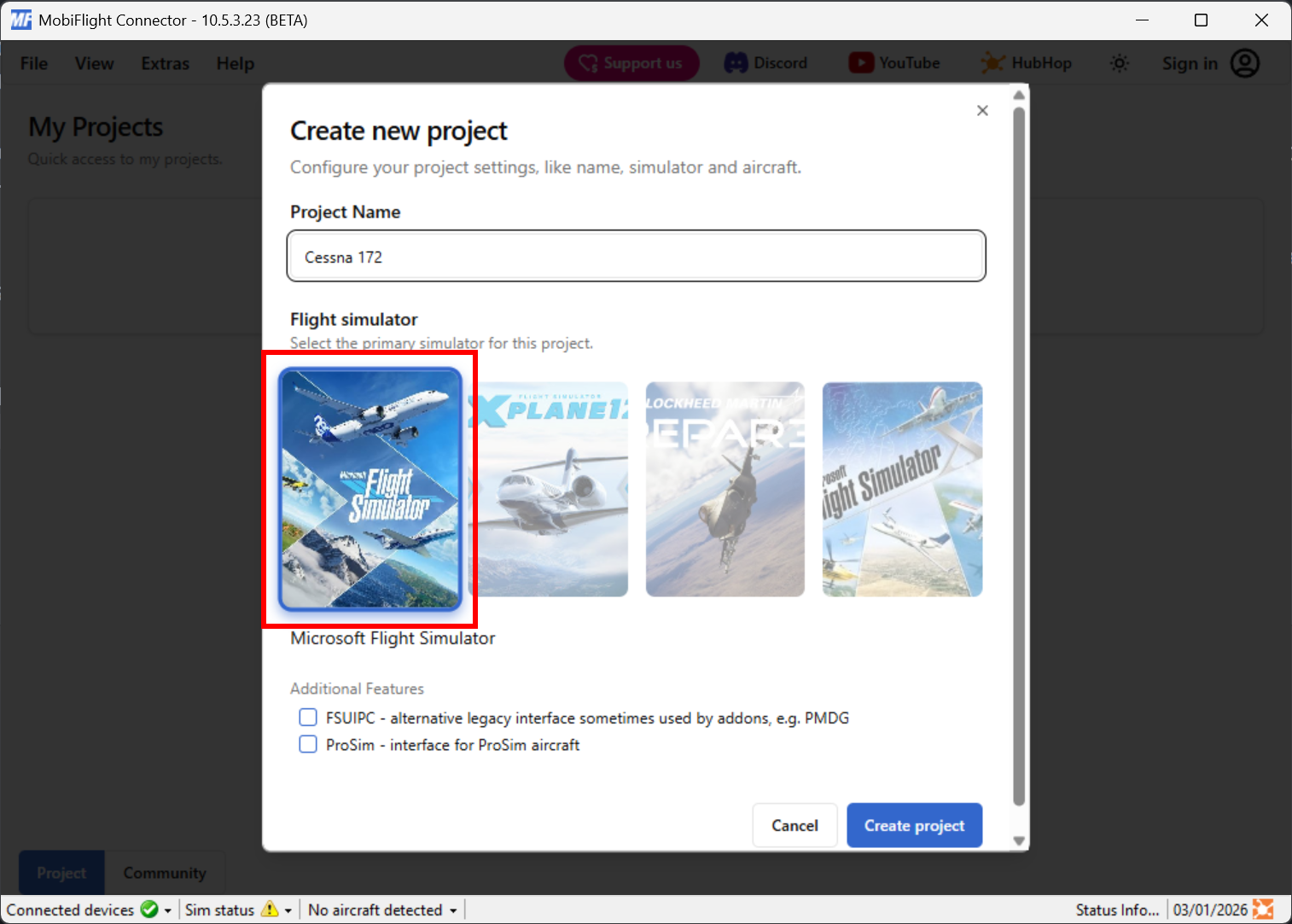
Then, select the flight simulator the project will be used with. Selecting the correct simulator when creating the project ensures input and output configurations will display the correct list of simulator events.
Optionally, enable additional features. For Microsoft Flight Simulator projects targeting PMDG aircraft, check the FSUIPC option. For projects targeting ProSim aircraft, check the ProSim option.
Tip
The FSUIPC option is only required for profiles targeting PMDG aircraft.
Create the project
Click the Create project button to create the project and open the project editor.

Save the project
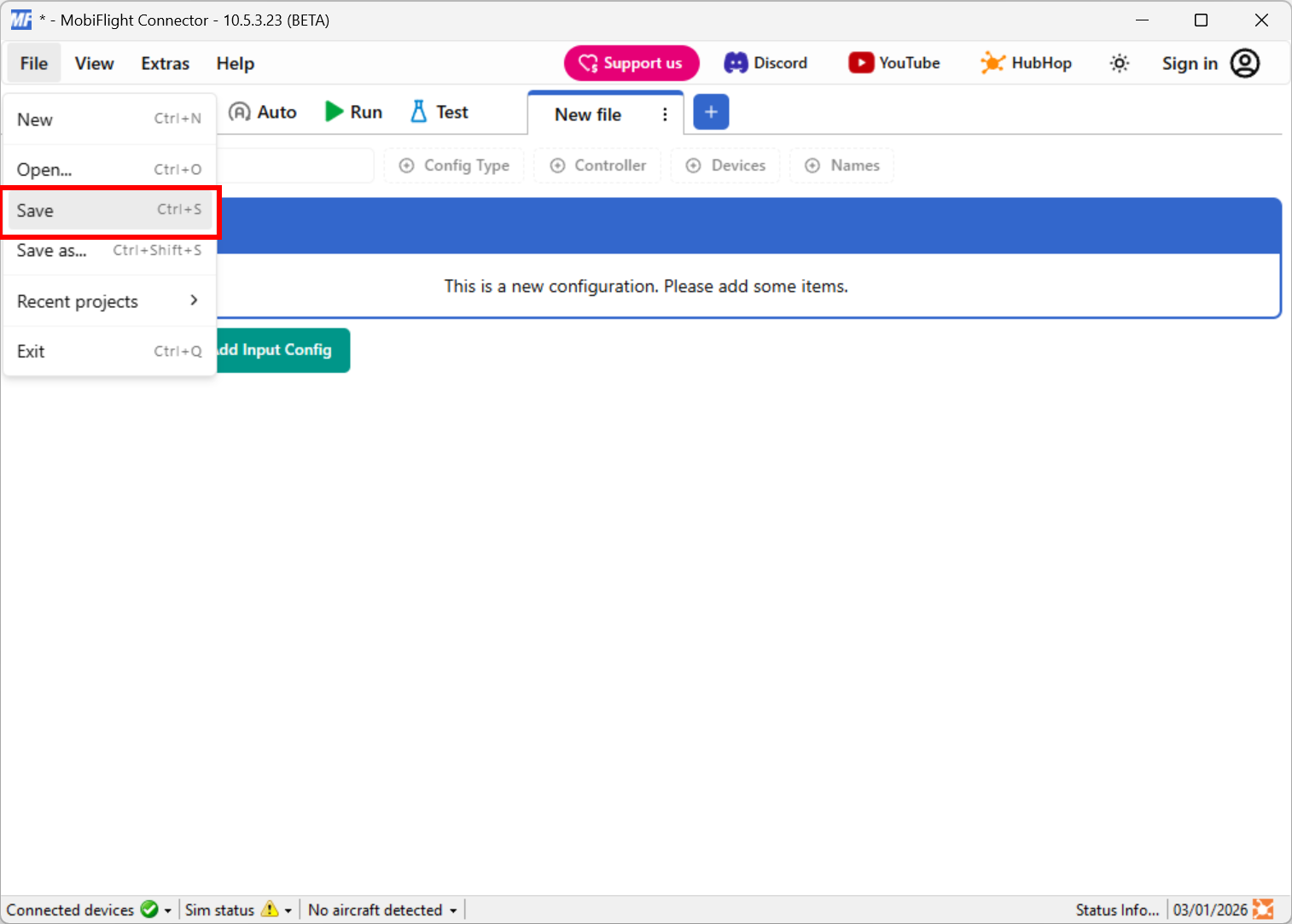
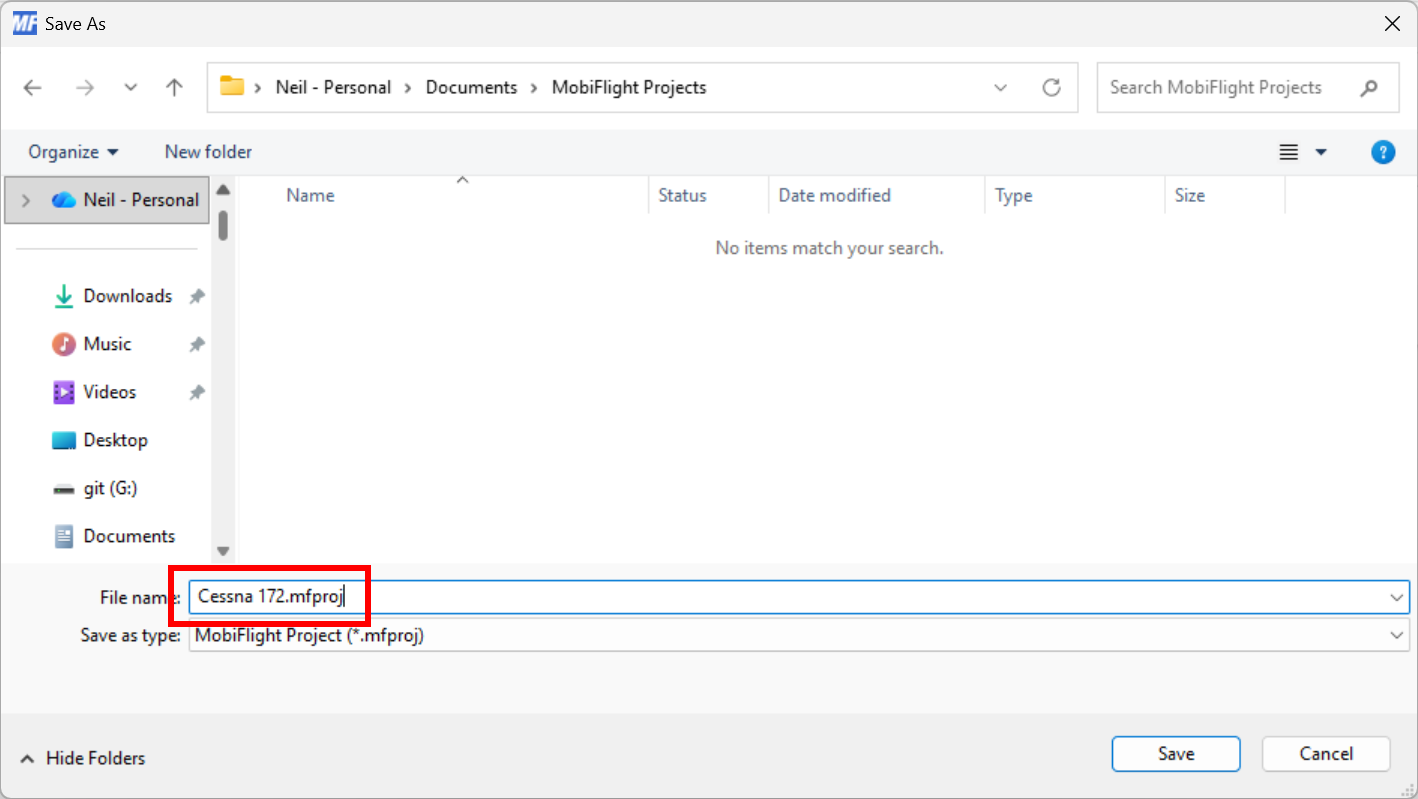
After creating the project, save it by selecting Save from the File menu.
Give the project file a name in a meaningful location, such as a MobiFlight Projects folder inside your Documents folder, then click the Save button to save the new project.
Opening an existing project
Open the profile in MobiFlight
In MobiFlight, go to the File menu and select Open….
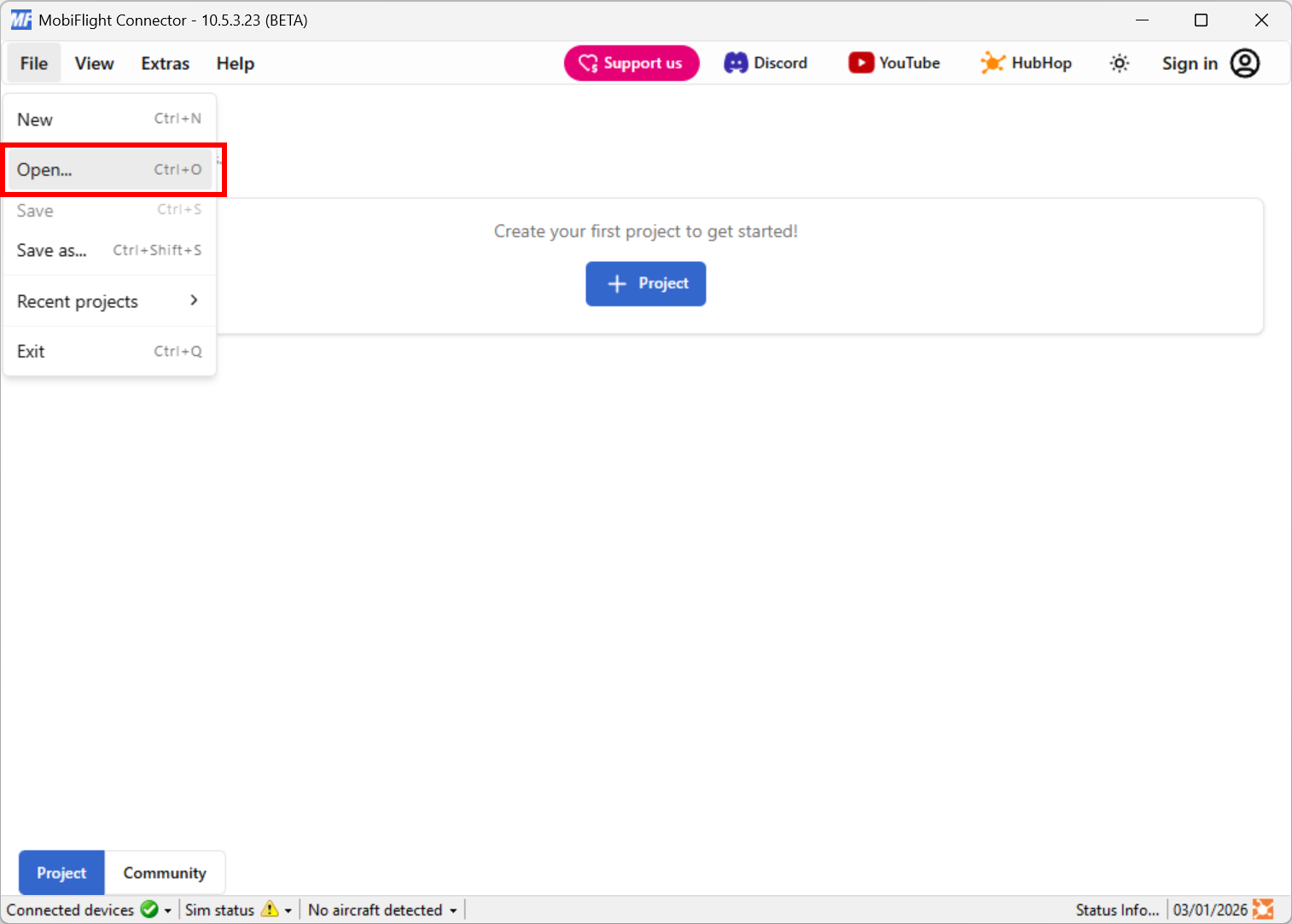
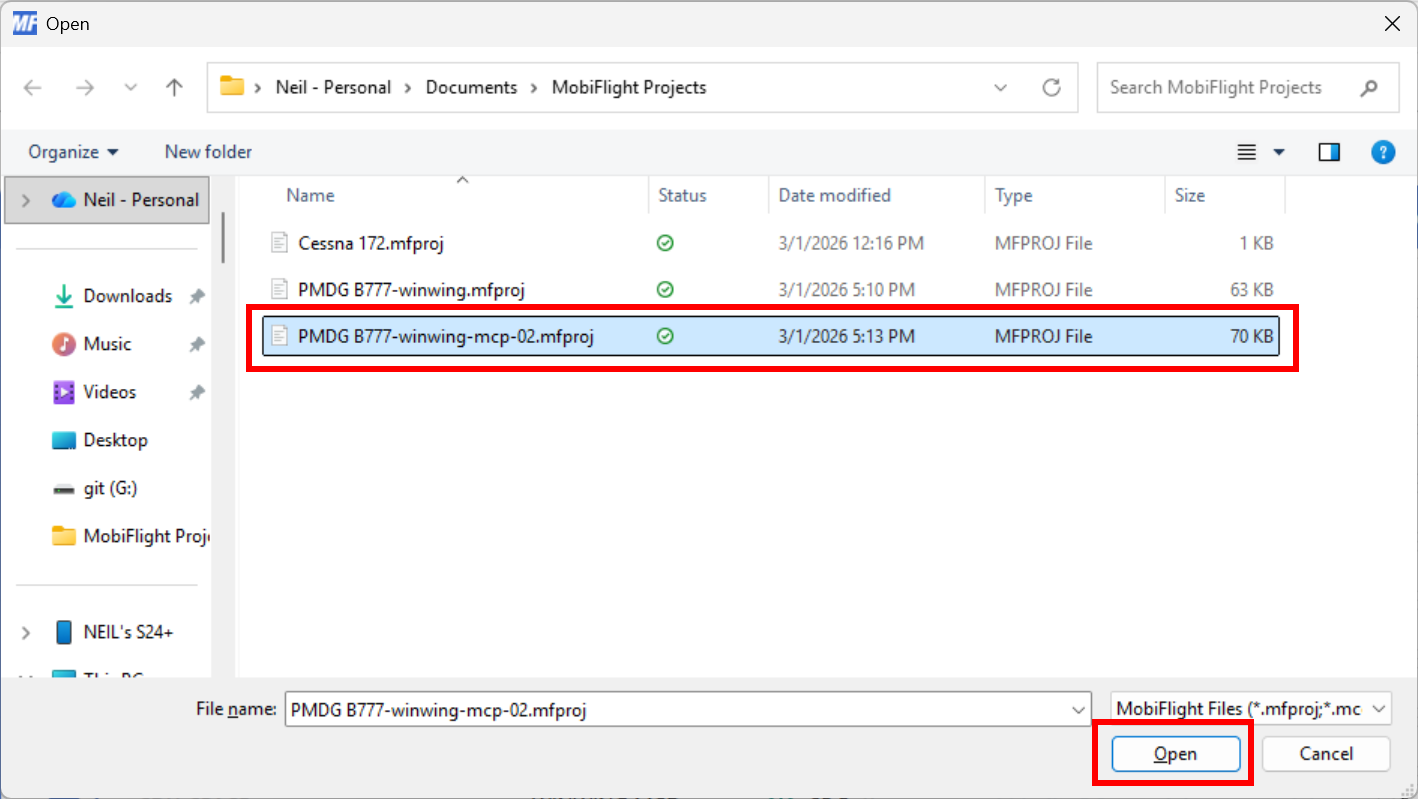
In the resulting file dialog, select the .mfproj file for the project you want to open and click Open.

Merging profiles from other projects
Profiles from multiple projects can be merged, creating a single project containing all the inputs and outputs from the separate files. This is particularly useful when downloading pre-made profiles for specific hardware devices.
Open the primary project
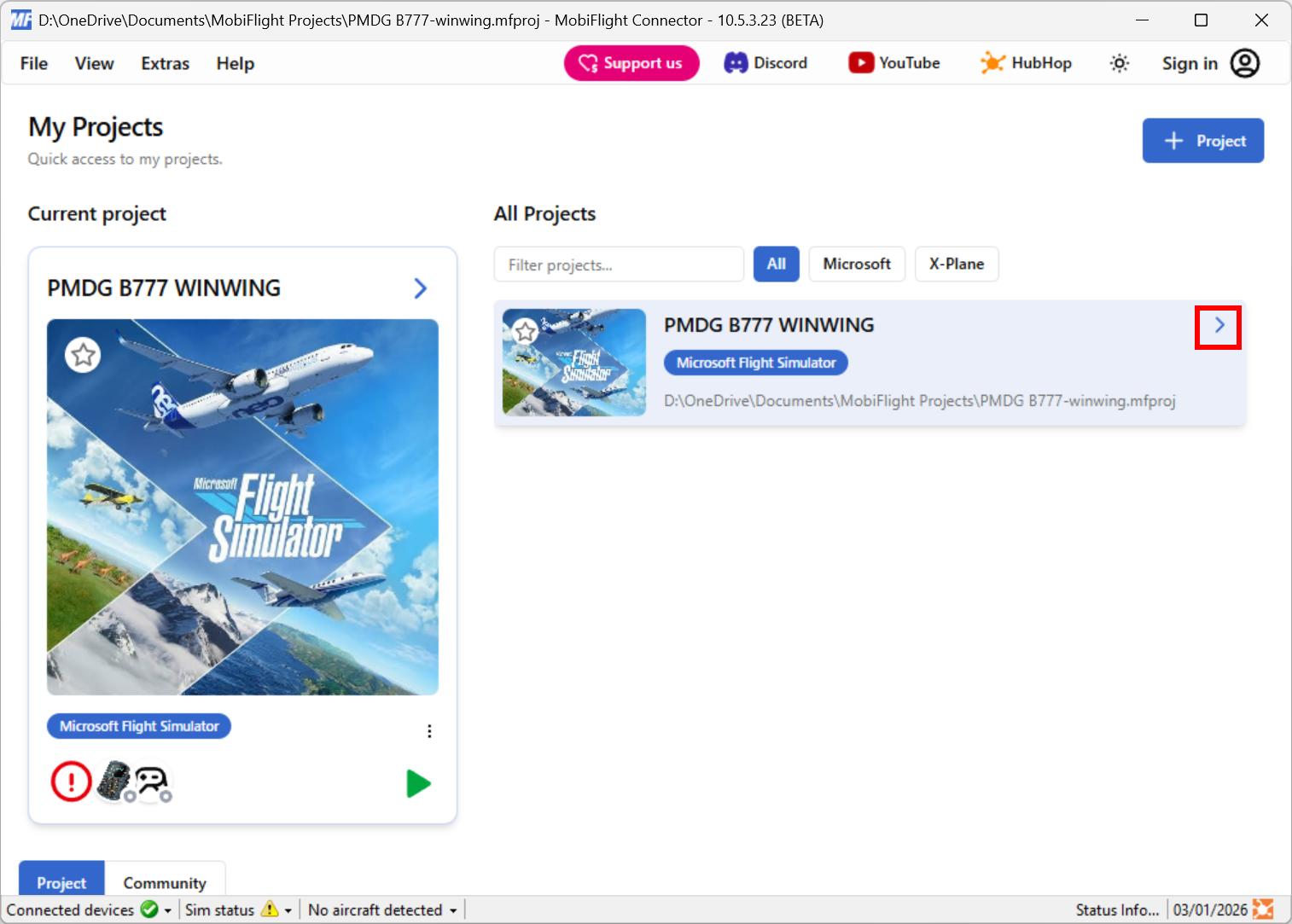
Open the primary project that the other profiles will merge into, using the Open item in the File menu or by clicking on the > in the recent projects list.
Add additional profiles
Select the From existing project item from the + menu in the tab bar.
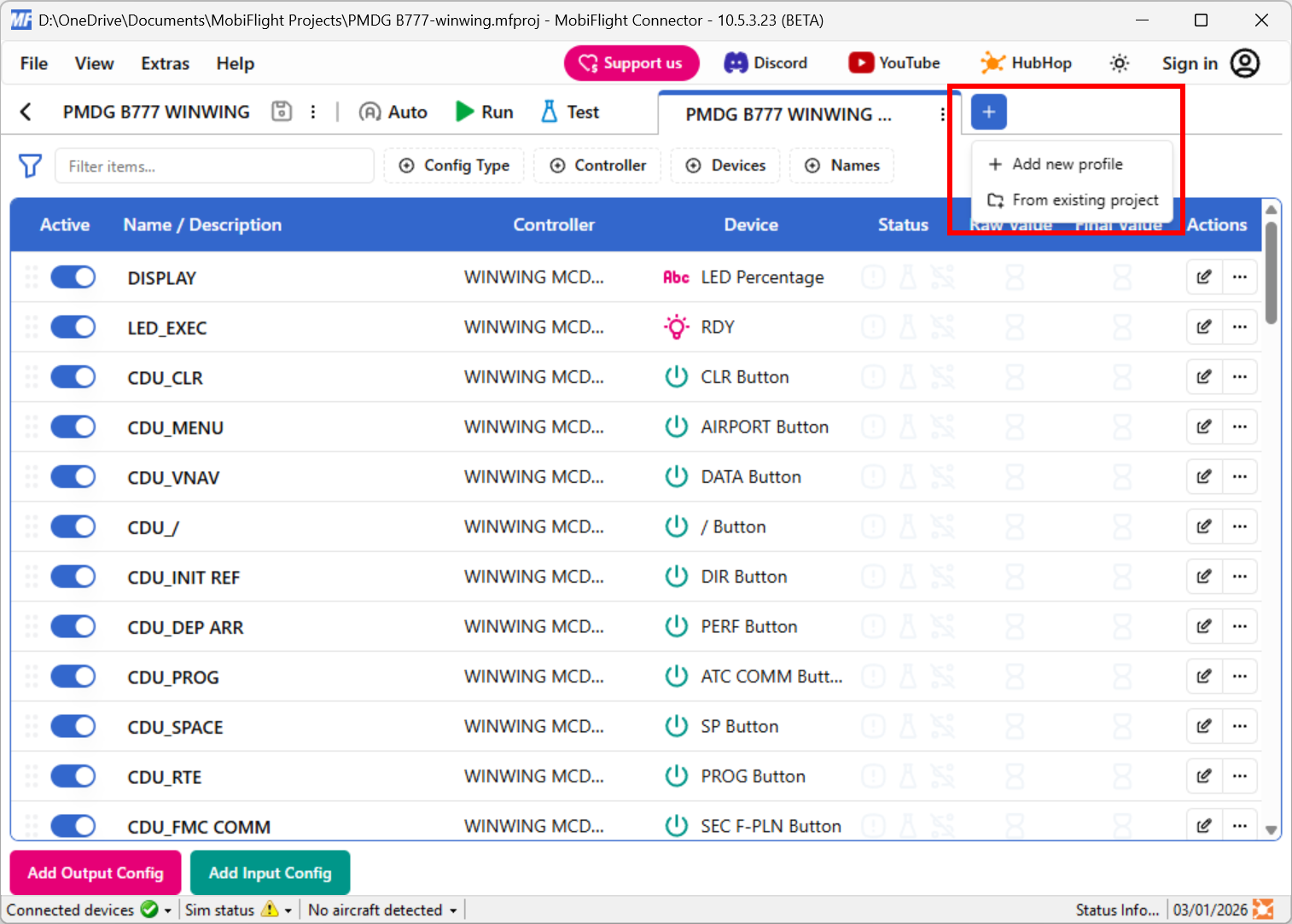
Navigate to the project that contains the profiles to merge and click Open.
The selected project will have its profiles merged with the currently open project, and the profiles will show as additional tabs.
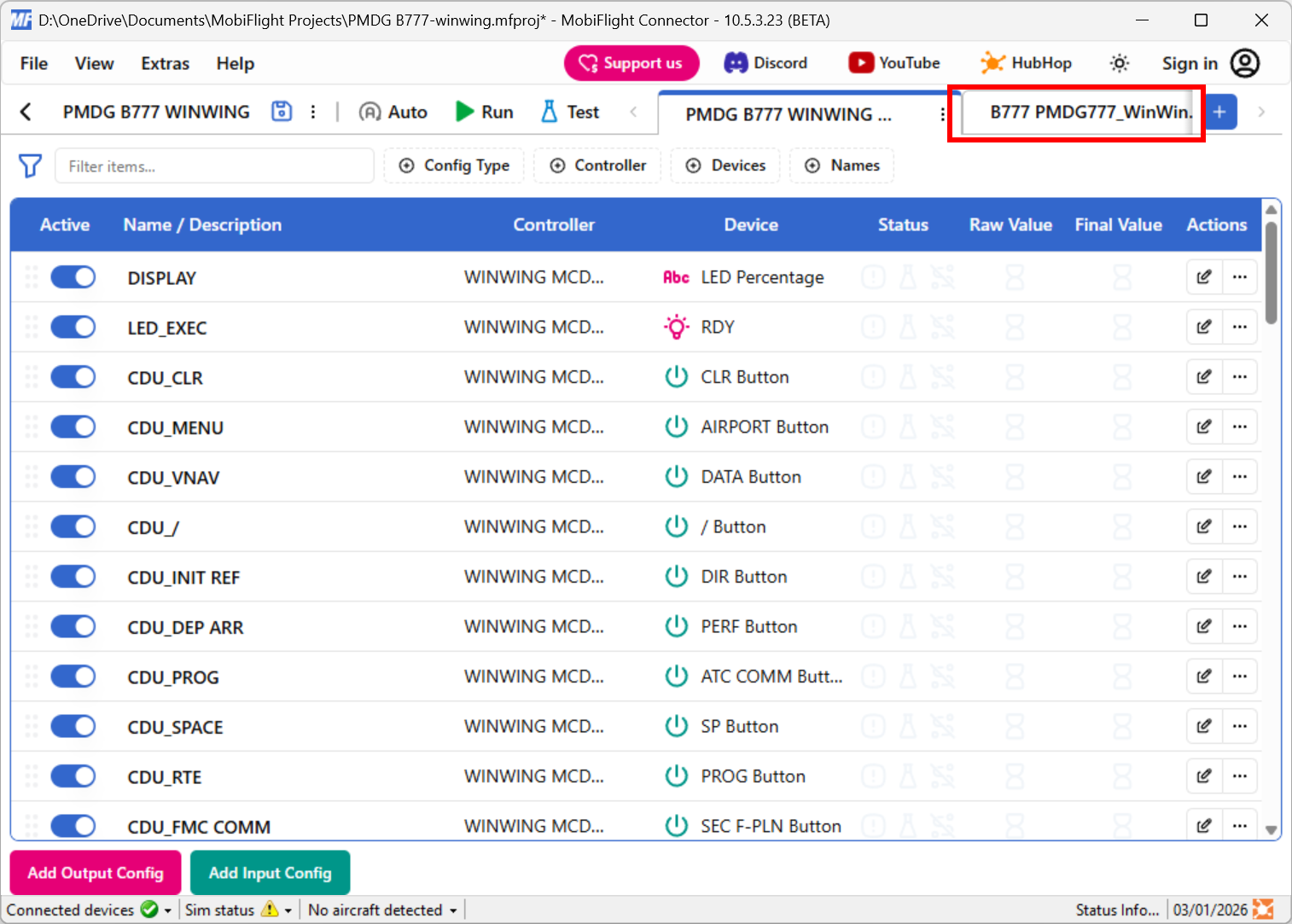
Use the Save item in the File menu to save the changes to the primary profile.
Important
These steps merge the secondary files into the primary file. To make modifications to the configurations in the secondary files, be sure to edit the primary file after merging.
Changes to the secondary files will not automatically appear in the primary file.
Removing a project from recent projects
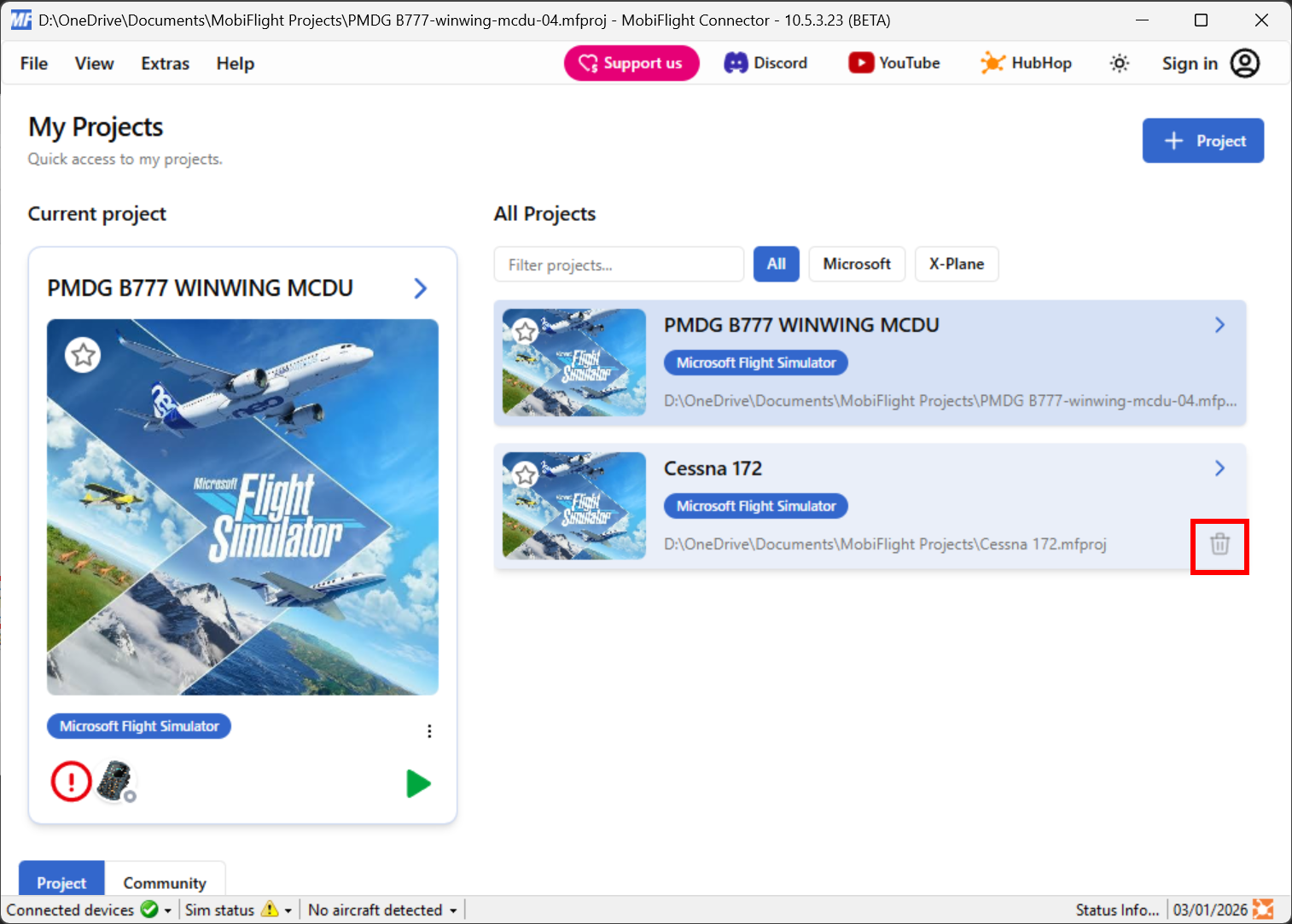
To remove a project from the recent projects list, click the trash can icon.
Tip
This only removes the project from the recent projects list. It does not delete the project from your computer.