Using pre-made MobiFlight profiles
Many MobiFlight profiles for WinCtrl devices are available. See flightsim.to for Microsoft Flight Simulator profiles, and the X-Plane forums for X-Plane profiles.
Take the following steps to use the pre-made profile:
Extract the downloaded profile
Using File Explorer, select the downloaded zip file and click Extract all in the ribbon to extract the profile.
Tip
Extract the profile to a location other than the Downloads folder. For example, extract to the Documents\MobiFlight folder.
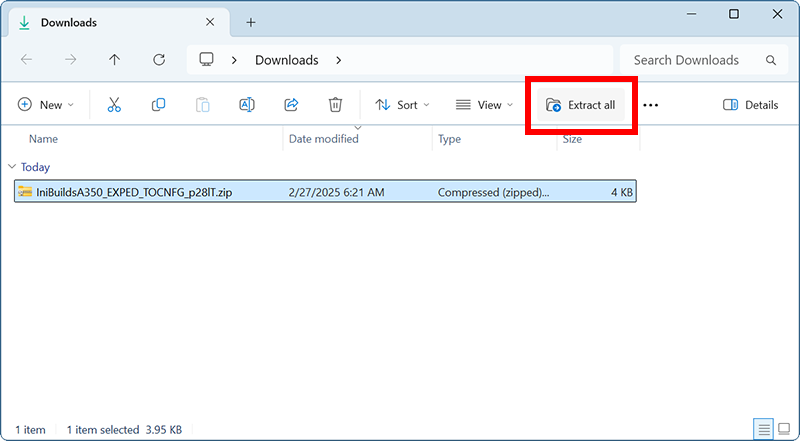
Open the profile in MobiFlight
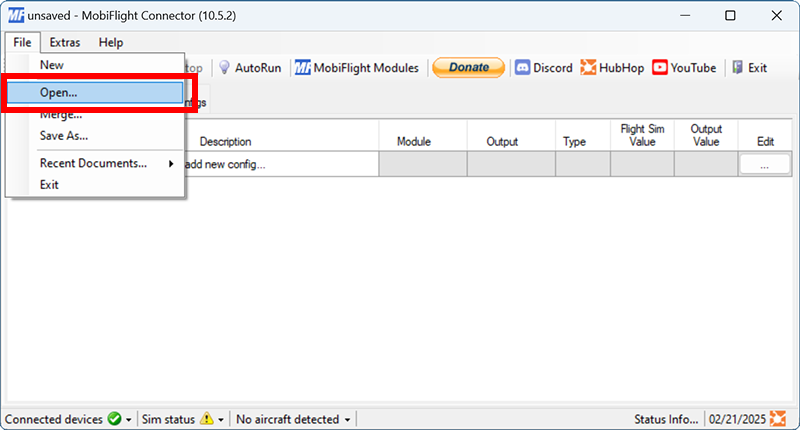
In the MobiFlight application, go to the File menu and select Open….
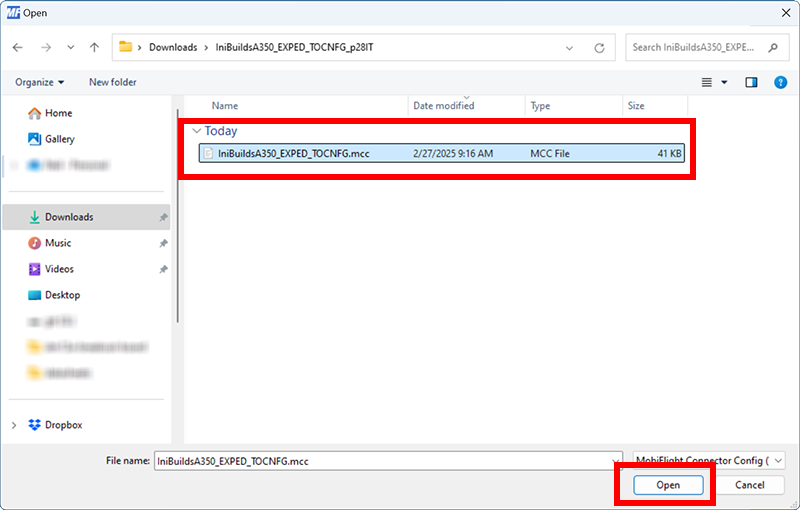
In the resulting file dialog, select the extracted .mfproj file, then click Open.
MobiFlight will open the project and automatically map connected WinCtrl controllers to the input and output configurations in the project file.
Tip
To open multiple profiles at the same time, see the adding additional profiles to a project documentation.
View the project configuration
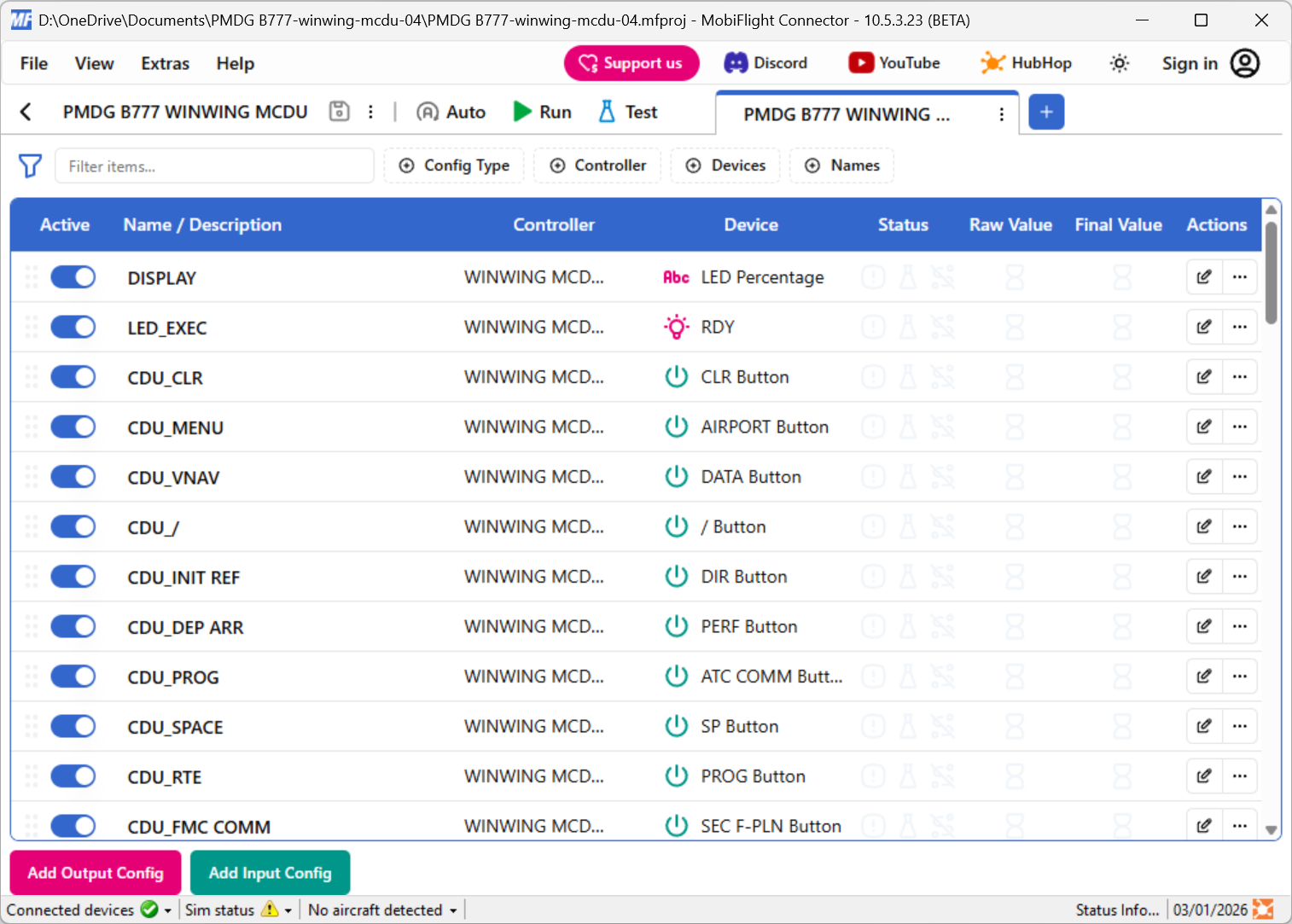
To view the project input and output configurations, click on the > button in the project card.
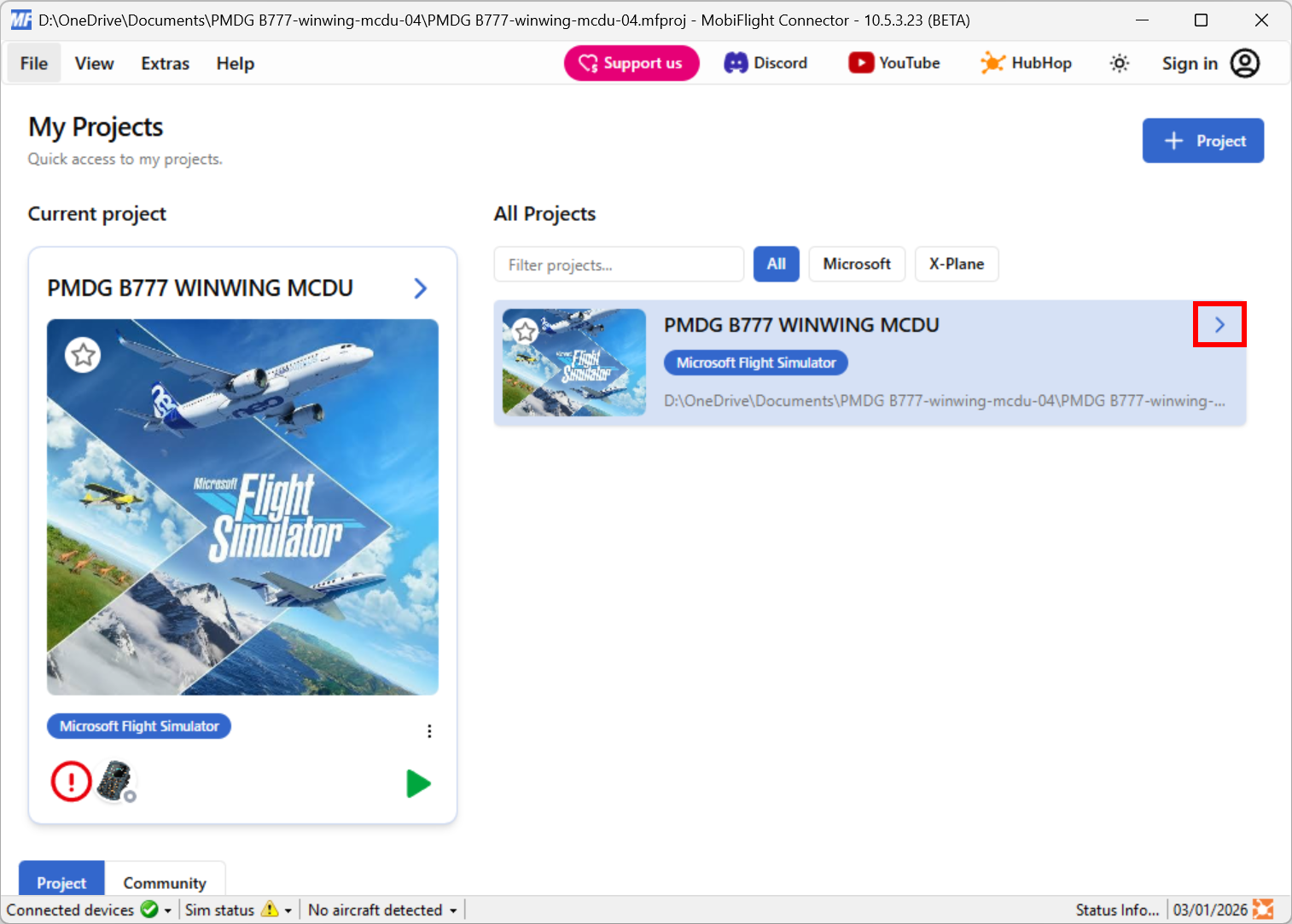
The project will open and display the input and output configurations.
Tip
If MobiFlight is unable to automatically map connected WinCtrl devices to the ones used in the profile, use the Controller Bindings dialog to manually map the devices.