Modifiers - input configs
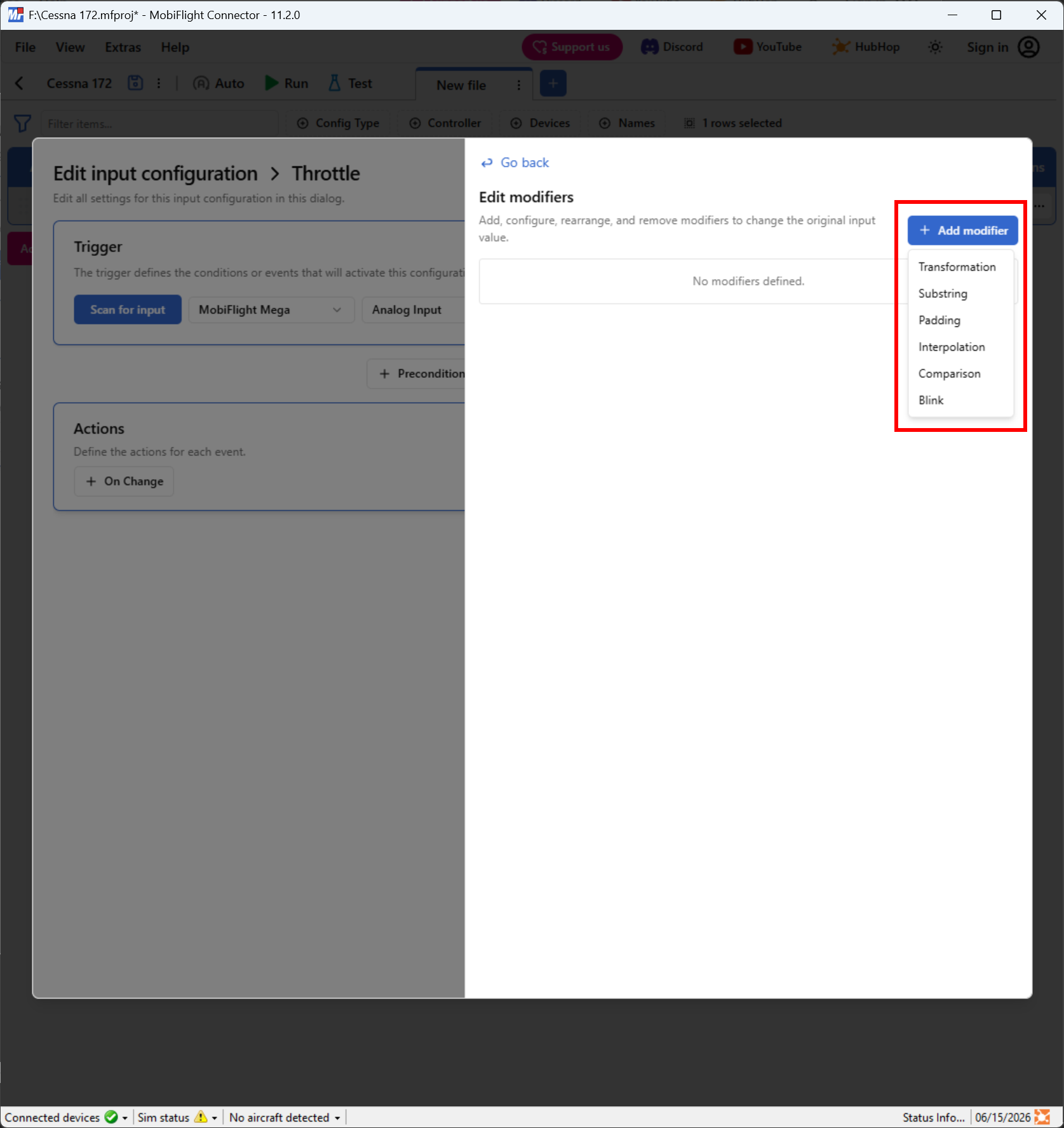
Modifiers provide a way to adjust input values from a device before they are used in a simulator event. The following modifiers are supported:
Adding a modifier
Modifiers are added to input configurations using the Modifiers button. Click the Modifiers, then click the Add modifier button and select the modifier type.
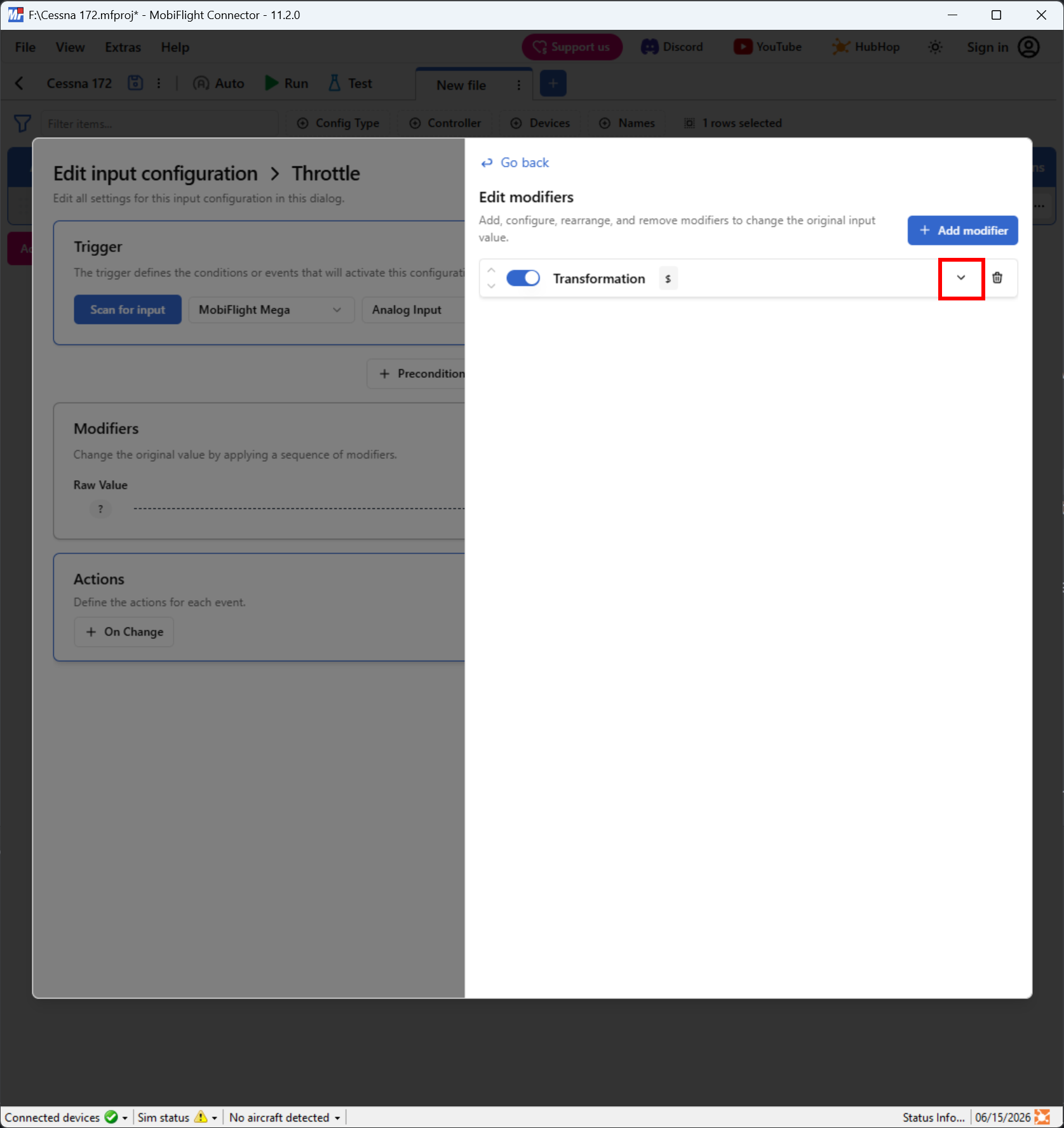
Editing modifier settings
Every modifier has settings that control how the input value is changed. To edit modifier settings, click the expand arrow next to the modifier in the Modifiers pane to expand the options.
Re-ordering modifiers
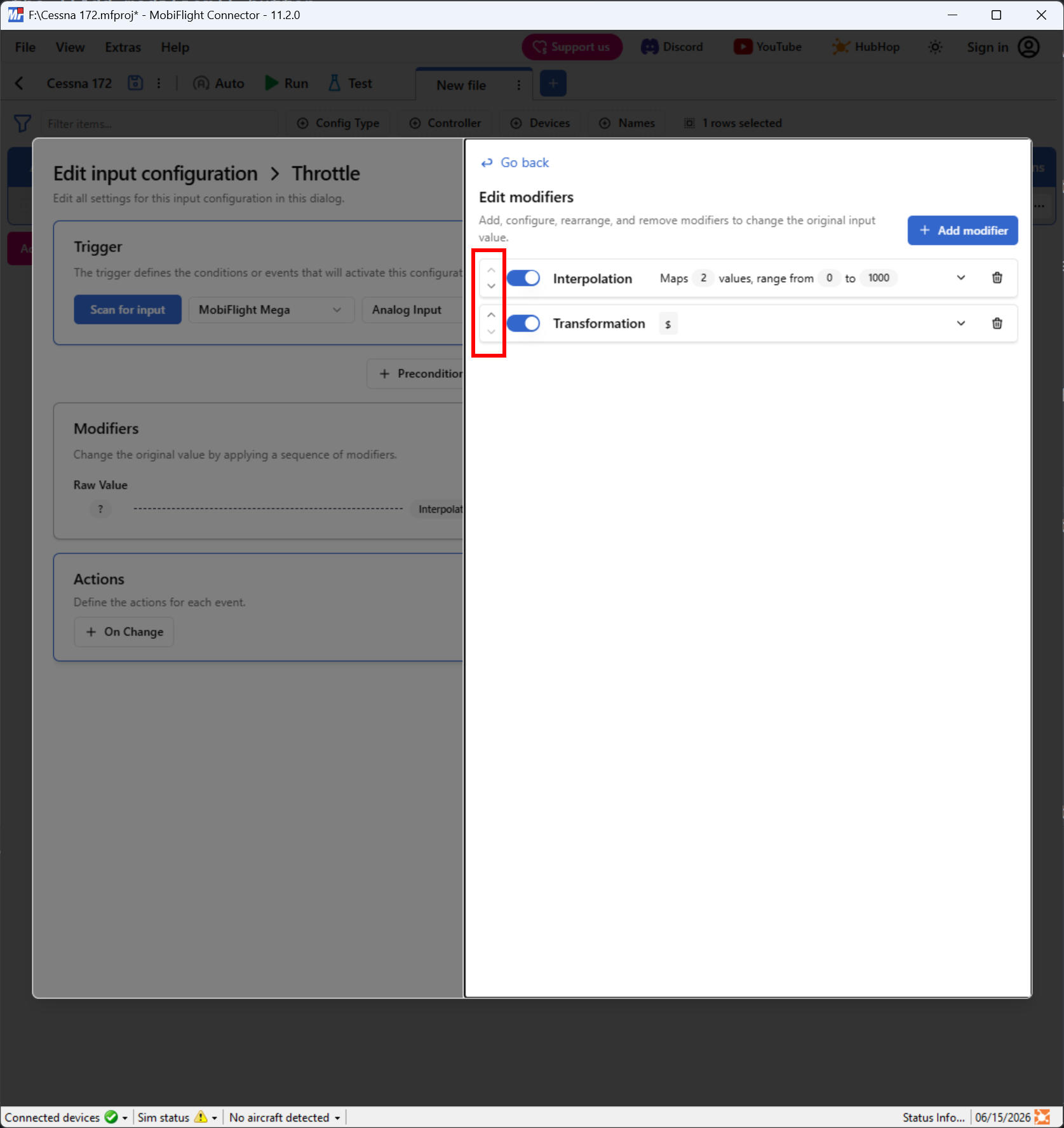
Input configurations can have multiple modifiers assigned. Modifiers are processed in order, from top to bottom, with the modifier result passed to the next modifier in the list.
To re-order the modifiers, use the up and down arrows.
Disabling a modifier
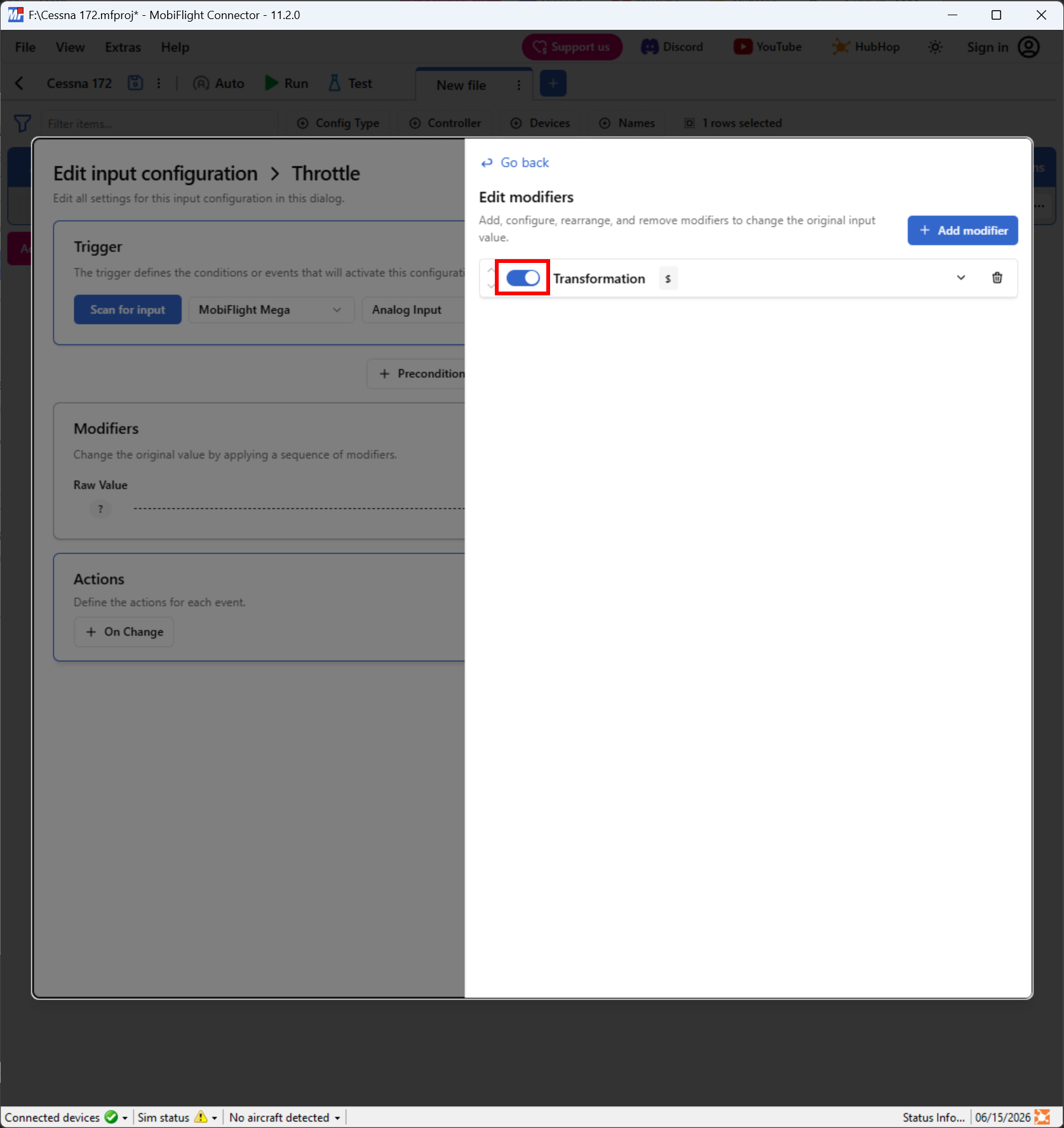
To disable a modifier, use the toggle switch on the modifier.
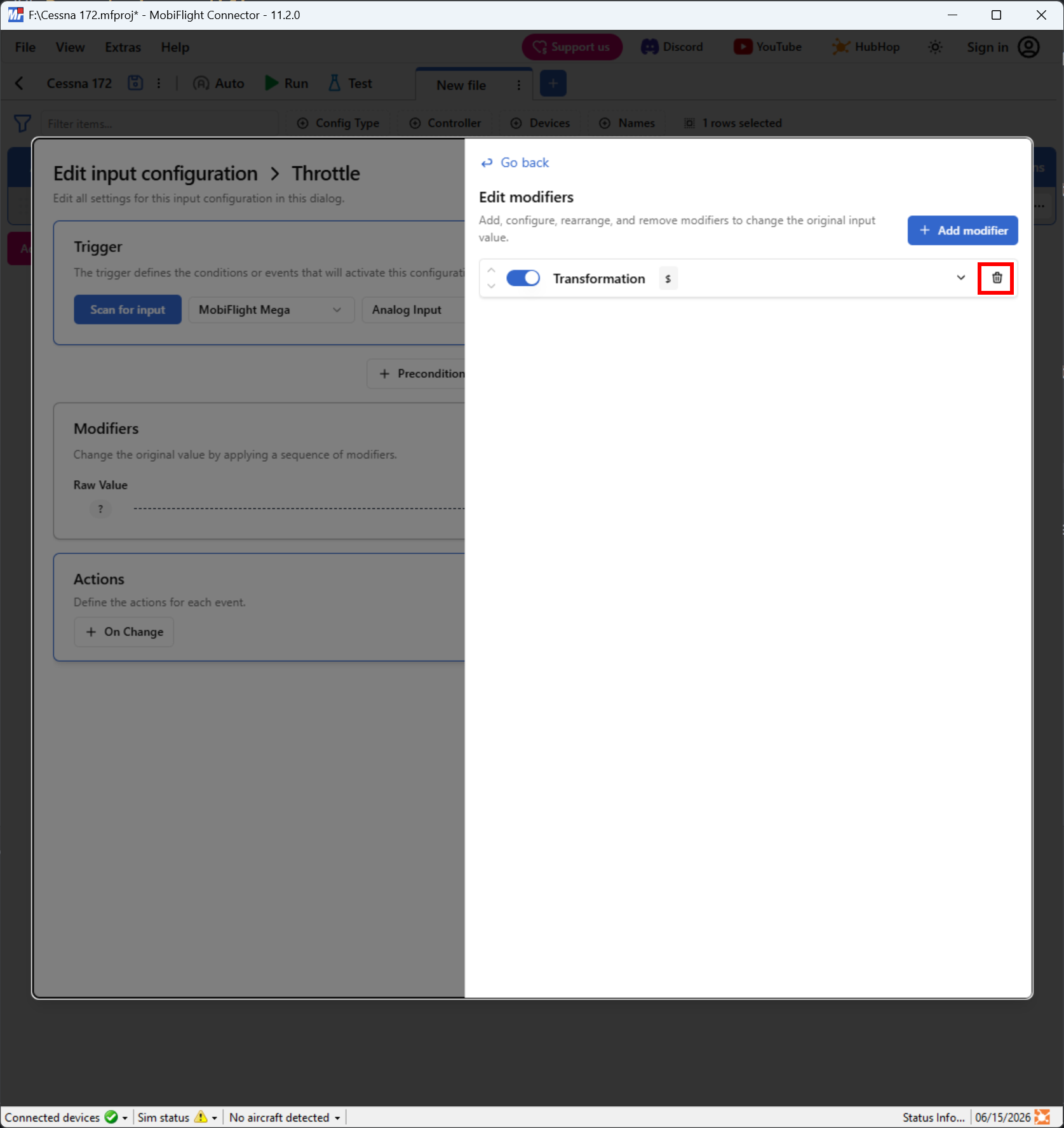
Removing a modifier
To remove a modifier, click the delete icon next to the modifier.