Finding input event code in MSFS2020
Input event code is the way to interact with Microsoft Flight Simulator 2020 from apps like MobiFlight.
Event codes for Microsoft Flight Simulator 2020 are documented in HubHop under each aircraft. For example, Cessna 172 events are under the C172 aircraft.
The following steps illustrate how to find the input event code for the parking brake in a Cessna 172 Skyhawk (G1000) for use with a toggle switch.
Tip
The steps for finding events in Microsoft Flight Simulator 2024 are different. See the dedicated 2024 guide for MSFS2024 steps.
Enable developer mode
In Microsoft Flight Simulator 2020 settings, go to Options section, select General Options, then enable the Developer Mode option in the Developers section.
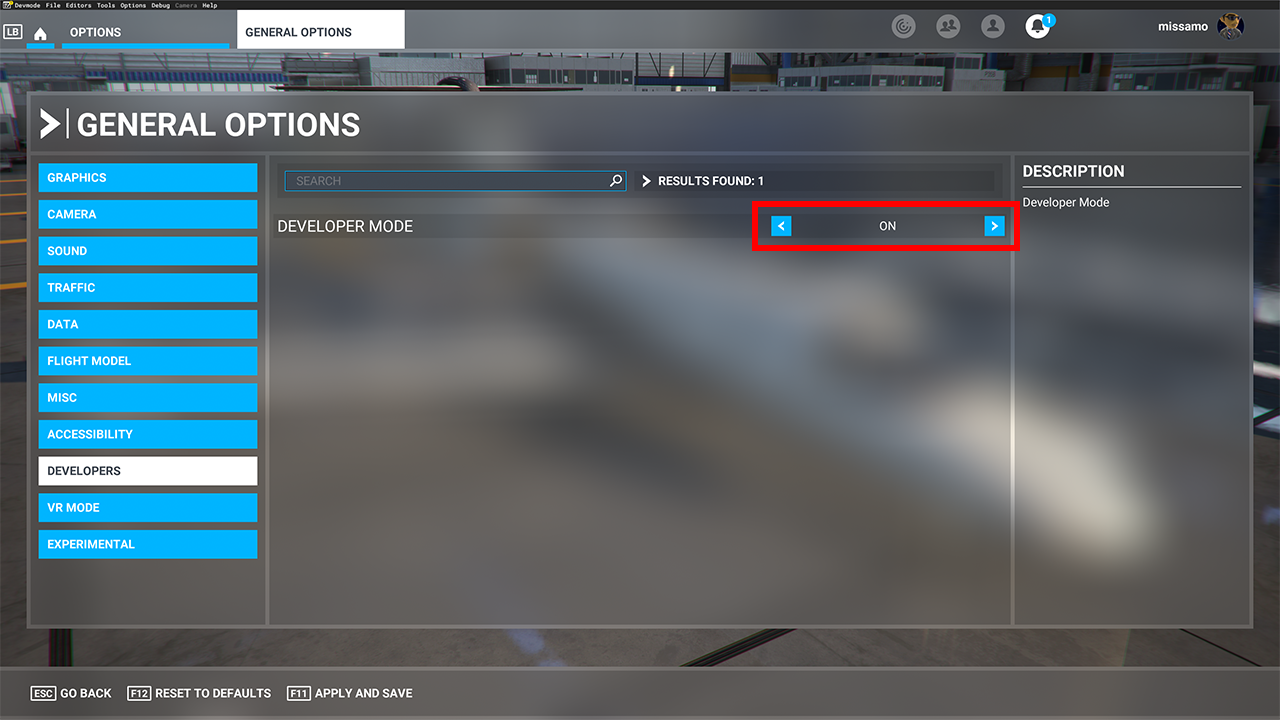
Restart Microsoft Flight Simulator
After enabling developer mode it is important to restart the simulator to ensure later steps work correctly.
Spawn the plane
Use World map to spawn the Cessna 172 Skyhawk (G100) at an airport.
Open the behaviors window and disable minimizing data on load
From the Tools menu, select Behaviors. Then do the following:
- In the dropdown at the top center of the dialog select the XML file that contains the events you’re interested in. In most cases the file is named after the plane and has
_interior.xmladded to the end. For the Cessna 172 the filename isC172SP_AS1000_INTERIOR.XML. - Click the InputEvents tab
- Uncheck the Minimize data on Load option
- Click Reload user container
- Wait for the plane to reload then select the XML file from step 1 in the dropdown at the top center of the dialog again.
Important
These steps must be followed exactly, including steps 3 and 4. If any of the steps are skipped the code for the events will not be visible.
The InputEvents tab will look like this after minimizing data on load, reloading the user container, and selecting the XML file for the Cessna 172 interior:
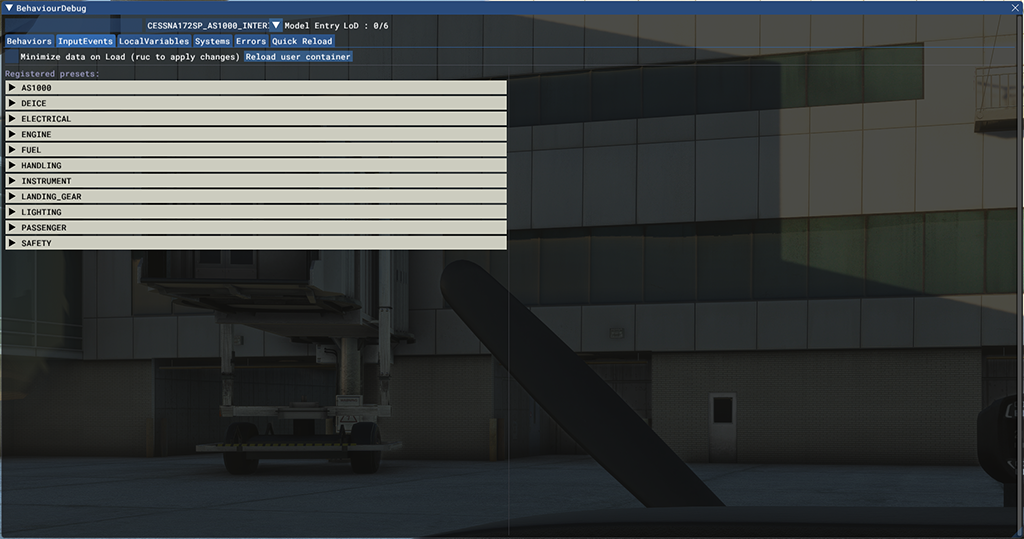
Tip
If no events are listed, check and make sure the correct XML file is selected in the dropdown. If it doesn’t say INTERIOR then the wrong one is selected.
Find the relevant event
Aircraft often have hundreds of input events, making it challenging to find the correct one. Most aircraft have the events grouped by aircraft system, however it may take exploring several of the preset groups to find the correct one.
The parking brake event relates to the landing gear, so expand the LANDING_GEAR section in the dialog:
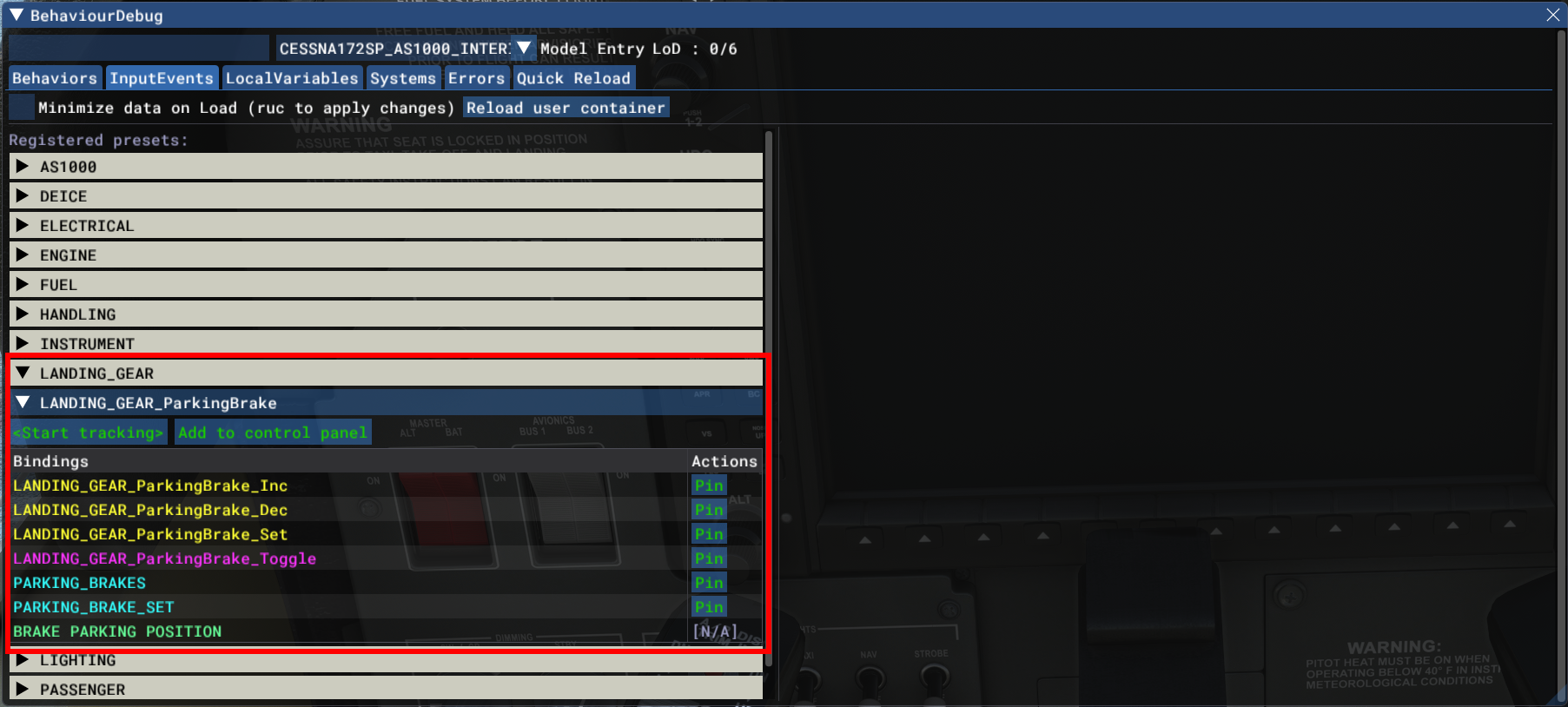
The expanded section includes a LANDING_GEAR_ParkingBrake event, which is the one that controls the parking brake.
Display the event code
To view the code associated with the parking brake, click the Add to control panel button.
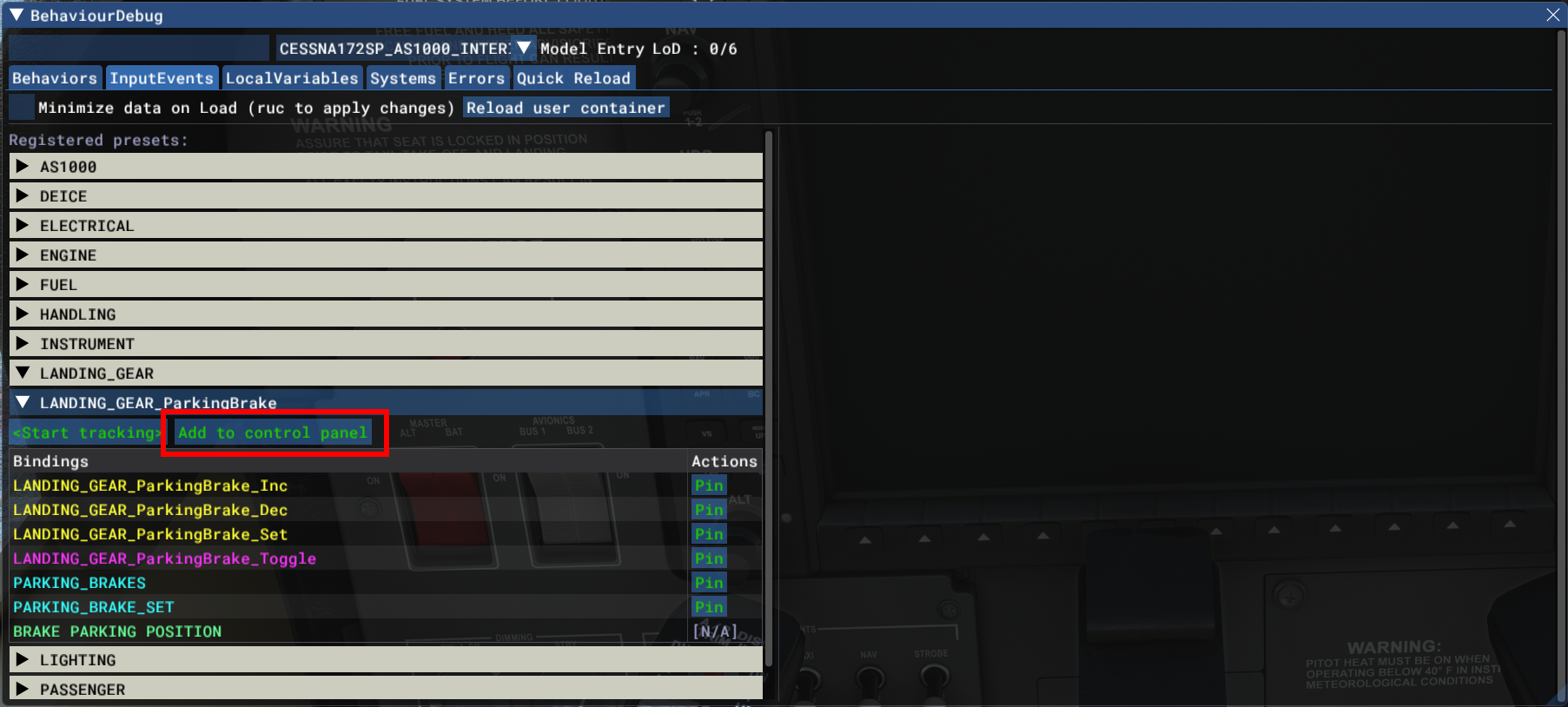
Then click the triangle next to the LANDING_GEAR_ParkingBrake event.
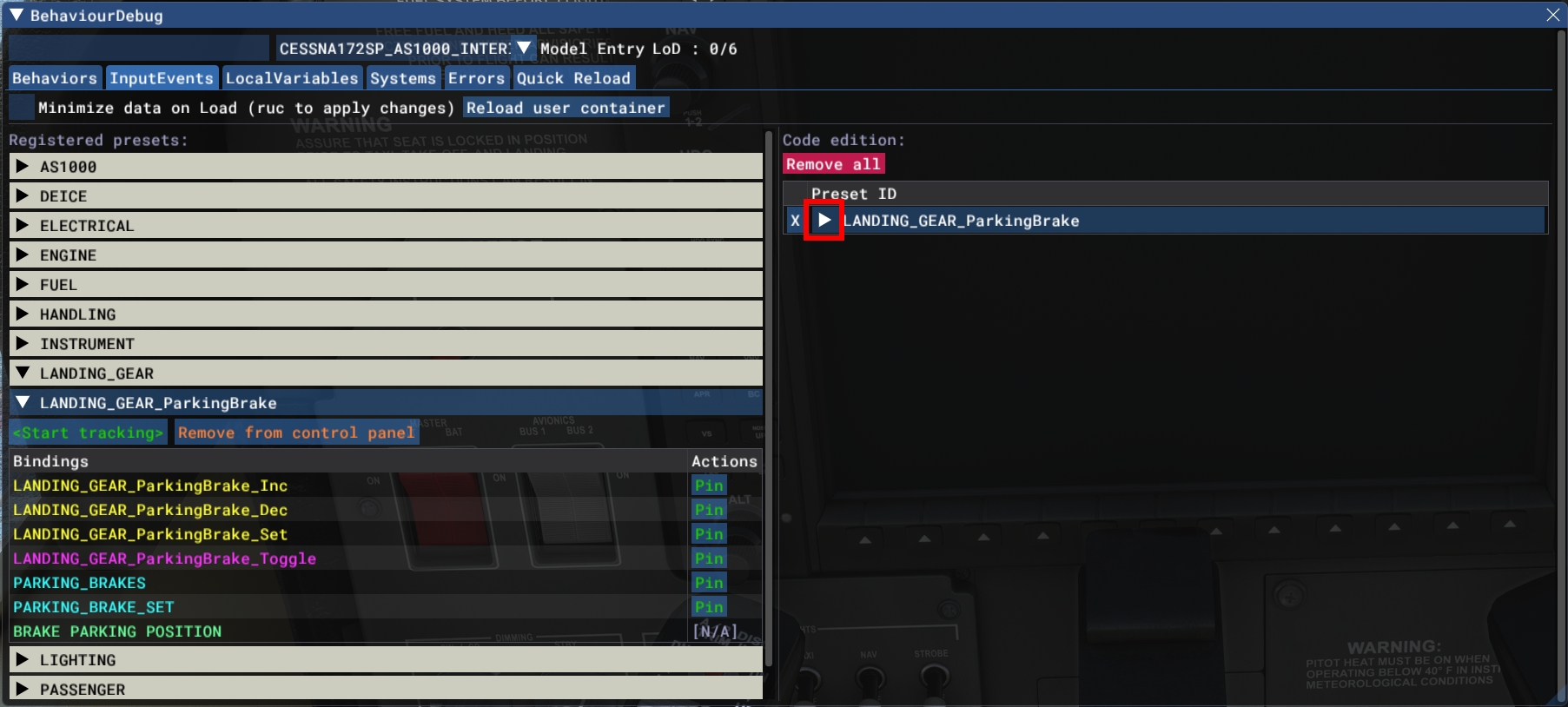
Finally, select the Set tab to display the code.
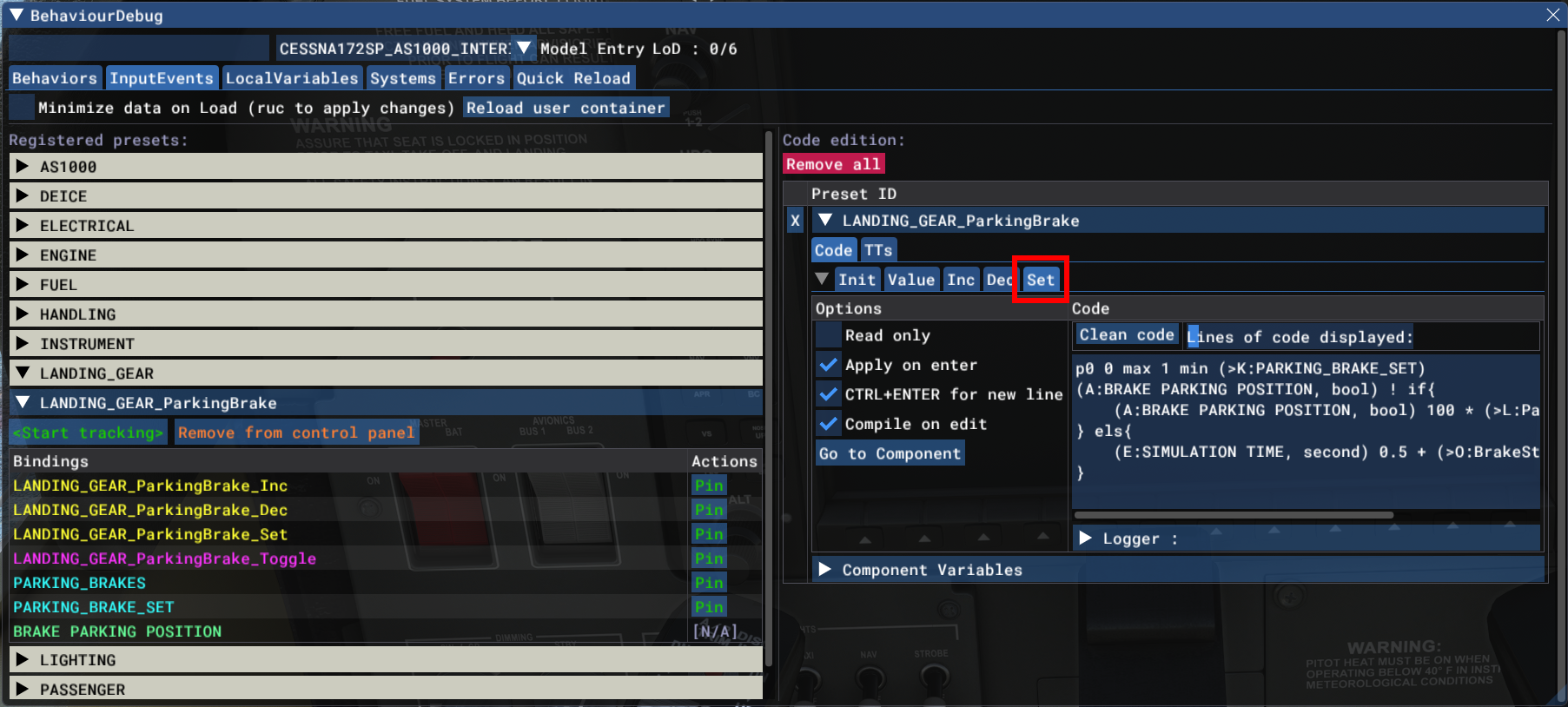
Extract the relevant event
The code often includes more components than required to trigger the event. In most situations, the goal is to identify a Kvar that corresponds to the desired event. For the parking brake, the code is:
p0 0 max 1 min (>K:PARKING_BRAKE_SET)
(A:BRAKE PARKING POSITION, bool) ! if{
  (A:BRAKE PARKING POSITION, bool) 100 * (>L:ParkingBrake_Position)
} els{
  (E:SIMULATION TIME, second) 0.5 + (>O:BrakeStartingTime)
}
For the case of the parking brake, (>K:PARKING_BRAKE_SET) is the important piece to use in MobiFlight. Most toggle switches use a value of 0 for off and 1 for on.
Using the event in MobiFlight
In MobiFlight, create a new input configuration and select the appropriate switch as the device. Set the Action Type for On Press to Microsoft Flight Simulator (All Versions)
The event needs to be converted to RPN format for use as a custom preset. For the On Press event, where the input event gets set to 1, use the following code in the Customize preset section:
1 (>K:PARKING_BRAKE_SET)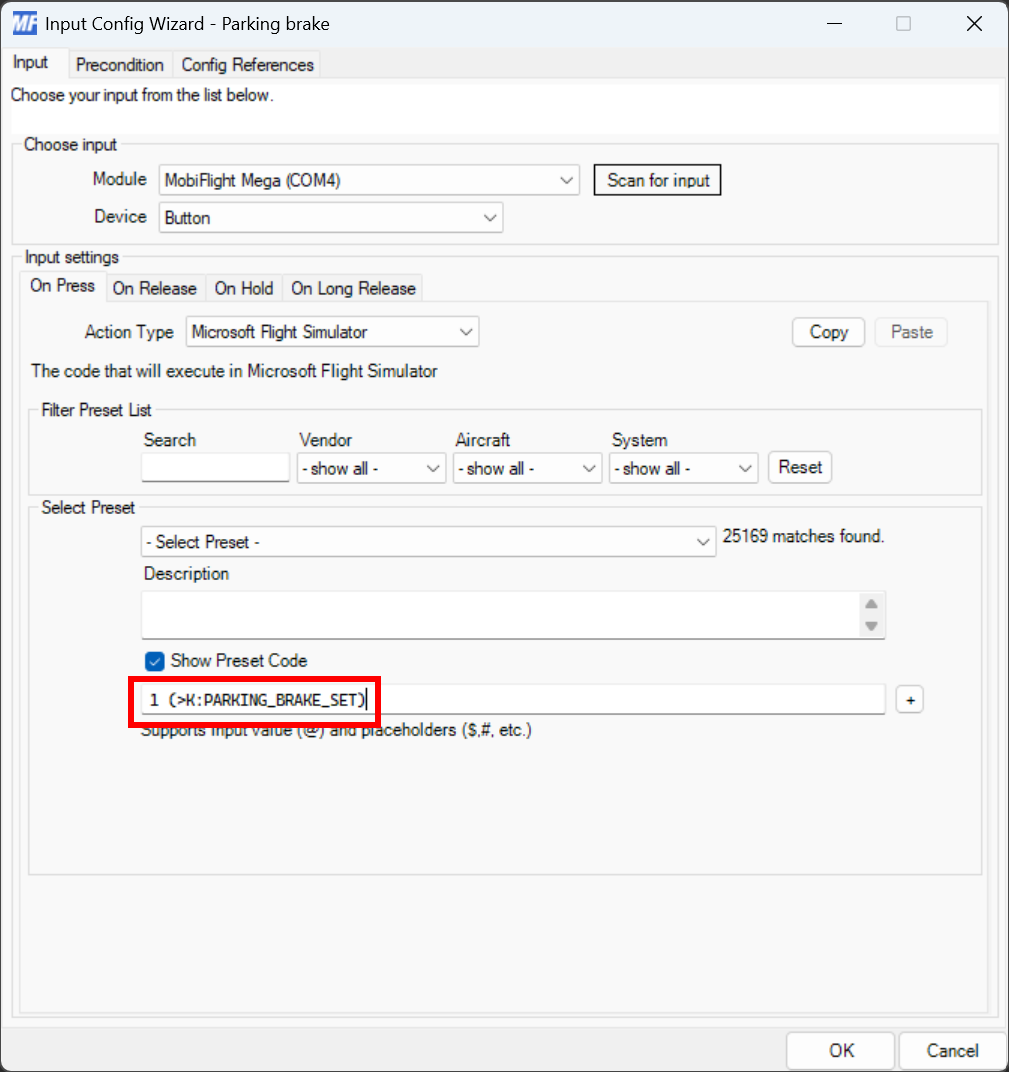
For the On Release event, use the following code in the Customize preset section:
0 (>K:PARKING_BRAKE_SET)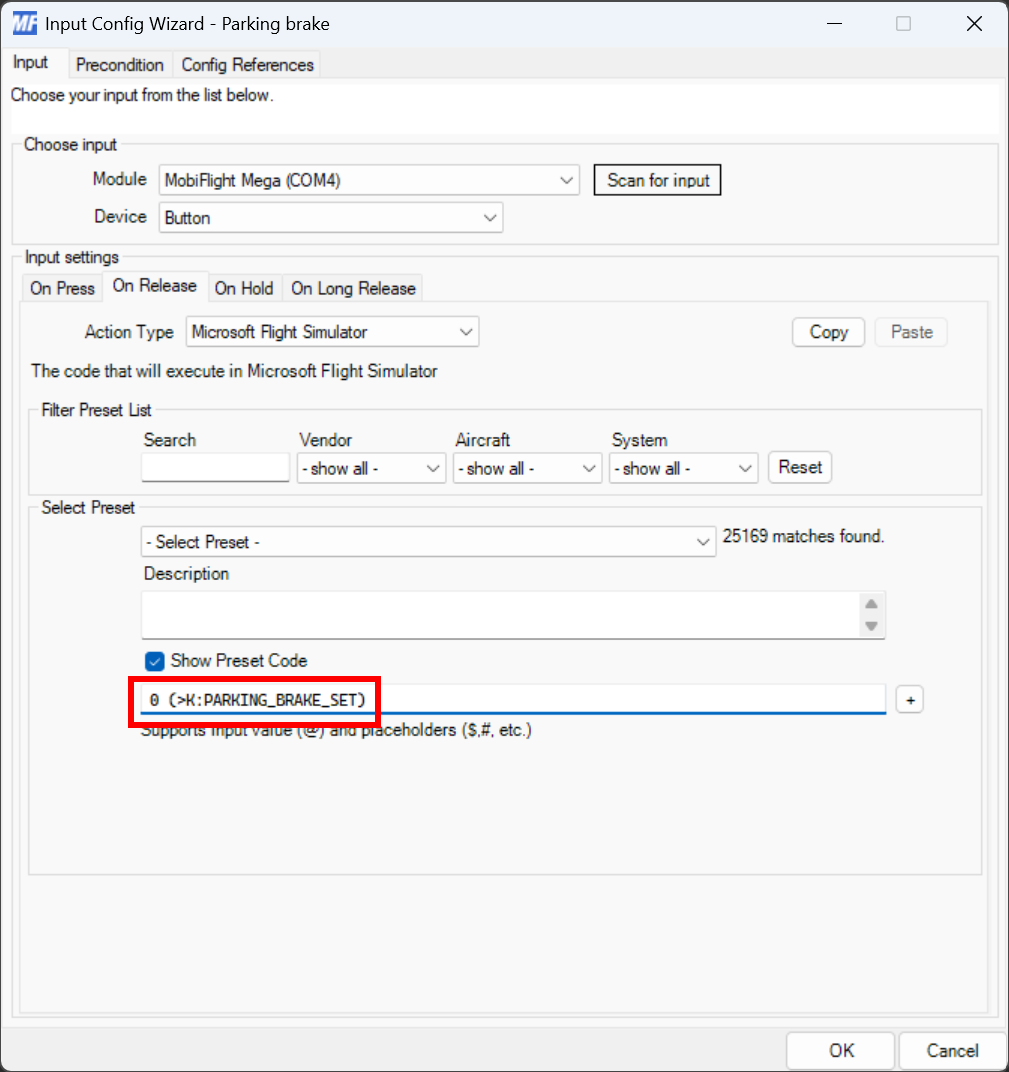
Close the dialog and try it out
Click the OK button to close the dialog.
Make sure the MobiFlight Run button is clicked in the toolbar, then try toggling the parking brake with the switch. The parking brake in the simulator should toggle.