Preconditions - input configs
Tip
See the Precondition - output configs documentation for information on using preconditions with output configs.
Preconditions control whether an input or output config is active based on a value. They are an advanced feature, and are best understood by following existing guides for common use cases:
- Using a single encoder to tune COM1 demonstrates using preconditions on input configurations.
- Using the selector knob on a Honeycomb Bravo demonstrates using preconditions on input configurations with a game controller.
The following sections provide reference information for the features of the precondition section.
Adding a precondition
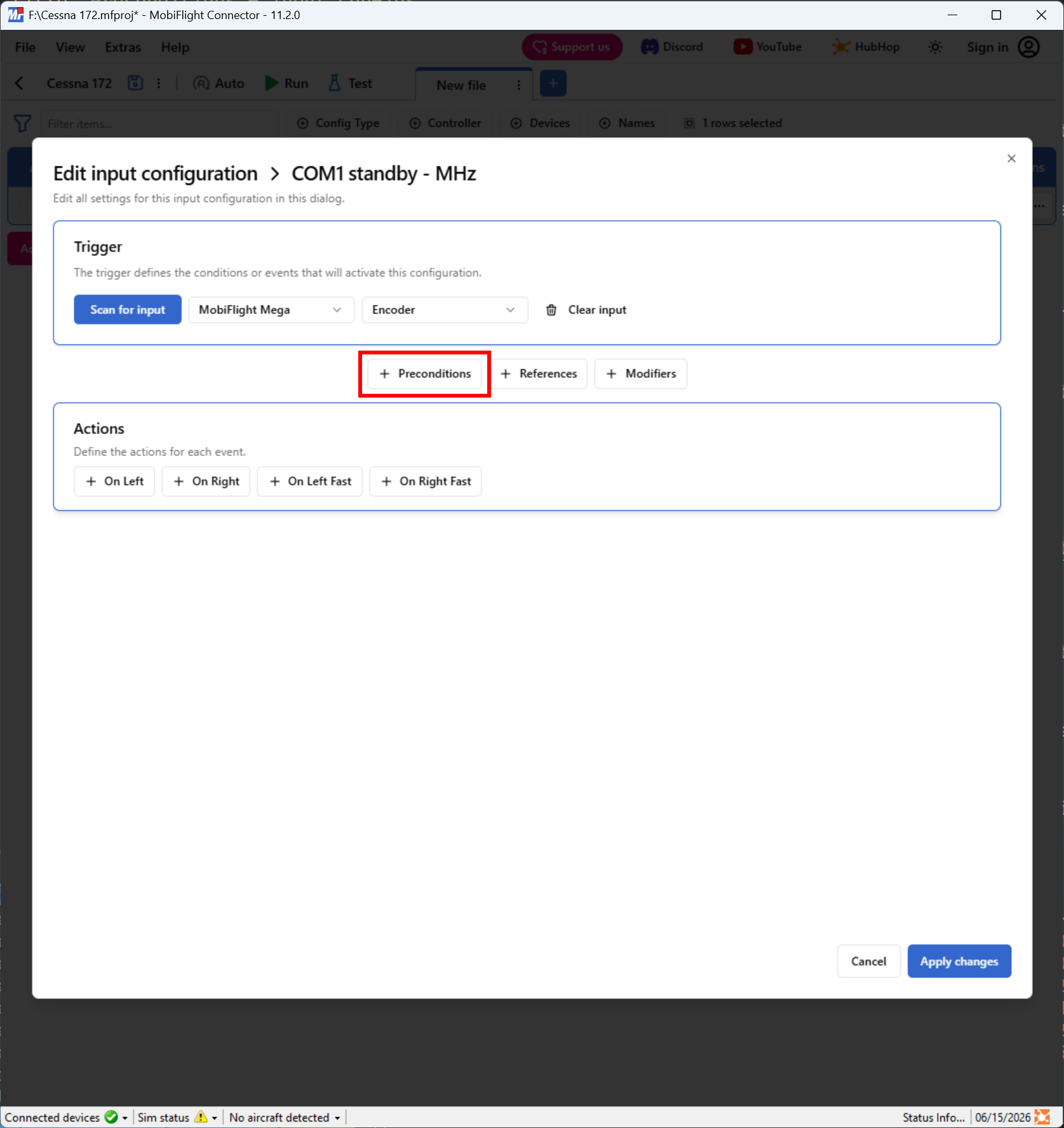
Preconditions are added to configurations using the Precondition button.
In the preconditions pane use the Add precondition button to select the precondition type and add it to the config.
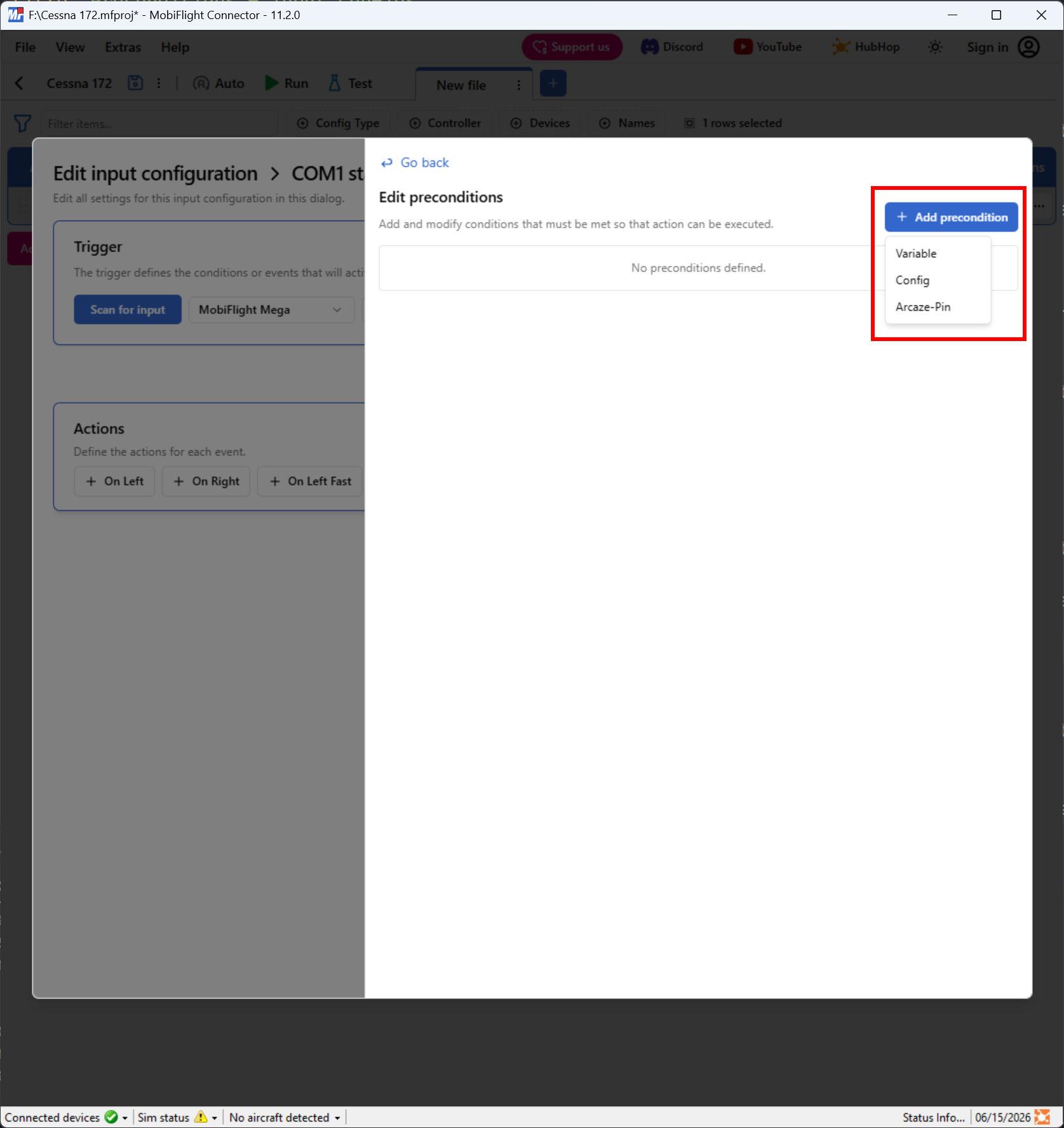
The three types are:
- Variable: Reads the value of a MobiFlight variable as the source value for the precondition comparison.
- Config: Reads the value of an output configuration as the source value for the precondition comparison.
- Arcaze-Pin: Reads the state of an Arcaze pin as the source value for the precondition comparison. This is a legacy feature and not commonly used.
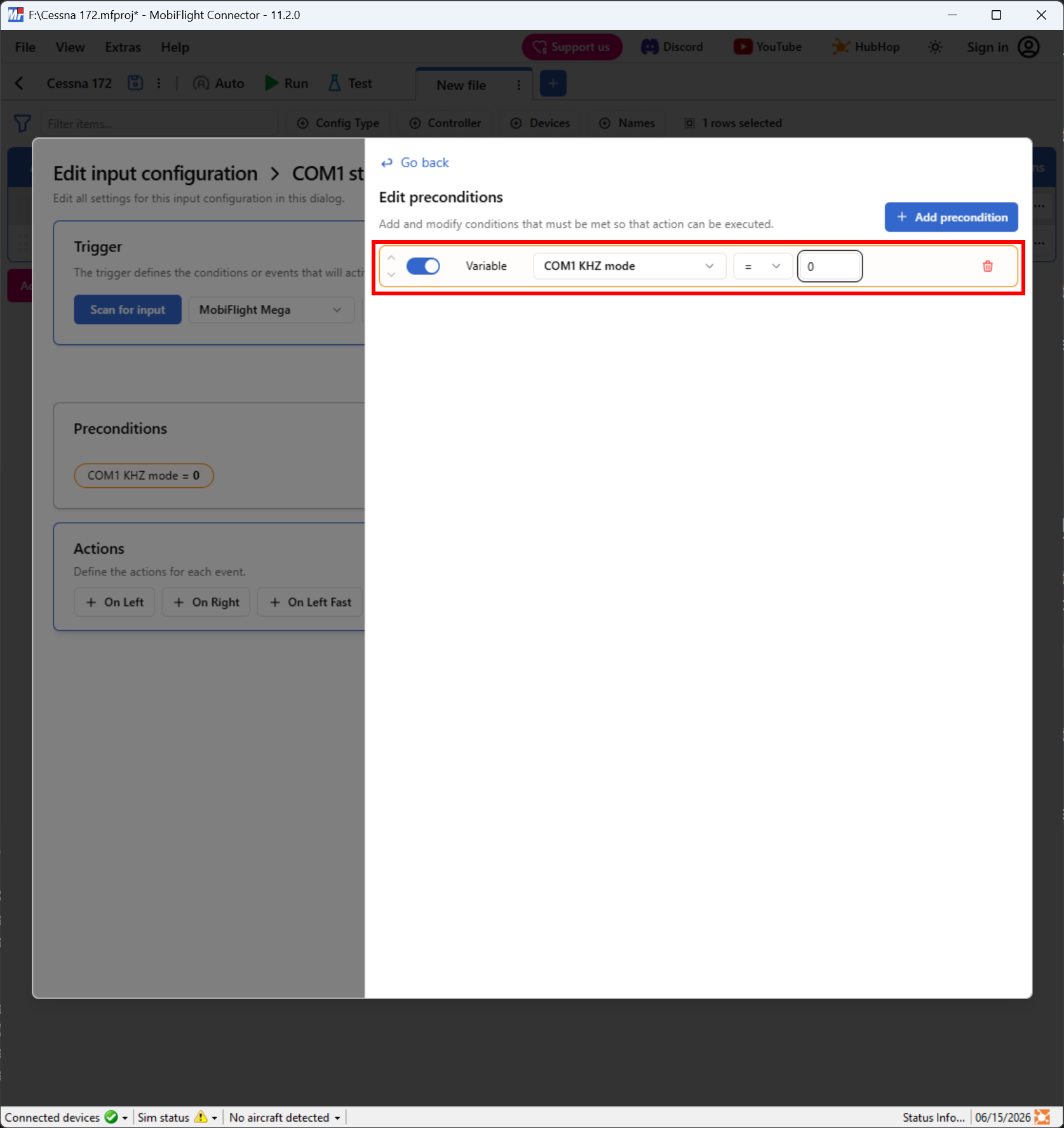
After selecting the type, use the dropdowns to specify the source value and comparison operator, then enter the test value.
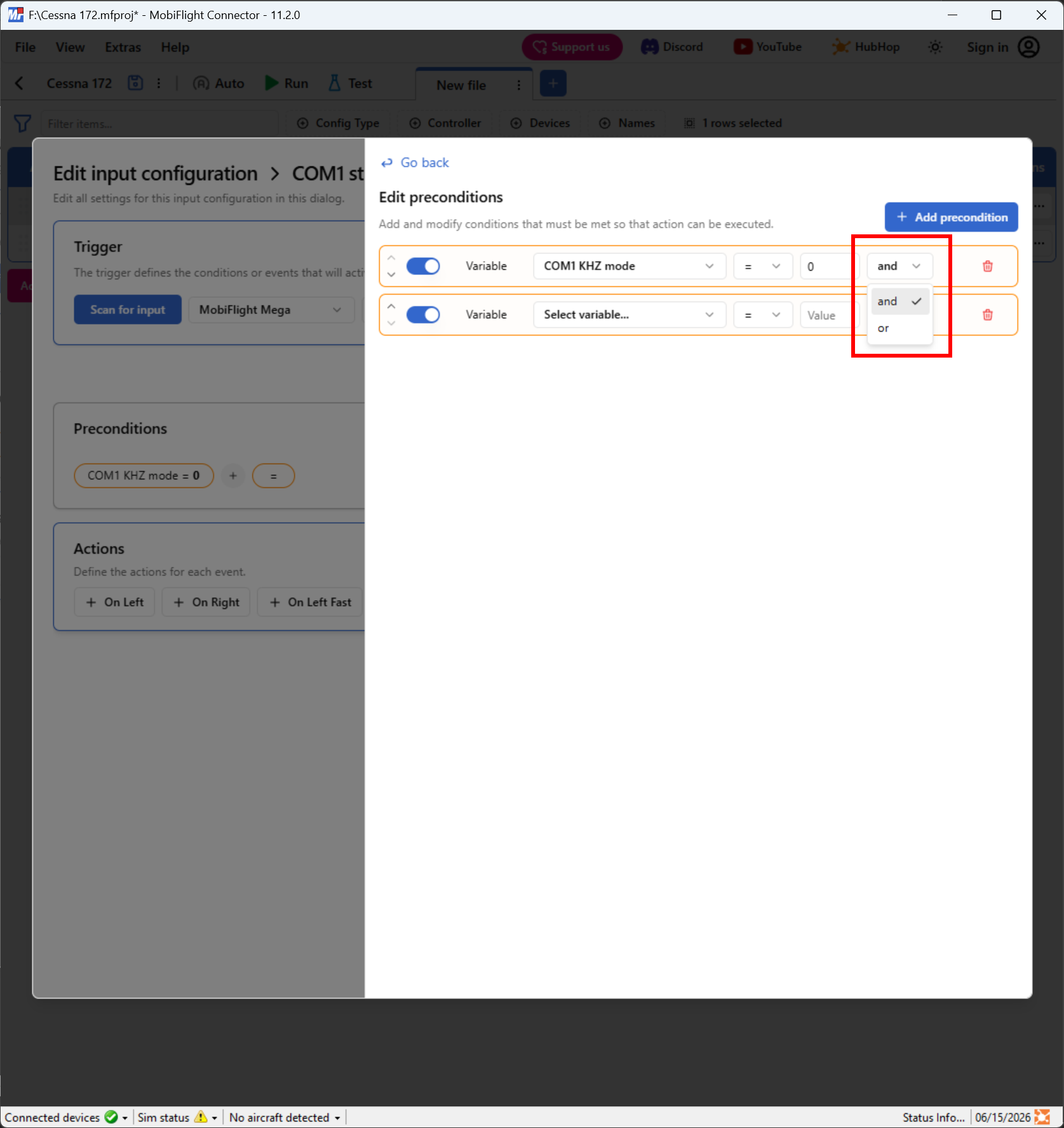
Changing the logic operator
When multiple preconditions are defined on a single config, logical operators indicate how the conditions should combine. By default each condition is added as an AND condition. To change the condition to an OR condition, use the logical operator dropdown.
Editing a precondition
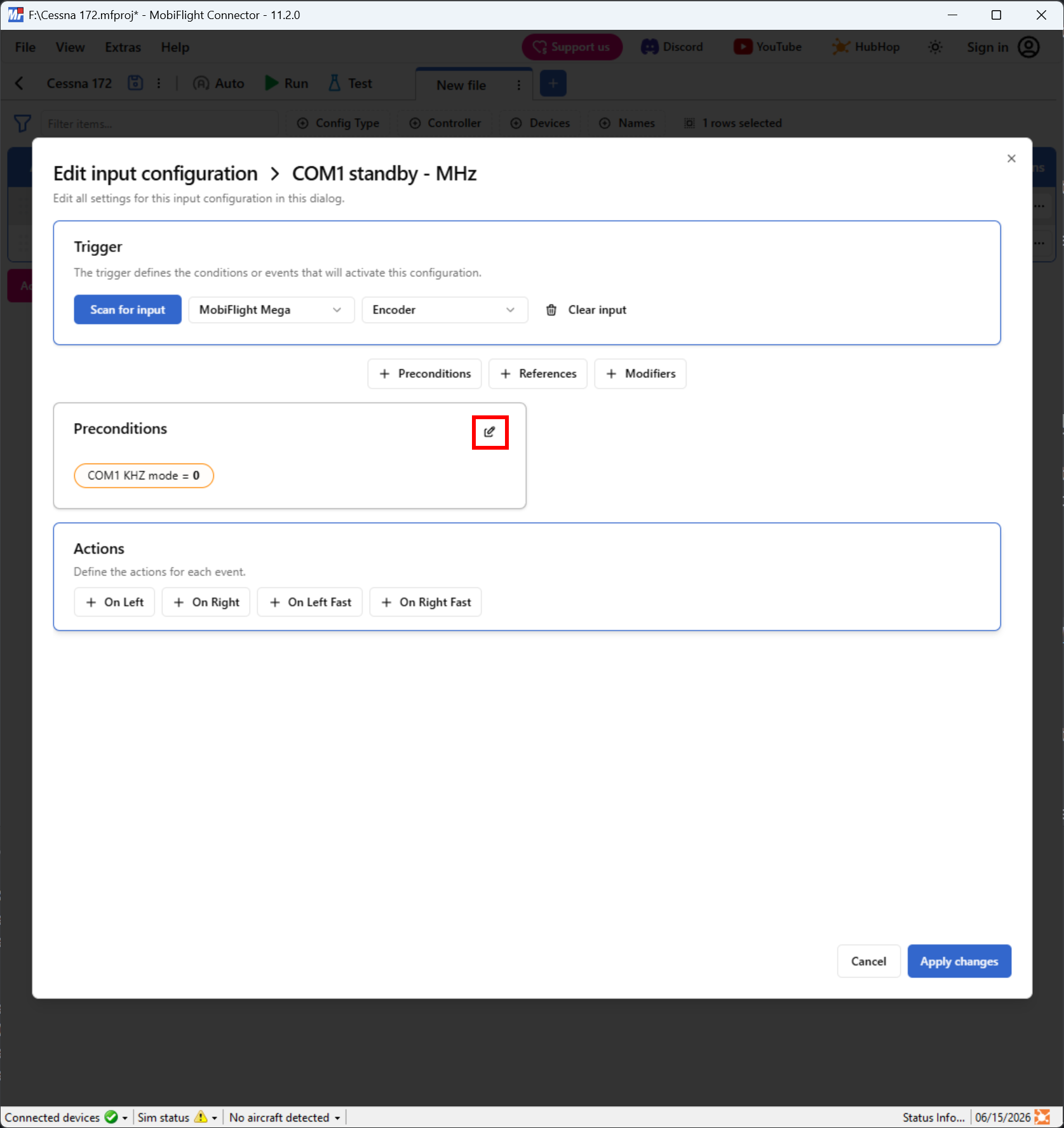
To edit existing preconditions, click the edit icon in the Preconditions section of the input config.
Re-ordering preconditions
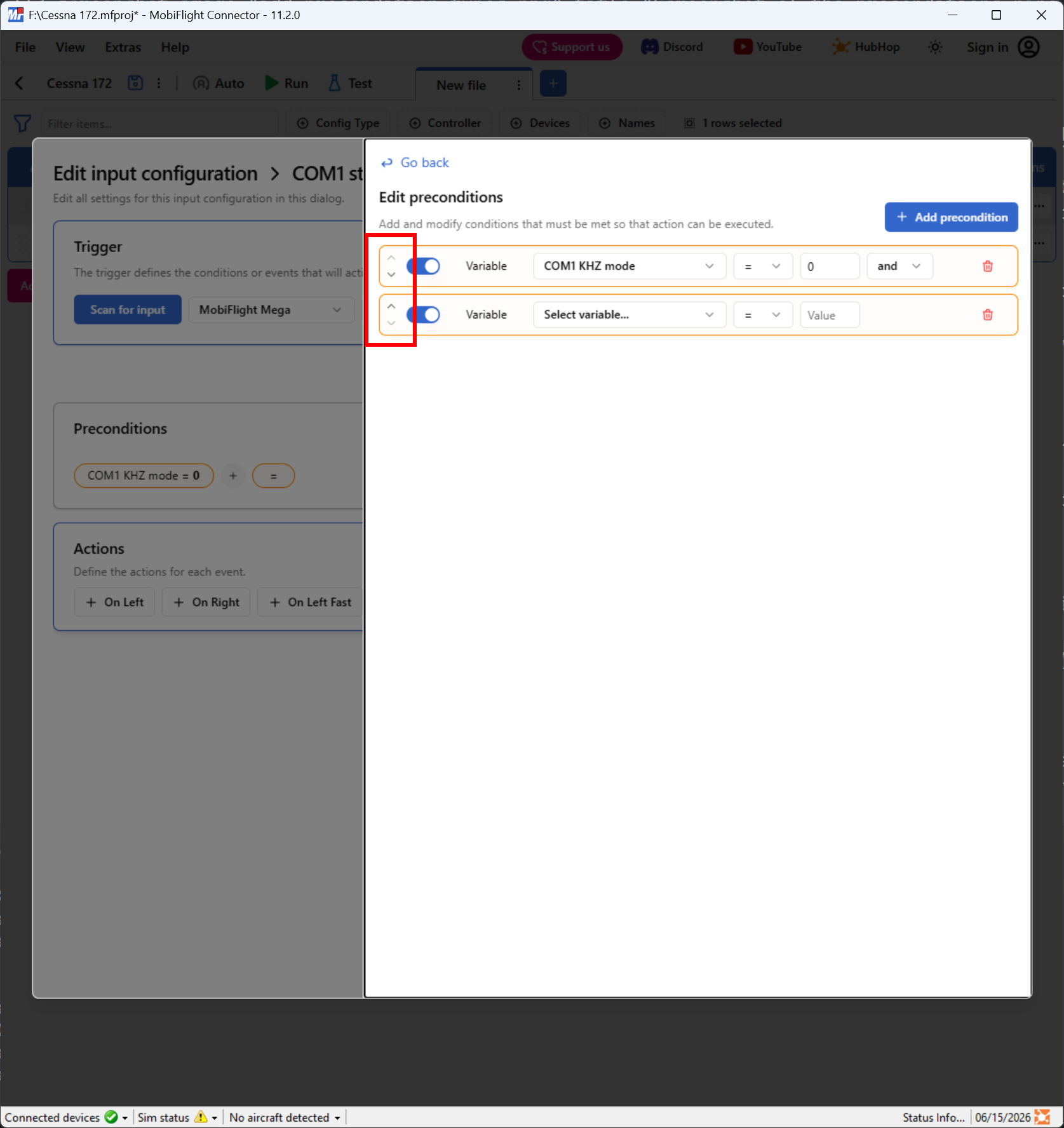
To re-order preconditions, use the up and down arrows next to each precondition to change their position.
Disabling a precondition
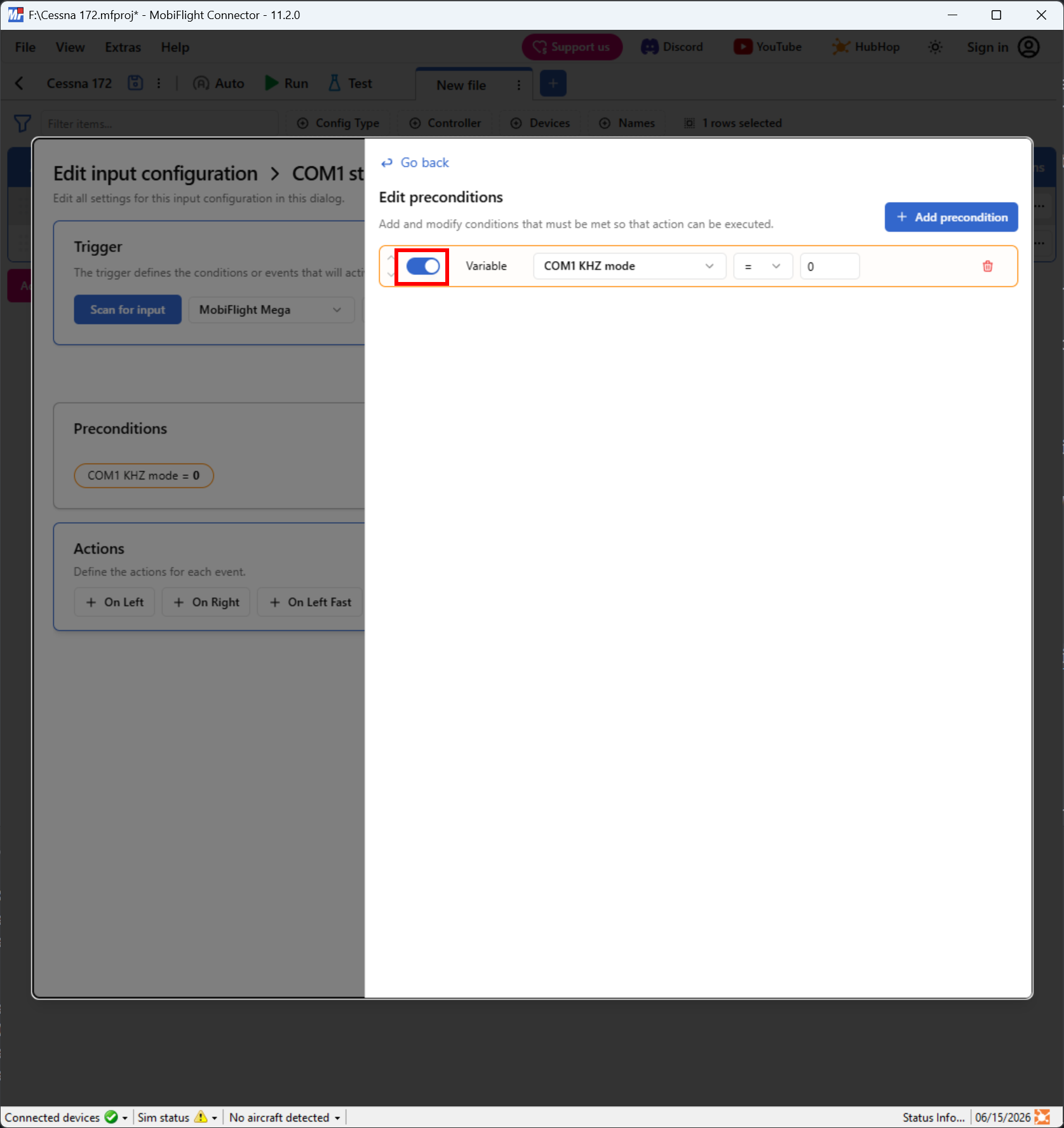
To disable a precondition, use the toggle switch on the precondition.
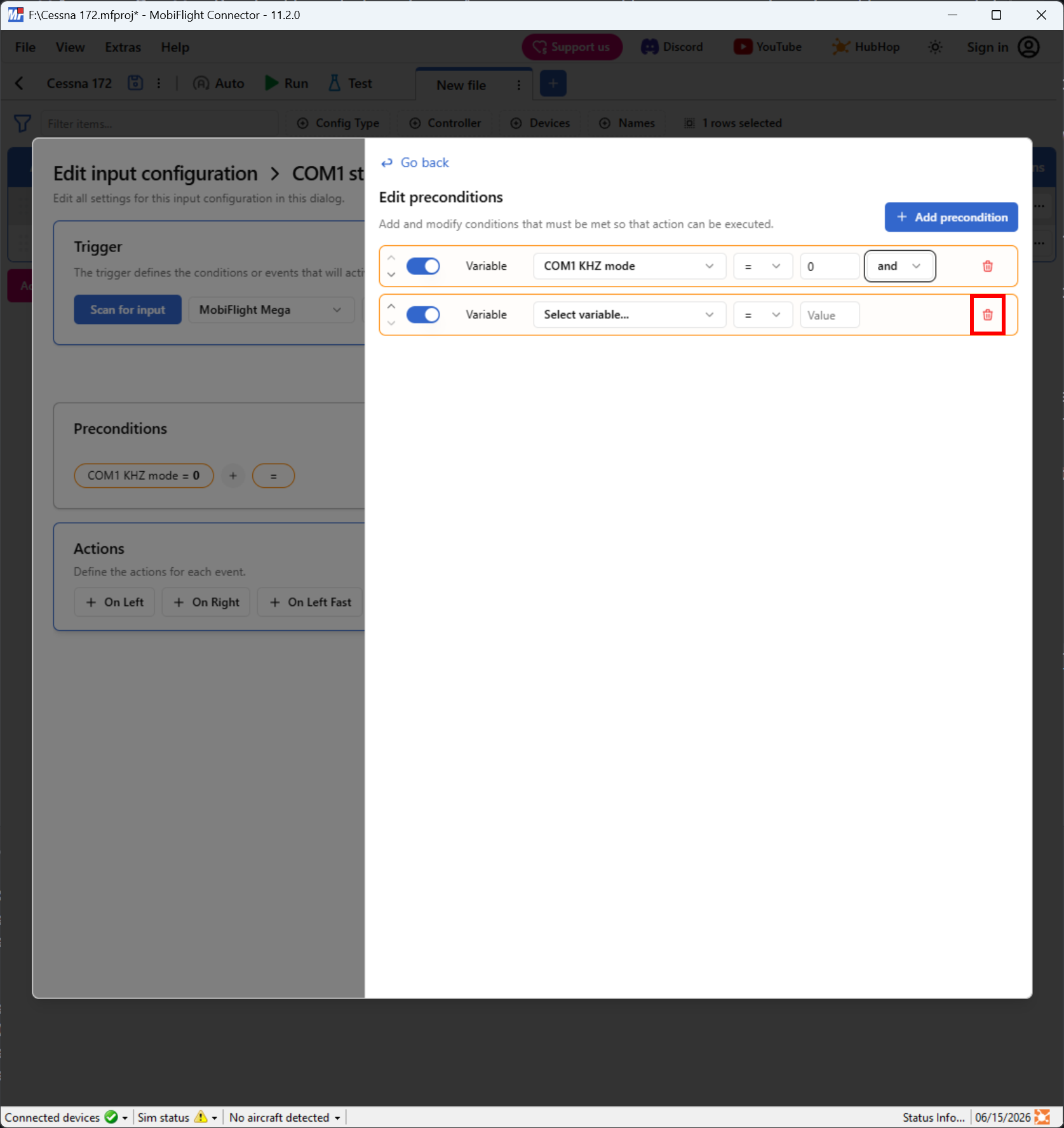
Removing a precondition
To remove a precondition, click the delete icon next to the precondition.