Preconditions - output configs
Tip
See the Precondition - input configs documentation for information on using preconditions with input configs.
Preconditions control whether an input or output config is active based on a value. They are an advanced feature, and are best understood by following existing guides for common use cases:
- Showing multiple display pages on an LCD demonstrates using preconditions on output configurations.
The following sections provide reference information for the features of the precondition tab.
Adding a precondition
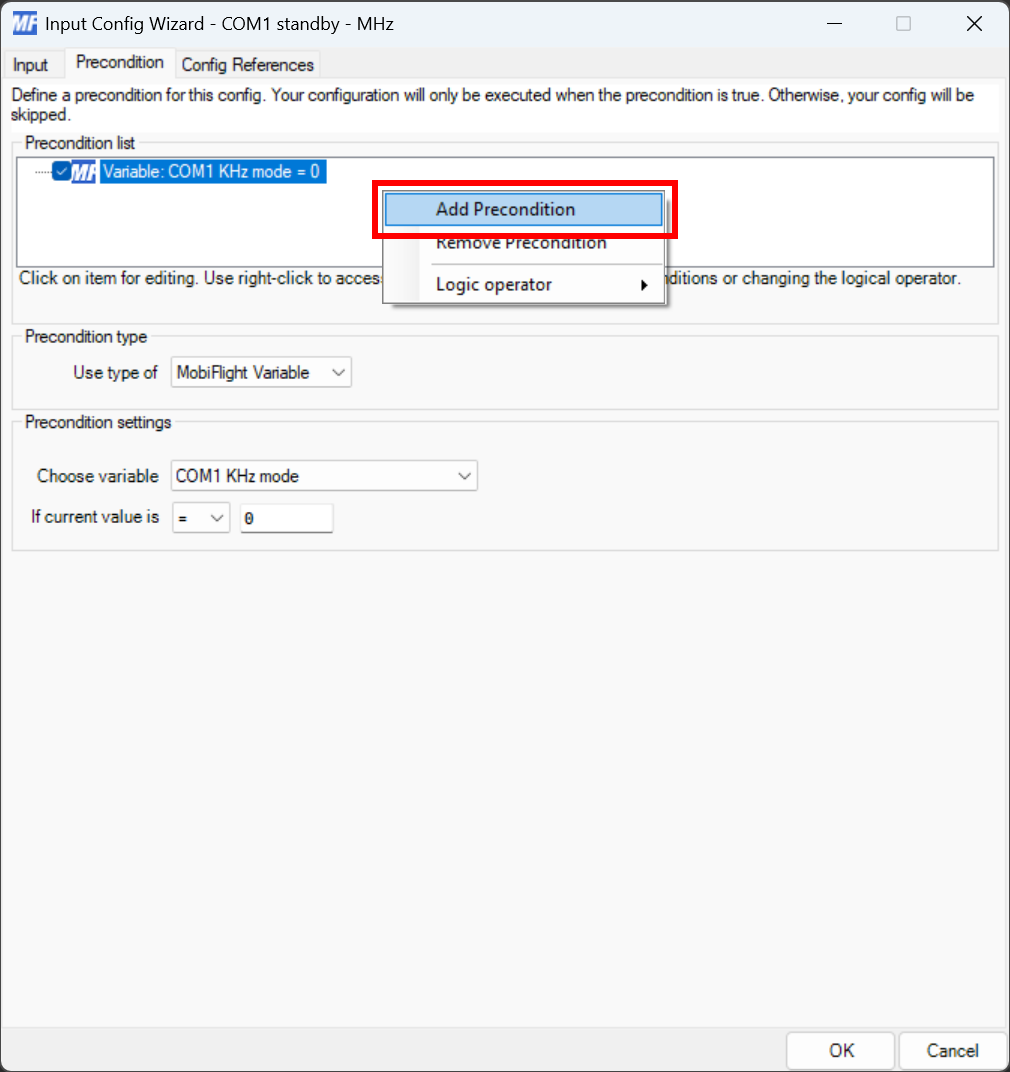
Preconditions are added to configurations using the Precondition tab. By default a single precondition is shown with no active rules. To add additional preconditions, right-click in the precondition list and select Add Precondition from the context menu.
Editing a precondition
Every precondition has settings that define when the configuration should be active. To edit the settings, click on the precondition in the list, then use the Precondition type section to define the condition rules.
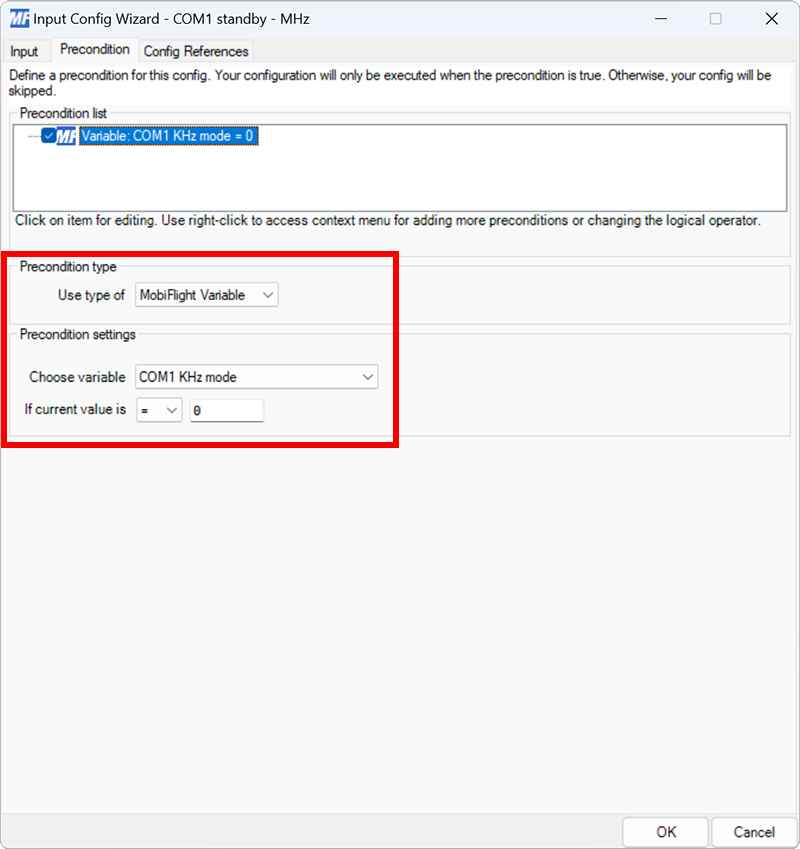
MobiFlight Variable is the most common type, and uses the value of a MobiFlight variable in the condition test. Select the variable from the dropdown, then define the logical operator and value to test against.
Config item uses the value of a config reference defined on the Config References tab as the value for the condition test.
Changing the logic operator
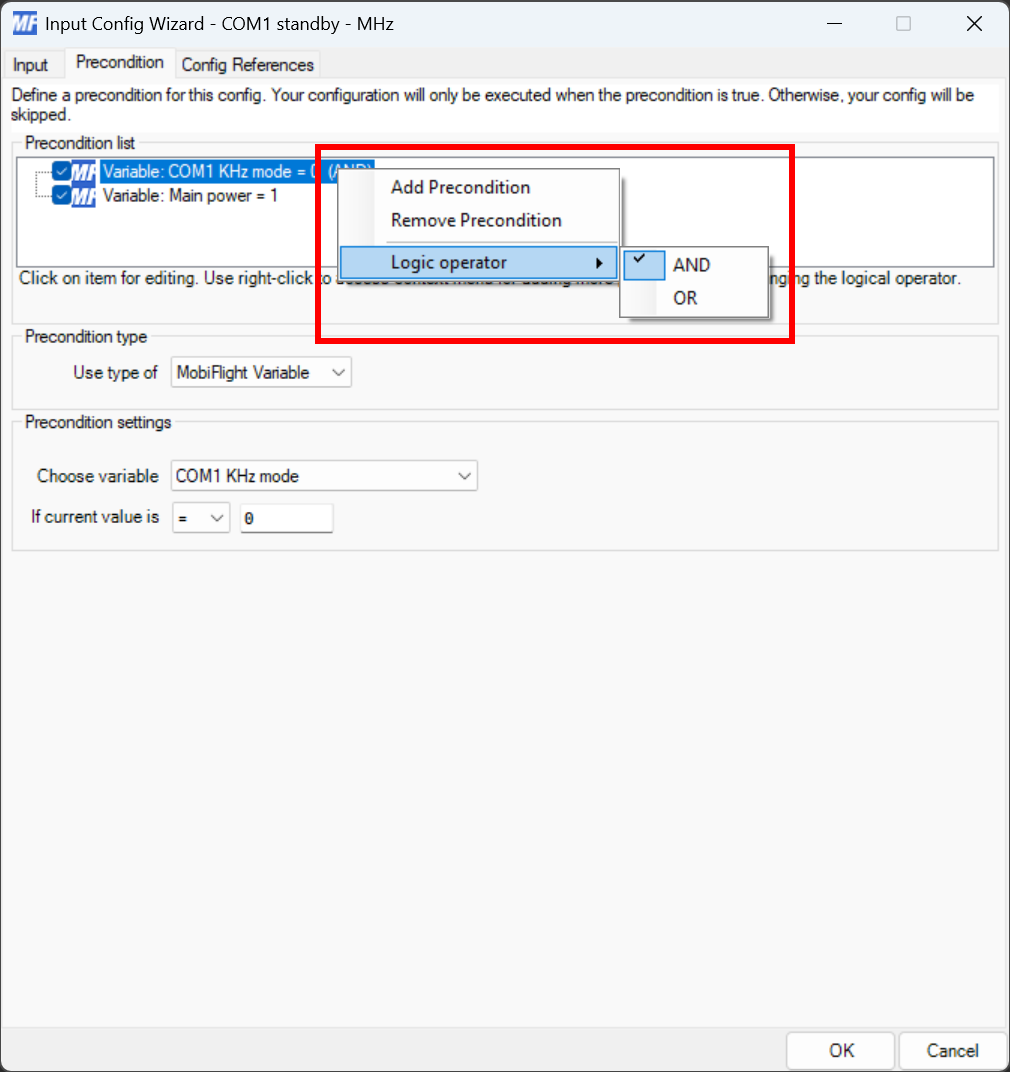
When multiple preconditions are defined on a single config, logical operators indicate how the conditions should combine. By default each condition is added as an AND condition. To change the condition to an OR condition, right-click on it and select Logical Operator from the context menu.
Removing a precondition
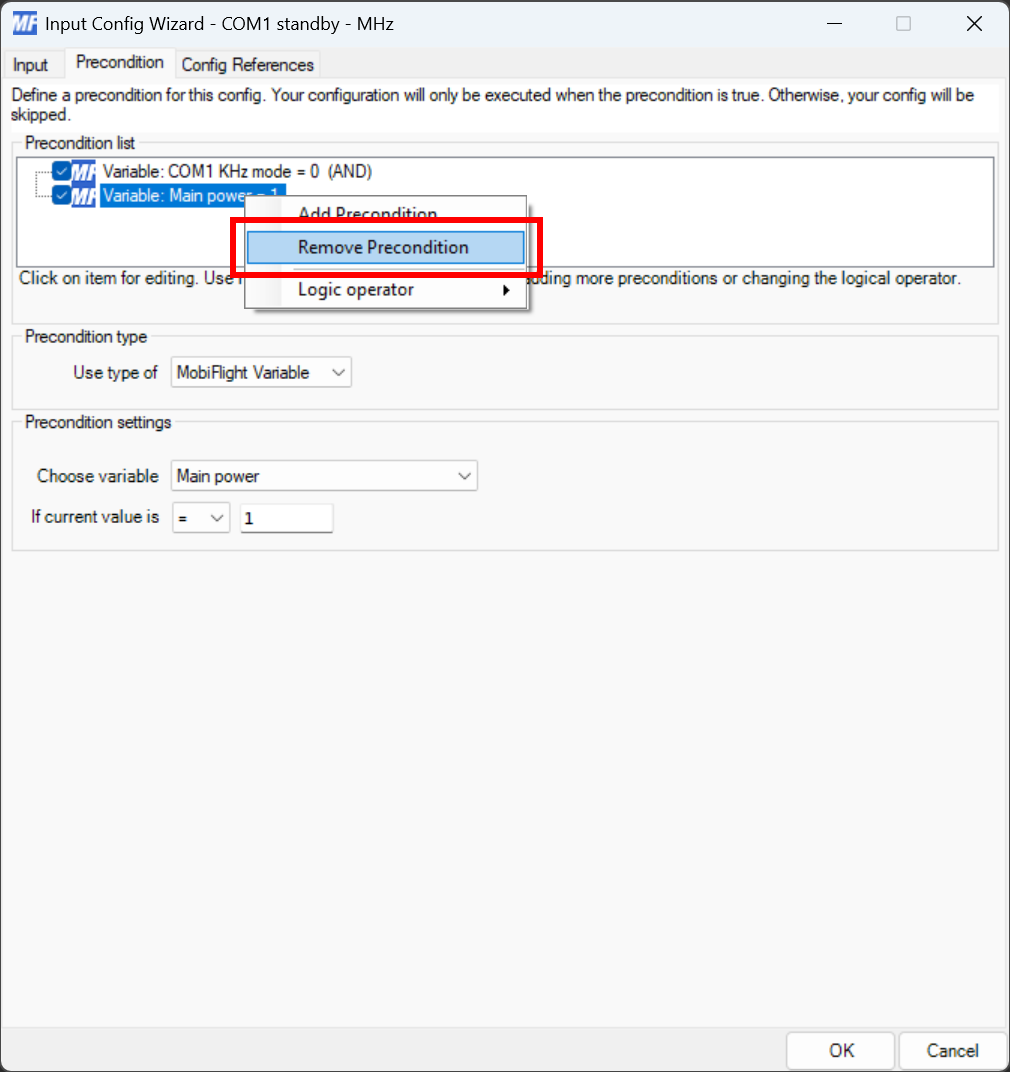
To remove a precondition, right-click on the precondition and select Remove Precondition from the context menu.