Using the selector knob on a Honeycomb Bravo
The Honeycomb Bravo’s autopilot inputs rely on a selector knob to indicate what autopilot feature the right knob controls. MobiFlight preconditions can be used to configure the appropriate events for the right knob based on the selector knob position.
A sample project that implements this is available. It provides all the input configs necessary to make this work, however you’ll have to edit all the knob inputs to specify what events you actually want to have happen when the knob is turned.
This same technique can be used to do things like display different radios on a 7-segment display based on a knob position, or to use a single encoder with a toggle button to change different radio frequencies.
Want to build the profile yourself and understand how it works? Here’s how to do it.
Create input configurations for the ALT selector knob position
- Create a new input config called
Selector - ALT - Set the controller to
Bravo Throttle Quadrantand the device toMode - ALT
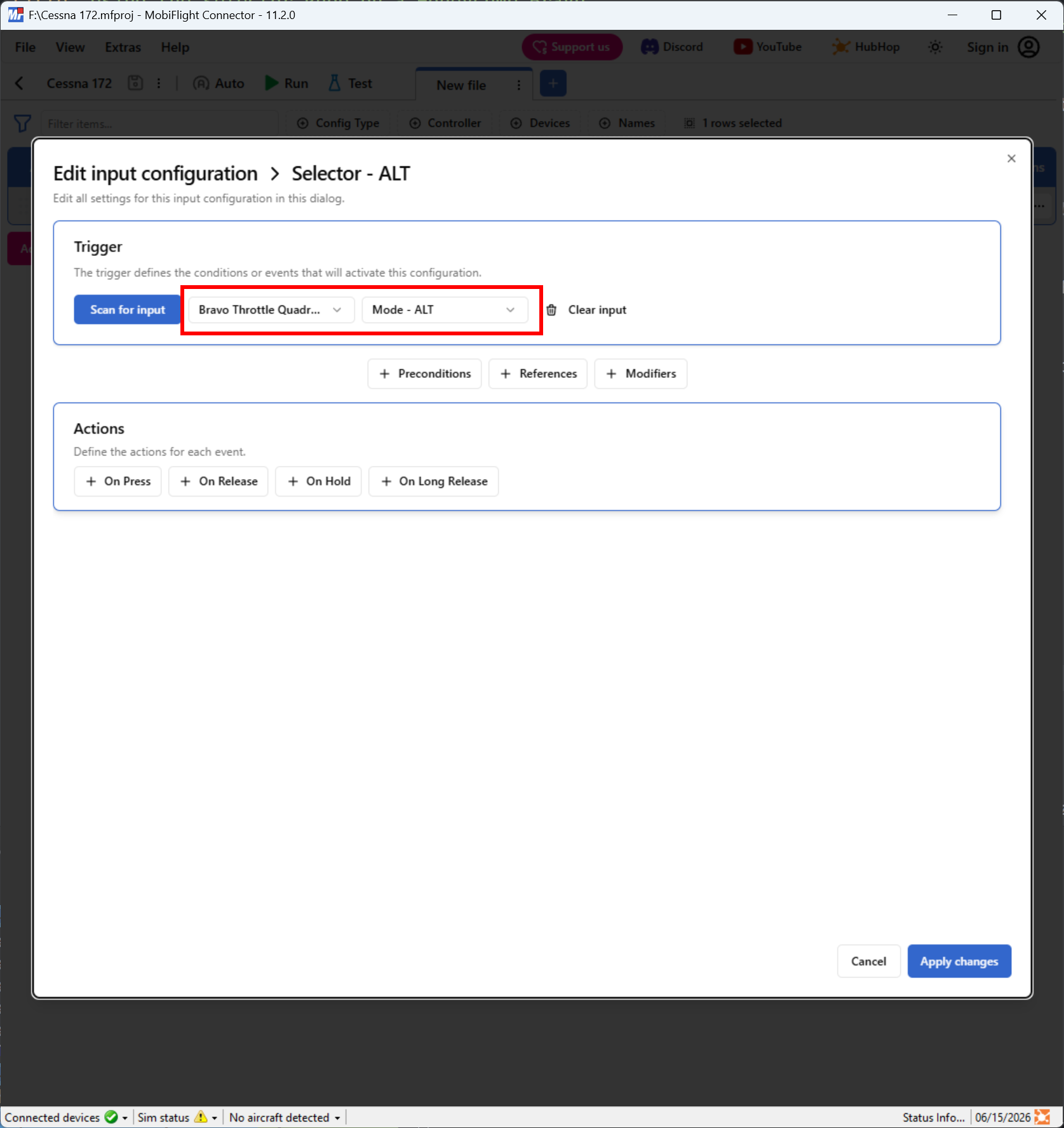
- For the
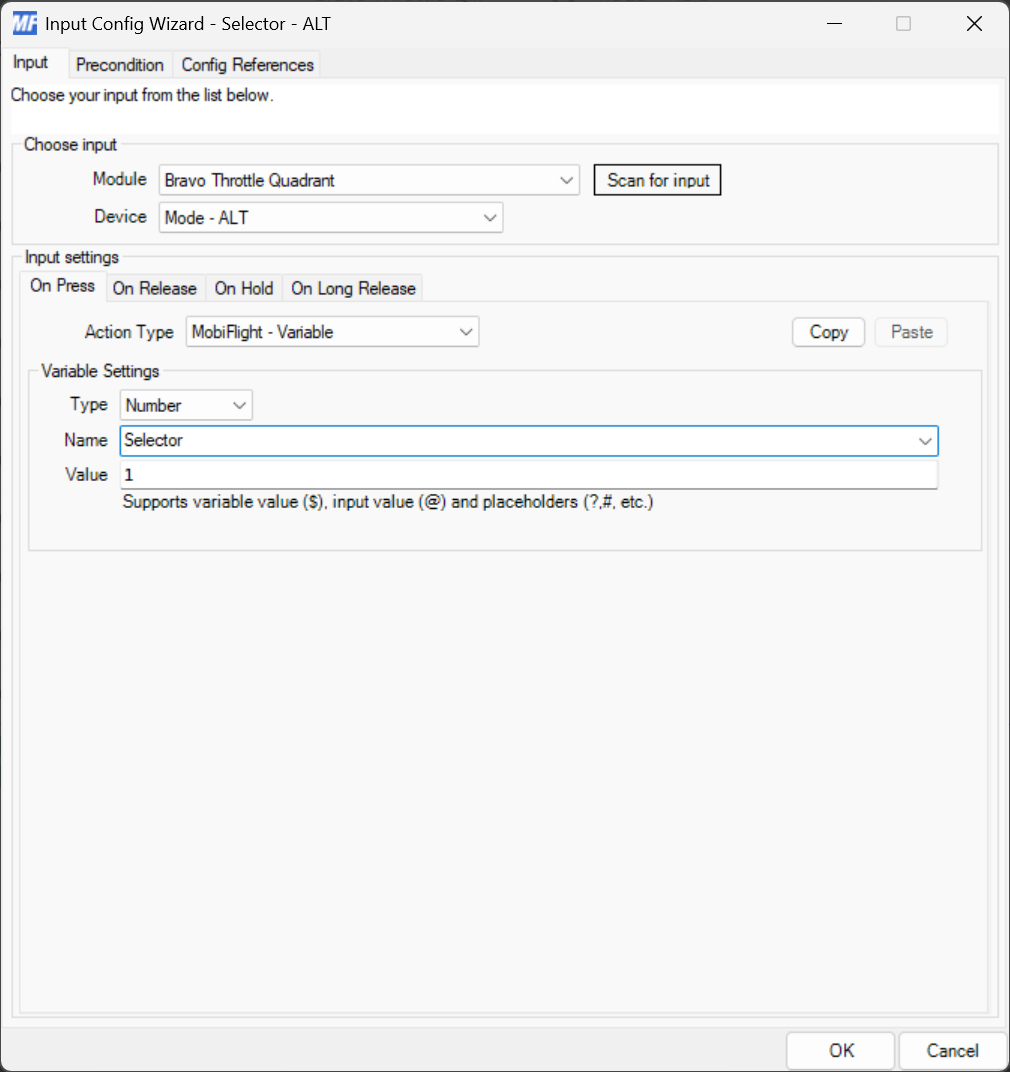
On Pressevent selectMobiFlight - Variablefor theAction Type - Set the variable name to
Selector - Set the value to
0
The input config should look like this:
Create input configurations for the other selector knob positions
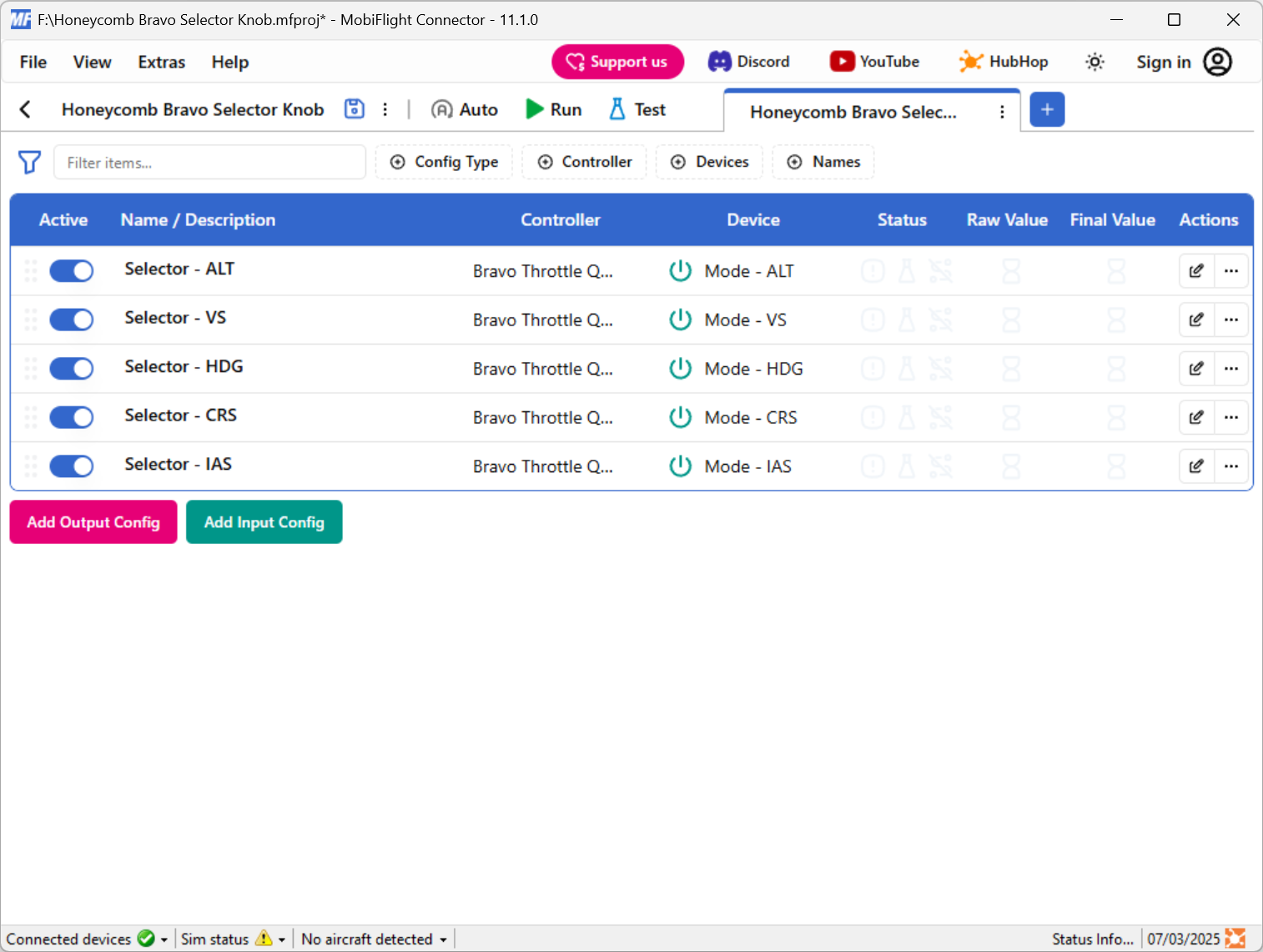
Repeat step 1 four more times, updating the name to and device to reflect the switch position (VS, HDG, etc.) and incrementing the value by one for each switch position. When you are done you should have five input configurations that set the Selector variable to the following values:
| Input name | Device | Variable value |
|---|---|---|
| Selector - ALT | Mode - ALT | 0 |
| Selector - VS | Mode - VS | 1 |
| Selector - HDG | Mode - HDG | 2 |
| Selector - CRS | Mode - CRS | 3 |
| Selector - IAS | Mode - IAS | 4 |
Your list of configs should look like this:
Create an input config for a left turn of the right knob when ALT mode is active
Start by configuring the trigger and on press event:
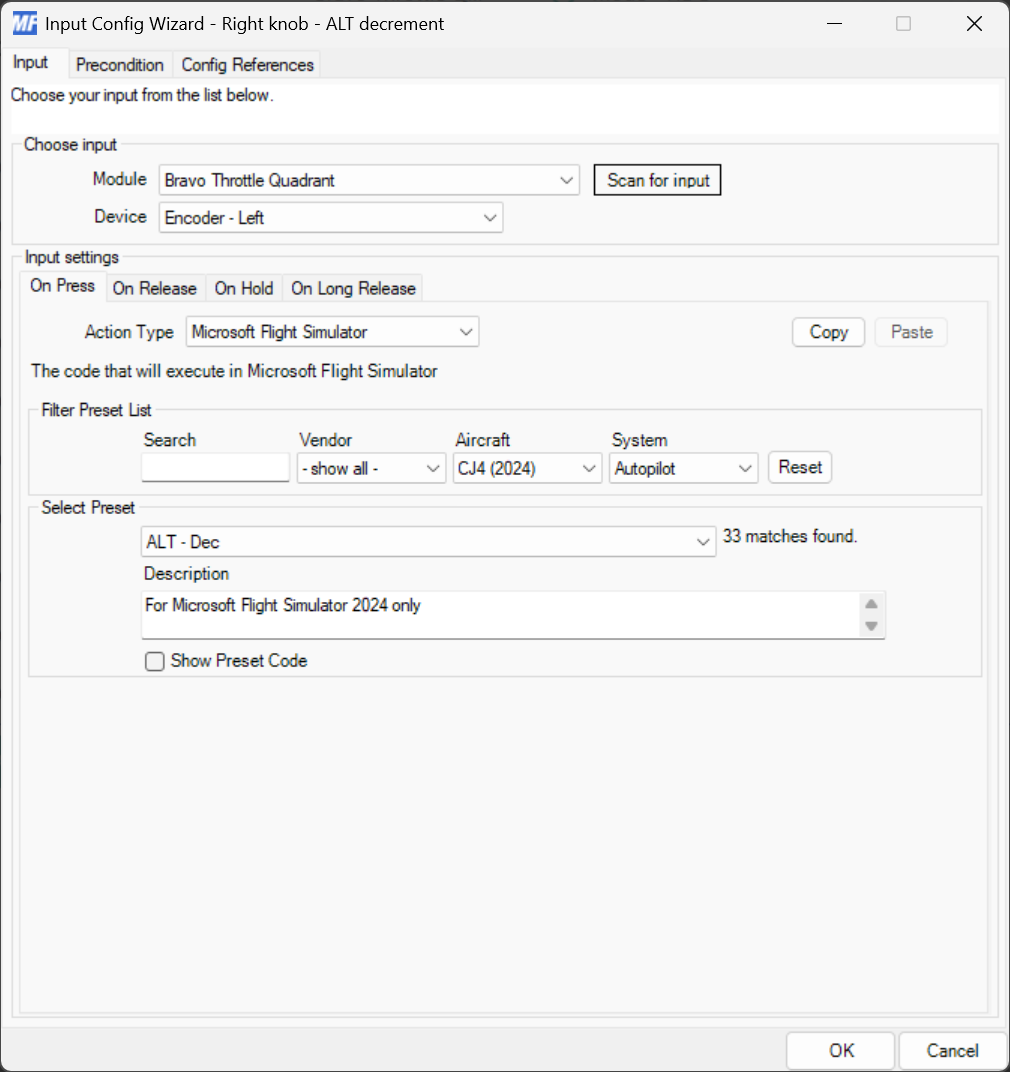
- Create a new input config called
Right knob - ALT decrement - Select
Bravo Throttle QuadrantandEncoder - Leftin the Trigger section - Configure the
On Pressevent to do whatever you want.
Tip
The above example illustrates mapping the ALT decrement action to the Cessna 172 autopilot ALT decrement event in Microsoft Flight Simulator. When building your own profile, adjust the selected event to match the appropriate one for your aircraft.
Then add a precondition:
- Click Preconditions then Add precondition and select Variable for the type
- Set the Select variable dropdown to
Selector - Set the value to
0
The precondition should look like this:
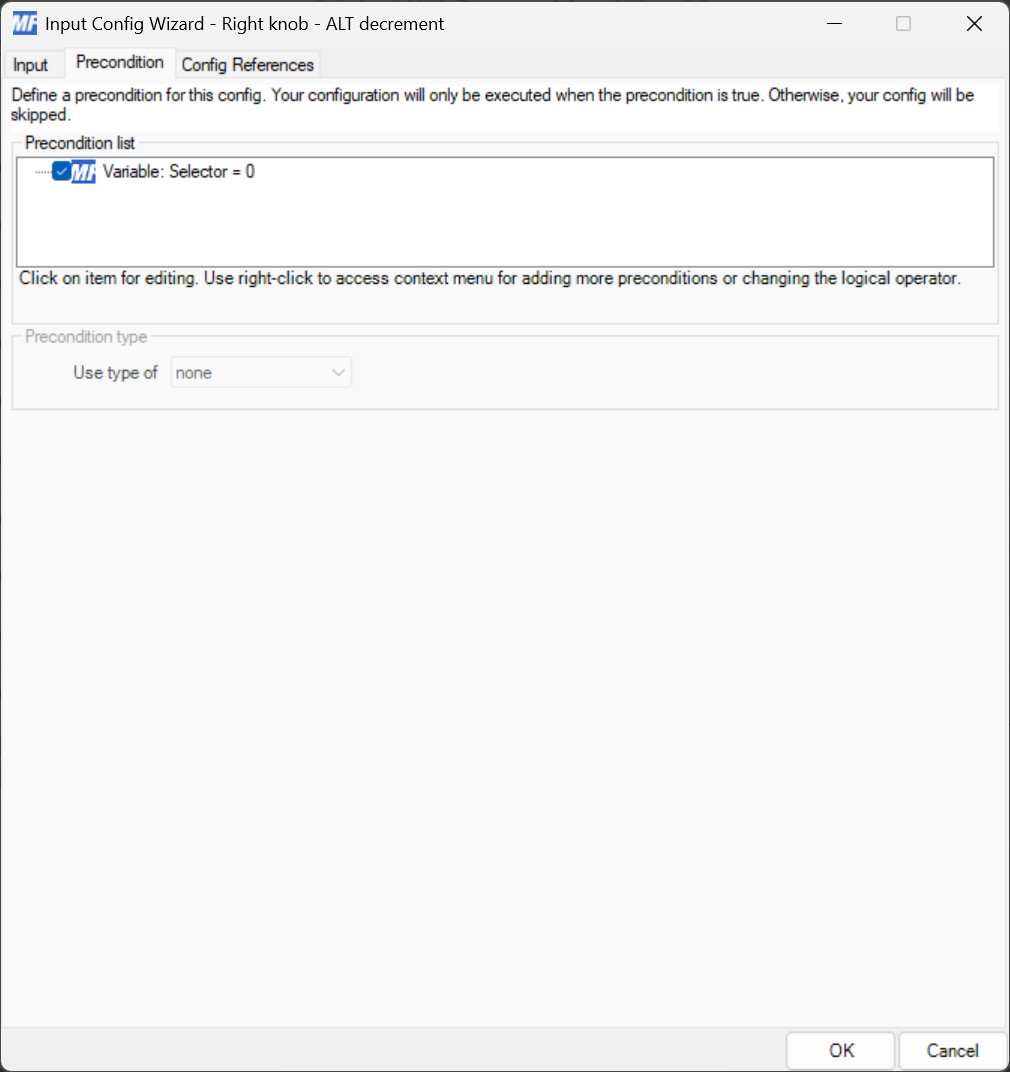
Create an input config for a right turn of the right knob when ALT mode is active
Repeat everything in step 3, except select Encoder - Right for the trigger name and name the config Right knob - ALT increment.
Create the increment and decrement configs for the other four knob positions
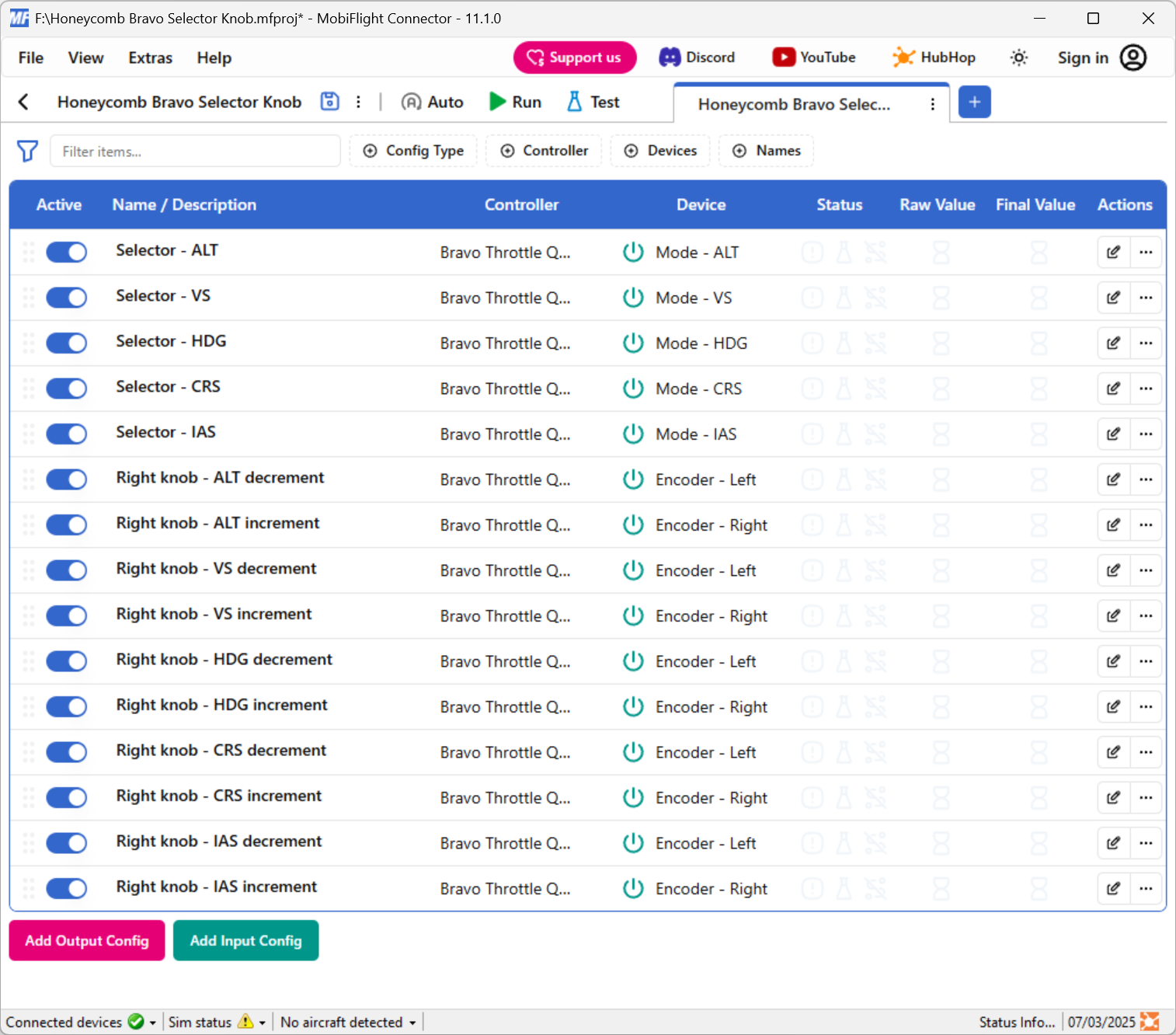
Repeat everything in step 3 and 4 except when configuring the precondition use the appropriate number from the table in step 2. For example, if you are creating the increment and decrement configs for CRS you would use 3 for the precondition value. Make sure to name the configs appropriately as well (e.g. Right knob - CRS decrement).
When you are done your input config should look like this:
Create an output config for the selector (optional)
To assist with debugging it can be helpful to have an output config that references the Selector variable. To do this create an output config that looks like this:
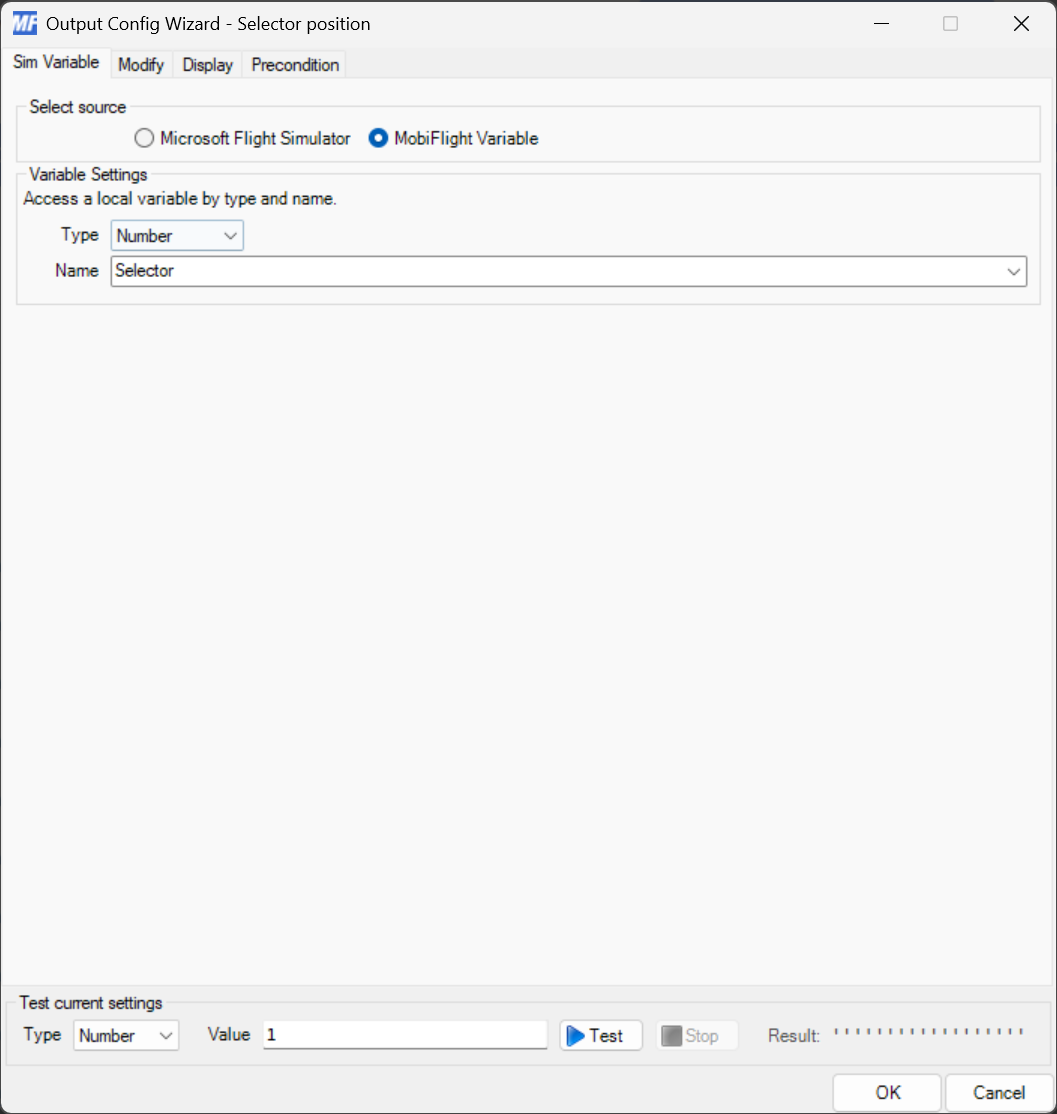
There’s no need to actually display it on any output device. This basic output config will show the value in the main MobiFlight window:
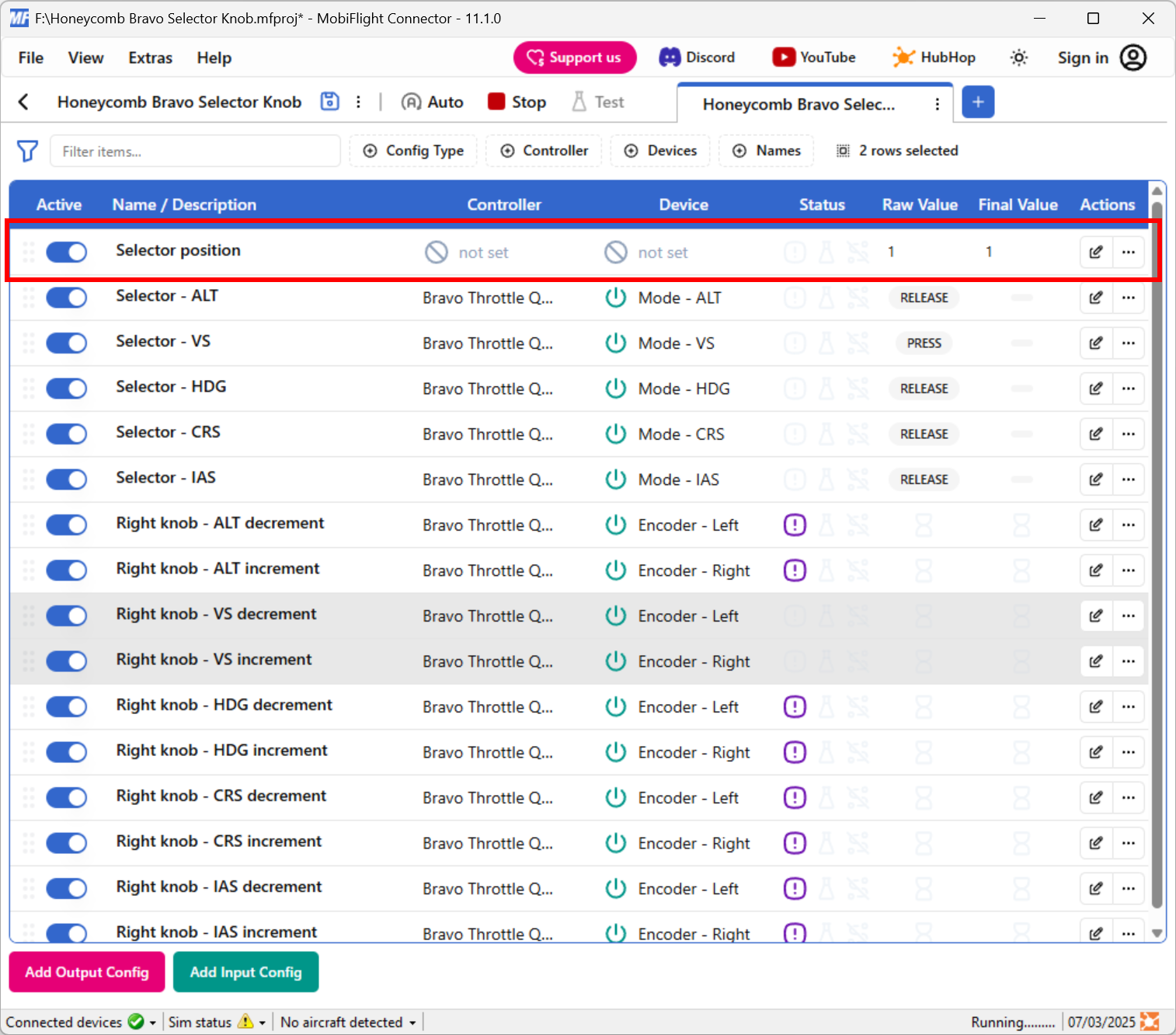
MobiFlight also indicates which of the input configs are inactive by showing a purple ! icon next to configs that are disabled by the precondition value. In the above screenshot, the VS inputs are active and the rest are disabled.